DICOM Metadata: What to Remove Before Sharing Medical Images
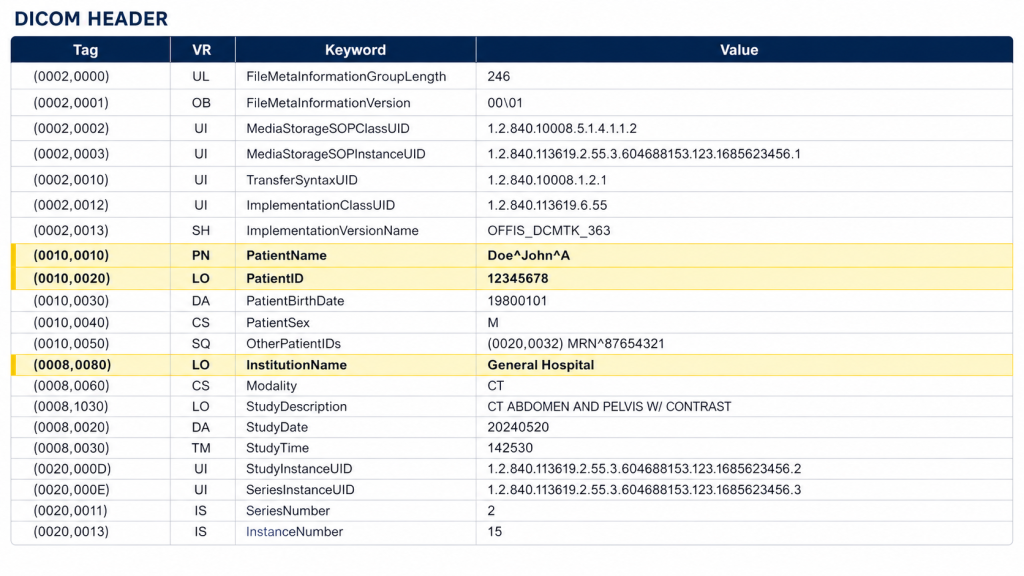
Short answer: Before sharing a DICOM image outside your clinic, remove patient-identifying metadata from the file header and any burned-in text, then verify what remains. DICOM files store Patient Name, ID, birth date, study date, institution, and often device details in the same file as the pixels. Sharing the image without reviewing that header can expose PHI. The safe workflow is: copy the file, inspect the header, de-identify a copy, check burned-in annotations, and only then export or share.
This guide shows which DICOM tags to check, what to keep for clinical usefulness, and how to verify de-identification offline on Windows before you send a file for a second opinion, teaching case, or AI test.
What DICOM metadata contains
A DICOM file is not just an image. The header (metadata) travels with every slice and includes:
- Patient: PatientName (0010,0010), PatientID (0010,0020), PatientBirthDate (0010,0030), PatientSex (0010,0040)
- Study/Series: StudyDate, StudyTime, StudyInstanceUID, SeriesInstanceUID, StudyDescription, AccessionNumber
- Institution/Device: InstitutionName, InstitutionAddress, ReferringPhysicianName, StationName, Manufacturer, DeviceSerialNumber
- Privacy-sensitive: any private tags your scanner or PACS added
Pixel data may also contain burned-in text (patient name on an ultrasound screenshot) — removing header tags does not remove text inside the image.
What to remove vs what to keep
| Category | Remove / Replace | Often keep (if sharing for clinical review) |
|---|---|---|
| Direct identifiers | PatientName, PatientID, BirthDate, Address, Phone | — |
| Dates | Shift or remove StudyDate/Time if policy requires; keep relative timing only | Keep if recipient needs timeline — shift consistently |
| Institution/Staff | InstitutionName, ReferringPhysician, OperatorsName | Anonymized site code if needed |
| UIDs | Replace Study/Series/SOP Instance UIDs with new values | Keep mapping privately if you need to re-link |
| Device | SerialNumber, StationName (optional per policy) | Modality, Image size, Photometric Interpretation |
Follow your organization’s de-identification policy and local regulations (e.g., HIPAA Safe Harbor / Expert Determination, GDPR). When in doubt, remove more and document what you did.
Offline workflow on Windows (without uploading)
- Work on a copy. Never de-identify the original. Copy the DICOM to a separate folder.
- Inspect first. Open the copy in an offline DICOM viewer that shows the header (e.g., Weasis, Horos, or Bytesweavers AI DICOM Reader offline). Search for PatientName, PatientID, InstitutionName, and any private tags.
- Check for burned-in PHI. Scroll every image/slice. If name, birth date, or ID is rendered into the pixels, you must crop/redact or exclude that image — tag removal alone is insufficient.
- De-identify the copy. Use an offline de-identification tool/profile: replace PatientName/ID with a study code (e.g., CASE_19_001), shift dates consistently, clear Institution/Referring Physician, regenerate UIDs.
- Verify. Re-open the de-identified file, re-search the same tags, and confirm they are empty/replaced and that UIDs changed. Export a header dump (CSV/TXT) for your records.
- Then share. Export to the format the recipient needs — de-identified DICOM, or DICOM to PDF if they only need a viewable report. Keep the mapping file separately and never email it with the images.
Common mistakes
- Anonymizing the file name but not the header — the PHI is still inside.
- Clearing PatientName but leaving PatientID or AccessionNumber.
- Forgetting private tags and burned-in ultrasound annotations.
- Sharing via cloud viewer that re-uploads the original — verify you uploaded the de-identified copy.
When you must keep more data
For a clinical second opinion, the recipient may need age, sex, and study date window. Replace exact birth date with age, shift dates by a fixed offset, and keep Modality and image dimensions. Document the shift so follow-ups stay consistent.
For teaching or AI testing, remove all direct identifiers and provide only a case code and modality.
Checklist before you hit send
- Header shows no PatientName/ID/BirthDate/Institution
- UIDs regenerated, private tags removed
- No burned-in text in pixel data
- Verified on the exact file you will send, not a different copy
- Mapping/log stored separately with access control
Private workflow: AI DICOM Reader lets you inspect and review DICOM headers offline on Windows, and DICOM to PDF Converter creates a shareable view without uploading patient files. Always confirm de-identification meets your compliance review before distribution.

Writes guides and product notes for Bytesweavers.