How to Set Up Text Replacement on Mac and iPhone: Type Your Email with @@

You already know your email address. Typing it again in every message and form is the annoying part. Apple’s built-in Text Replacement lets a short trigger stand in for a longer phrase. Start with one shortcut you will actually use: @@ for your email.
This guide accompanies our 19-second walkthrough. The pictures below are animated tutorial illustrations, using Bytesweavers’ public support email as the example.
Set up @@ on your Mac
- Open System Settings → Keyboard → Text Replacements.
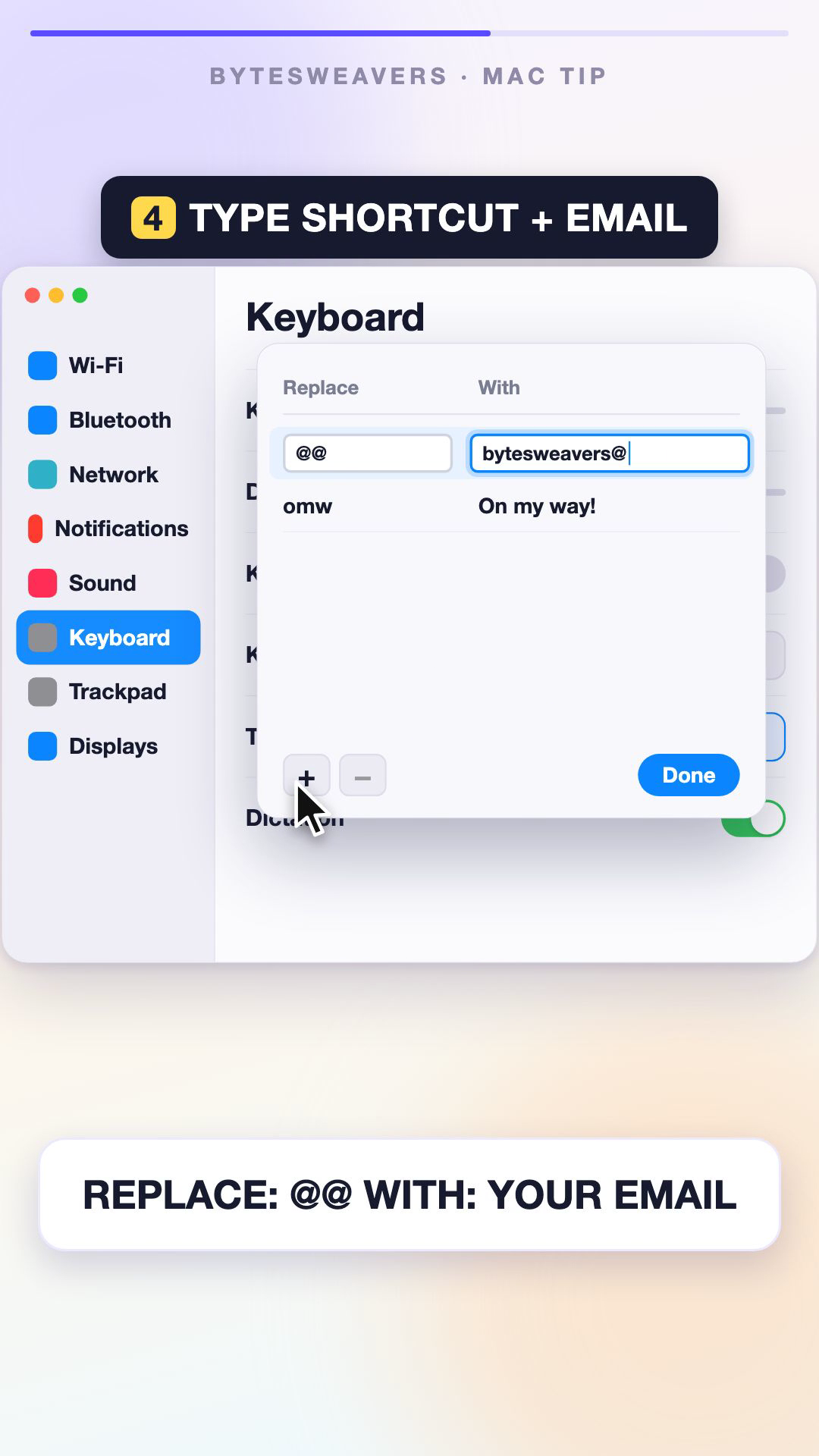
- Choose + to add an entry.
- Put
@@in Replace and your email in With. - Confirm the entry and close the dialog.
Try it before you rely on it
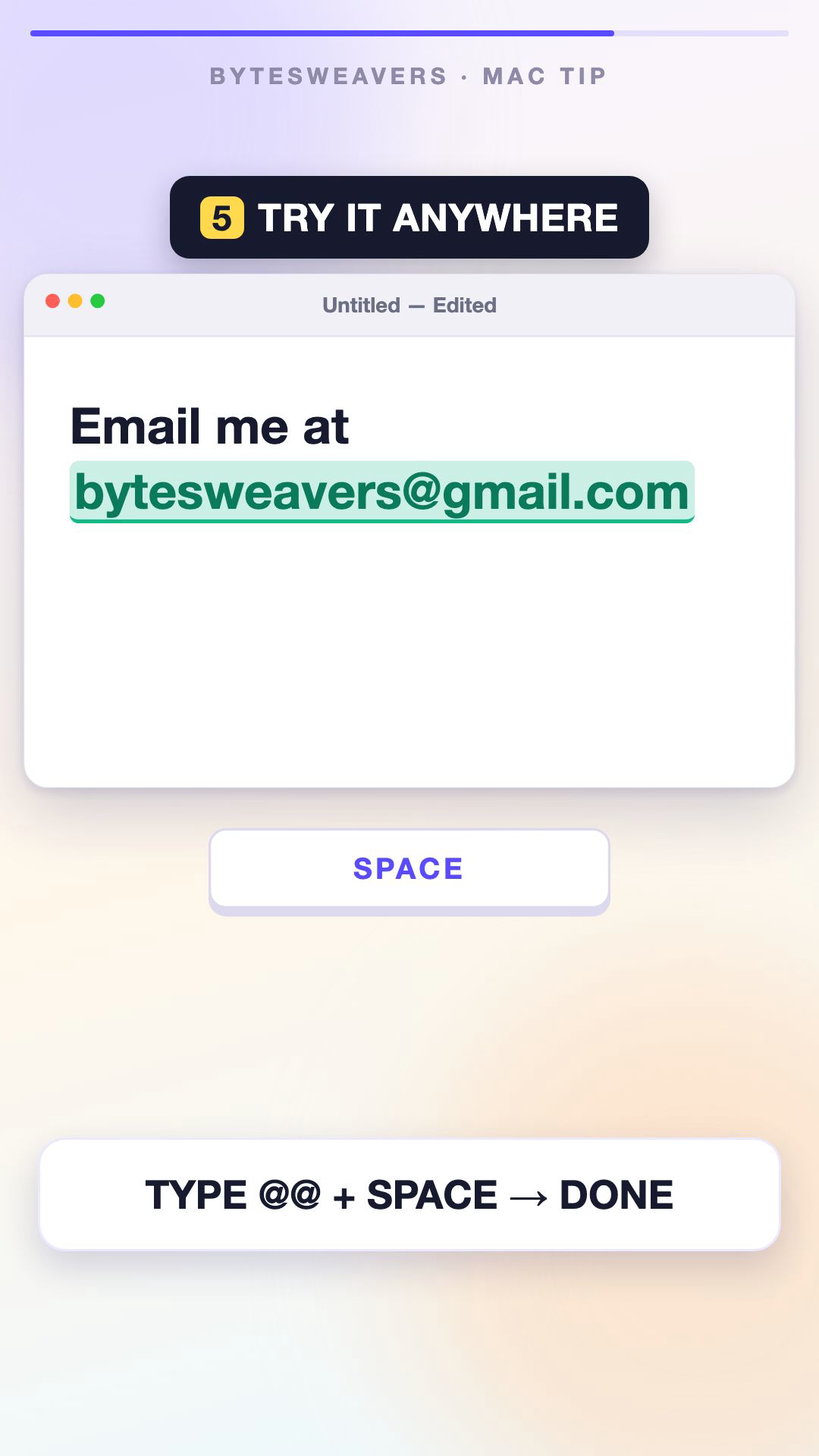
Open a blank note in a supported app. Type @@, followed by a space. The shortcut should expand. Check the spelling of the complete address before using it in a real message.
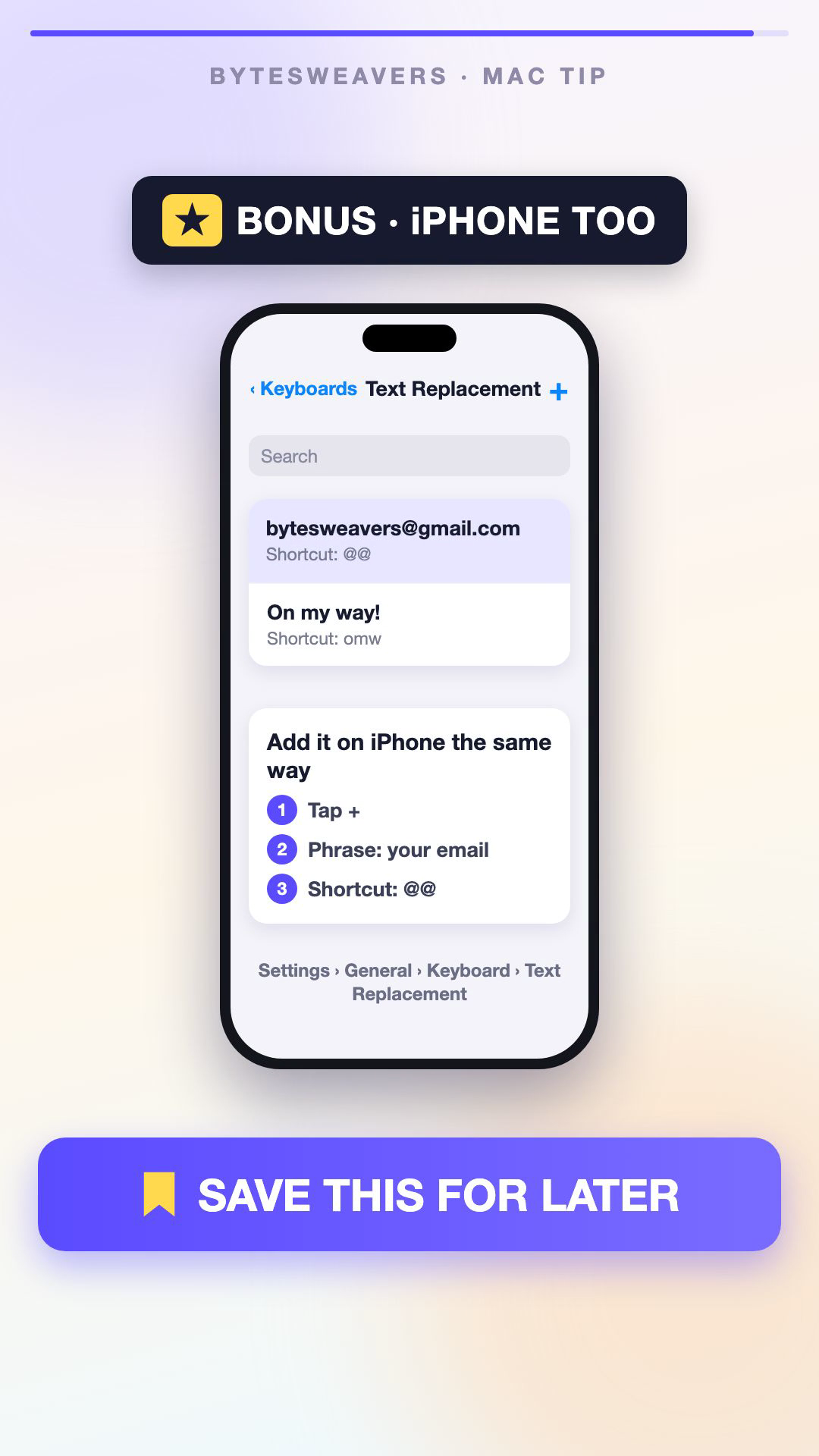
Add the same shortcut on iPhone
Go to Settings → General → Keyboard → Text Replacement → +. Enter your email in Phrase, enter @@ in Shortcut, then save. Try the trigger using a supported keyboard. Notice that iPhone calls the longer text Phrase; Mac calls it With.
Choose shortcuts you will remember
Keep the first batch small. Three useful candidates:
| Trigger idea | What you save | When it helps |
|---|---|---|
| @@ | Your email | Replies and contact forms |
| ;meet | Your public booking link | Arranging a call |
| ;thanks | A short closing sentence | Repeated acknowledgements |
Pick triggers that do not collide with your normal writing. Read expanded text before sending it: a saved phrase cannot decide whether it suits the conversation. Keep passwords and payment details out of this shortcut list.
If the shortcut does not expand
On Mac, check Edit → Substitutions → Text Replacement in the app, where that option exists. Apple notes that not every app supports substitutions. Test in another supported app before recreating the entry.
Watch the quick walkthrough
Watch the Bytesweavers Text Replacement Short, then set up one entry and use it today.
Setup references: Apple’s Mac Text Replacement guide and Apple’s iPhone shorthand guide. Checked 3 October 2026.

Writes guides and product notes for Bytesweavers.