Why Signal Blocks iPhone Screenshots and How the 10-Minute Option Works
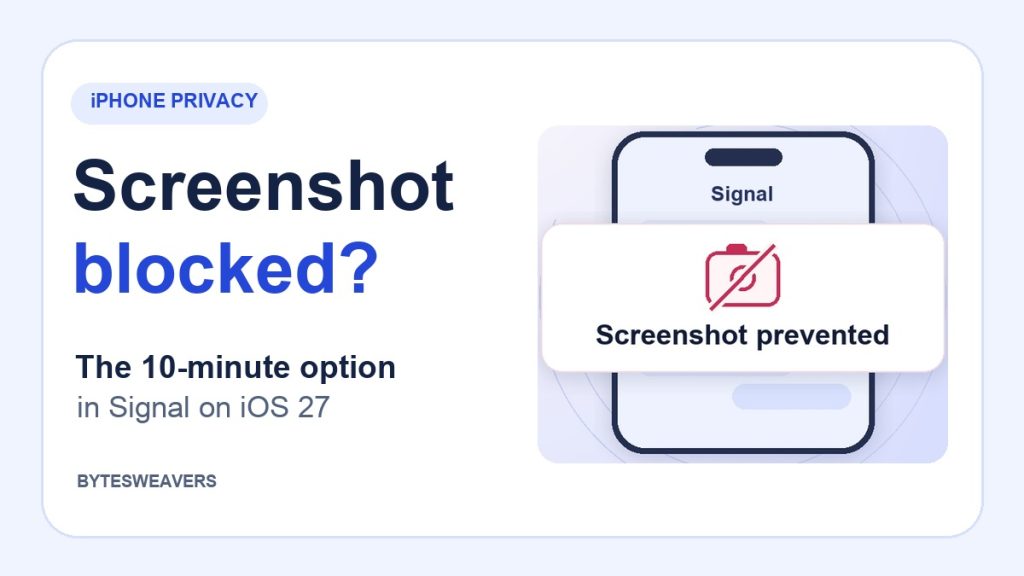
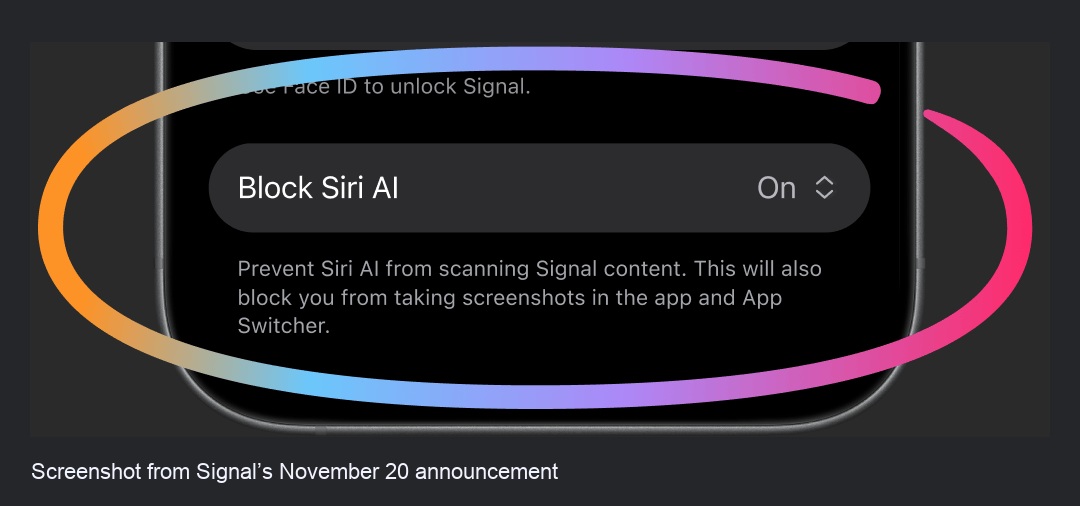
If Signal on your iPhone suddenly refuses to take a screenshot, check Block Siri AI. Signal says the setting is on by default for Signal 8.37 or later on iOS 27. It blocks screen capture inside Signal to limit what Siri AI can read on the screen.
Find the setting in Signal
Open Signal and go to Settings → Privacy → Block Siri AI. The On option keeps the screen protection enabled. You can also see the setting named in the prompt when you try to take a screenshot.
Take one screenshot when you need it
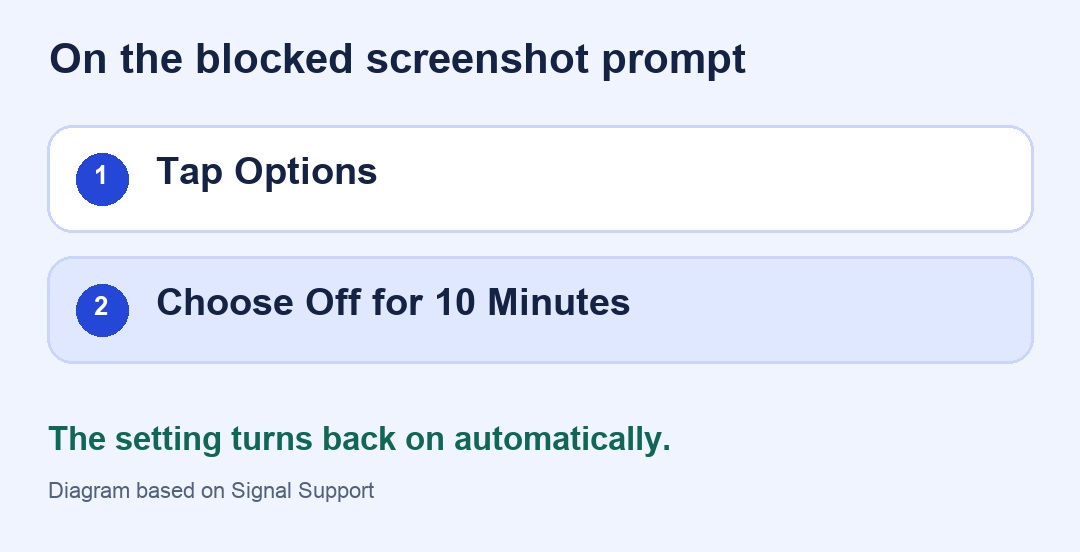
- In the screenshot-blocked prompt, tap Options.
- Select Off for 10 Minutes and confirm Signal’s prompt.
- Capture the content you need. Signal turns the protection back on automatically.
What the temporary setting changes
During the pause, screenshot protection is off and Siri AI may be able to scan Signal content on your screen. Use the option for your own content or a conversation you have permission to share. If you only wanted to check where the switch lives, leave it on.
Does this apply on Android or Mac?
Signal describes separate behavior on Android. Its Screen security setting can turn on when Signal detects an AI assistant trying to read its screen. Signal says this screenshot-blocking approach does not extend to macOS.
Watch the 15-second walkthrough. Sources Signal Support and Signal’s November 20 announcement.

Writes guides and product notes for Bytesweavers.