Where to Download the Official GTA 6 Map and Make Room on Your PS5
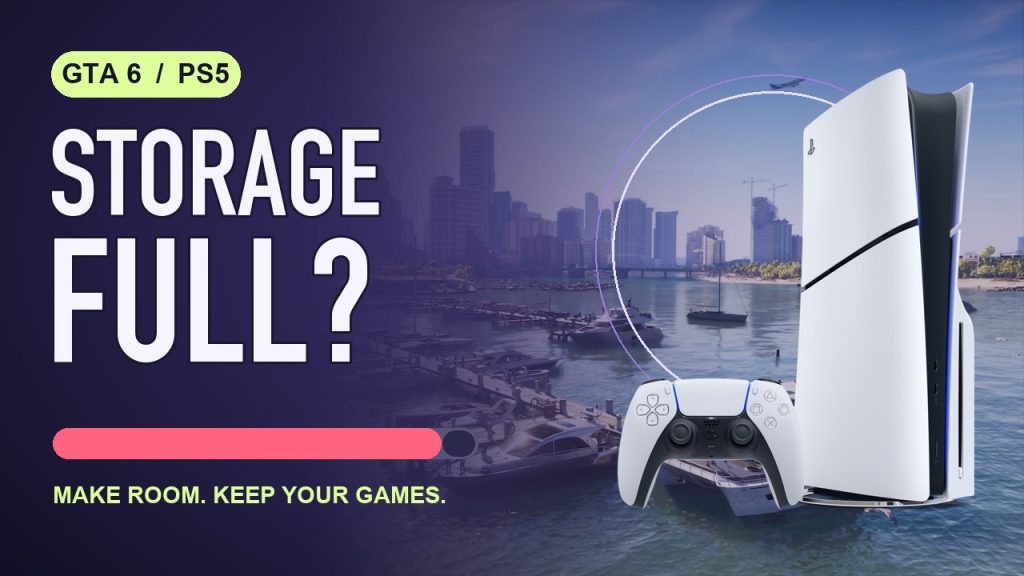
Rockstar has released a printable map of Leonida, including Vice City and its surrounding districts. You can save the map to your phone while GTA 6 downloads. If it’s waiting on free space, a compatible USB drive can hold the installed games you want to keep.
Download the official GTA 6 map
Open Rockstar’s GTA VI Media page. Under Leonida Map & Cover Art Poster, select View Options, choose Leonida Map, then use the download button. If you select the print-ready ZIP, extract the image before opening it.
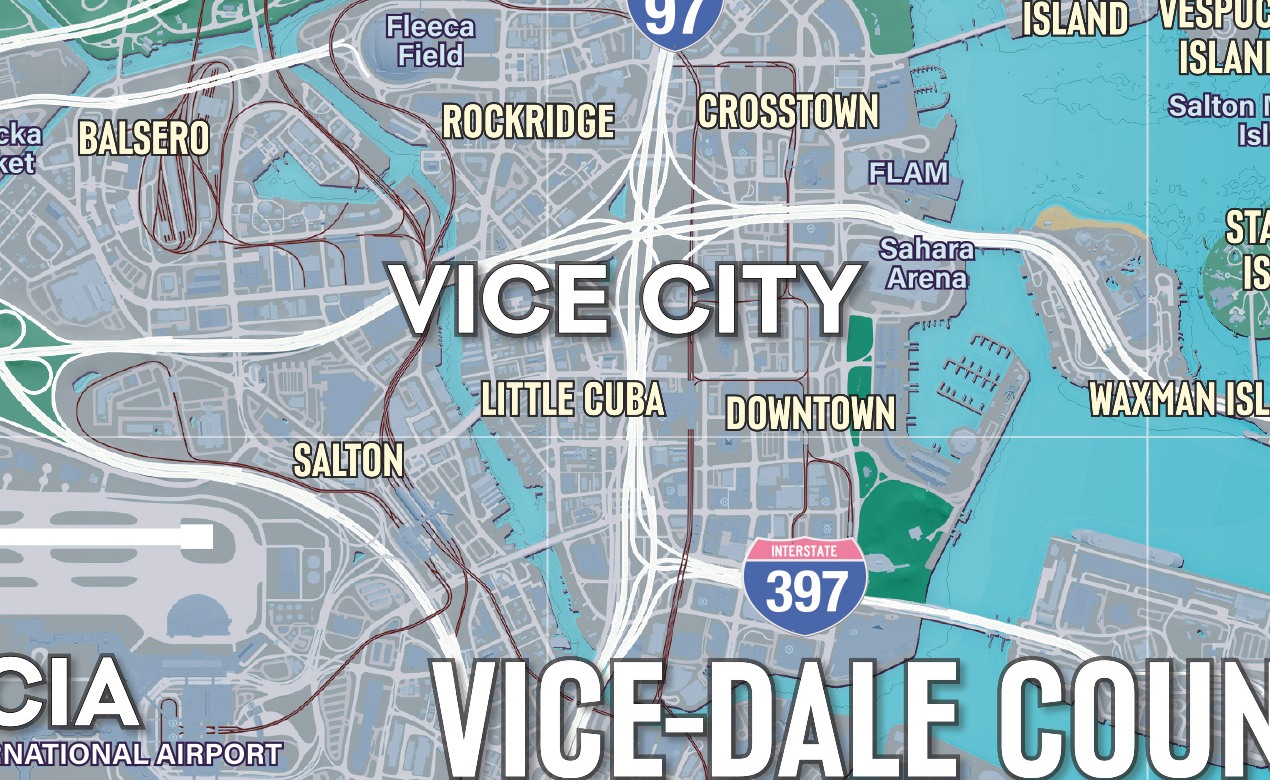
Watch the 15-second map walkthrough.
Check how much space GTA 6 needs on your PS5
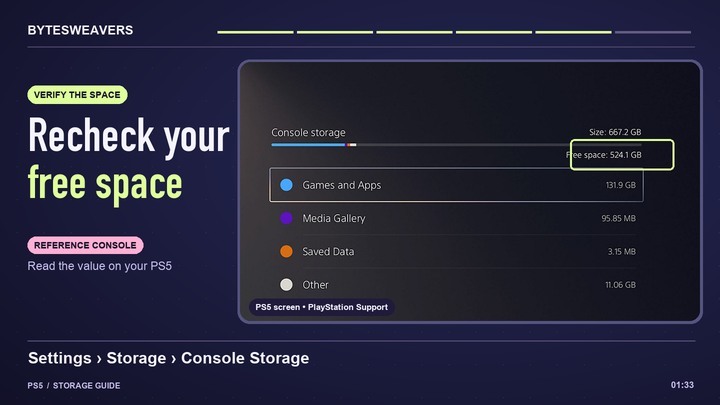
PlayStation’s launch guidance called for 212 GB of available storage. For the current requirement on your console, open the GTA VI entry in Game Library, choose the three-dot menu, then View Product. Next open Settings → Storage → Console Storage and compare the Free Space number. PlayStation’s GTA VI troubleshooting guide shows where to check.
Move installed games to USB extended storage
- Connect an already formatted, compatible USB extended storage drive to the PS5. If the console asks you to format a new drive, back up its contents first. Formatting erases the drive.
- In Game Library, highlight a game you can archive. Press Options → Move Games and Apps. Choose USB extended storage if your PS5 offers more than one destination.
- Confirm the move and leave the drive connected until it finishes. Recheck Free Space on the drive where GTA 6 will install.
USB extended storage can run PS4 games and hold PS5 games for later. To play an archived PS5 game, copy it to console storage or a compatible internal M.2 SSD. Install GTA 6 on one of those playable drives. View Sony’s complete USB storage instructions.

Writes guides and product notes for Bytesweavers.