Can Microsoft Word OCR a PDF? Limits, Workarounds, and an Offline Alternative
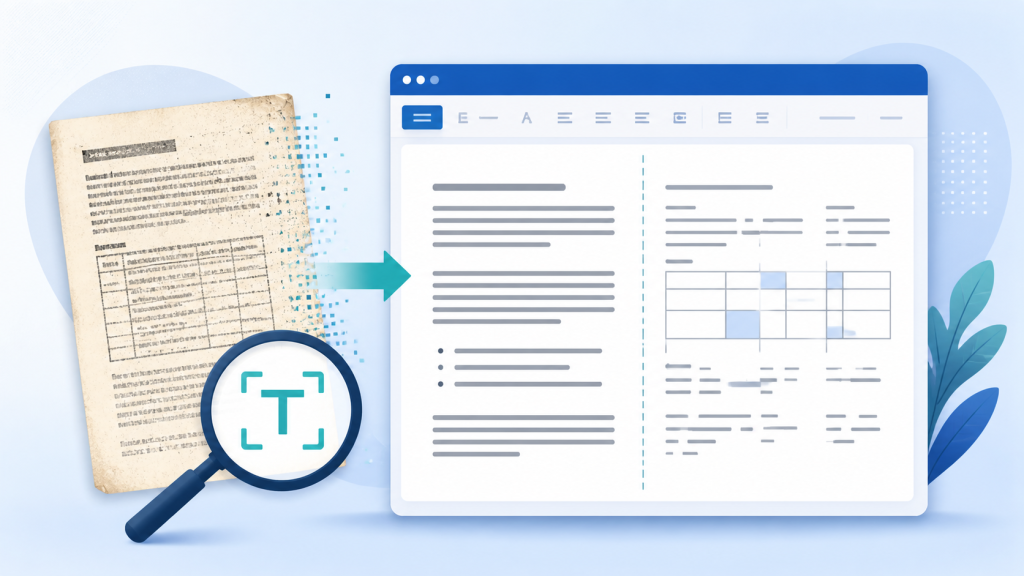
Short answer: Microsoft Word can convert many PDFs into editable text, but it is not a dependable replacement for a dedicated OCR workflow. A PDF made from real text usually opens well. A scanned PDF is different: it is a picture of a page, so Word has to interpret the page before you can edit it.
That distinction matters when the file contains columns, tables, forms, numbers, or a layout that must stay close to the original. The safest approach is to test one representative page, check the extracted text, and only then process the rest of the document.
What Word actually does with a PDF
When you open a PDF in Word, Word tries to create an editable copy. It rebuilds the page from text, paragraphs, images, and other objects. This works best when the PDF already contains a clean text layer.
For example, a PDF exported from a website or a document editor may open with selectable text. You can search it, copy passages, and make edits. The result may still need some layout cleanup, but the words are already available.
A scanned PDF has no useful text layer. Each page is an image. Word may try to recognise the characters during conversion, but the result depends on scan quality, font, skew, contrast, language, and page structure. In that case, “open in Word” and “accurately OCR the document” are not the same thing.
Test a digital PDF first
Before blaming the conversion, check whether the PDF already contains text:
- Open the PDF in a normal viewer.
- Try selecting one sentence with the text cursor.
- Search for a word that is clearly visible on the page.
- Copy a short paragraph and paste it into a plain-text editor.
If selection and search work, you may not need OCR at all. Word’s conversion can still change spacing or move objects, but it is starting with real characters rather than guessing from pixels.
What changes with a scanned PDF
With a scan, inspect the output instead of assuming that an editable document is an accurate document. Common problems include:
- letters confused with numbers, such as “O” and “0”;
- words joined together or split at the wrong place;
- rotated or faint text being skipped;
- headers and footers appearing in the wrong paragraph;
- page breaks moving in the middle of a sentence; and
- images being placed near, rather than inside, the text they belong to.
These errors are easy to miss in a long report. They are more serious in invoices, contracts, applications, and records where one digit can change the meaning.
Tables and columns are the real stress test
A page can look simple to a person and still be difficult for a converter. A two-column article may be read from top to bottom instead of left to right. A table may come back as separate lines, a group of text boxes, or a table with cells in the wrong order.
Use one page with the hardest layout as your test page. Compare the source and converted copy line by line. For a table, check the first and last row, every number, totals, dates, and the relationship between each heading and its value. Do not judge the result only by how tidy it looks.
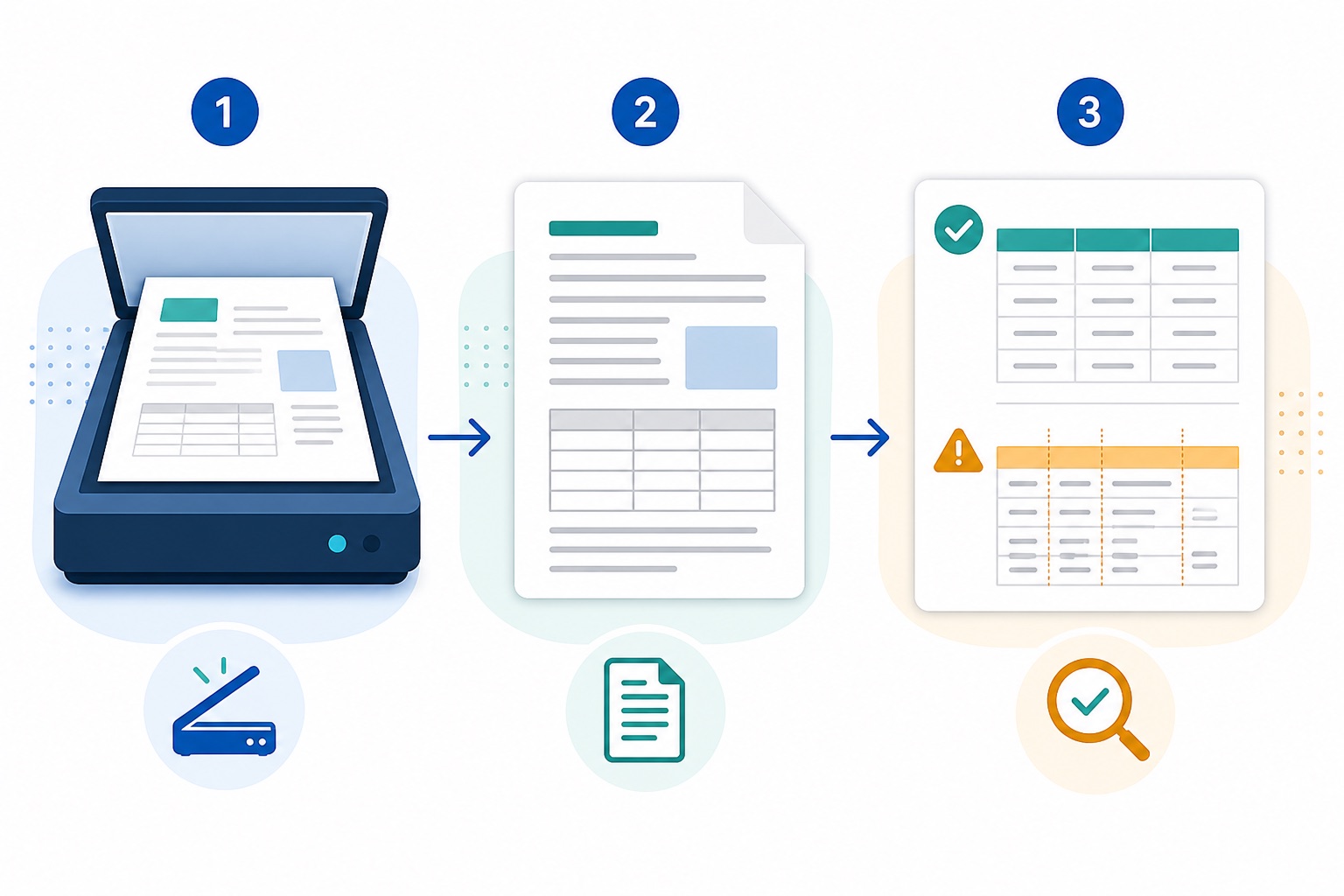
A simple comparison test
If you are deciding whether Word is enough, use the same one-page scan in both workflows:
- Keep the original scan unchanged and make a working copy.
- Open the copy in Word and save the converted document.
- Run the same page through a dedicated OCR tool that can export searchable text or a searchable PDF.
- Compare headings, body text, columns, tables, numbers, and reading order.
- Record what still needs manual correction before choosing a batch workflow.
This test is more useful than a general claim that one tool is “better.” A clean typed page, a phone photo, a receipt, and a multi-column report are different OCR problems.
Privacy is part of the decision
Scanned PDFs often contain personal, financial, legal, or work information. Check where the file is processed before uploading it to an online converter. A service may be convenient, but convenience does not remove your retention, access, or policy responsibilities.
For sensitive files, an offline OCR tool keeps the source on the computer during processing. That does not automatically make every workflow safe—you still need sensible storage, backups, permissions, and deletion rules—but it removes the upload step from the basic conversion path.
When dedicated offline OCR is the better choice
Choose a dedicated OCR workflow when you need repeatable processing, searchable PDF output, language controls, batch work, or a clear review step. It is also a better fit when the source is mostly scans rather than digitally generated PDFs.
Our AI Offline OCR Scanner Pro is designed for local document processing. Use it when keeping scans on-device and repeating the same extraction workflow matters. Test it on a representative page first, especially if your files contain handwriting, unusual fonts, or complex forms.
Decision checklist
- Digital PDF with selectable text: Word may be sufficient for light edits.
- Short, clean scan: Test Word, then proofread the full result.
- Tables, columns, or forms: Compare the structure, not just the words.
- Many similar scans: Use a repeatable OCR workflow and review samples from each source type.
- Sensitive documents: Prefer a process that does not require uploading the files.
- Important numbers or legal wording: Treat OCR as draft text until a person verifies it against the original.
So, can Word OCR a PDF? Sometimes it can make a scan editable enough to get started. Whether it is accurate enough depends on the page and the consequences of an error. Test one difficult page, inspect the tables and numbers, and choose the simplest workflow that meets your accuracy and privacy needs.

Writes guides and product notes for Bytesweavers.