How to Plan a Road Trip in Google Maps With Ask Maps
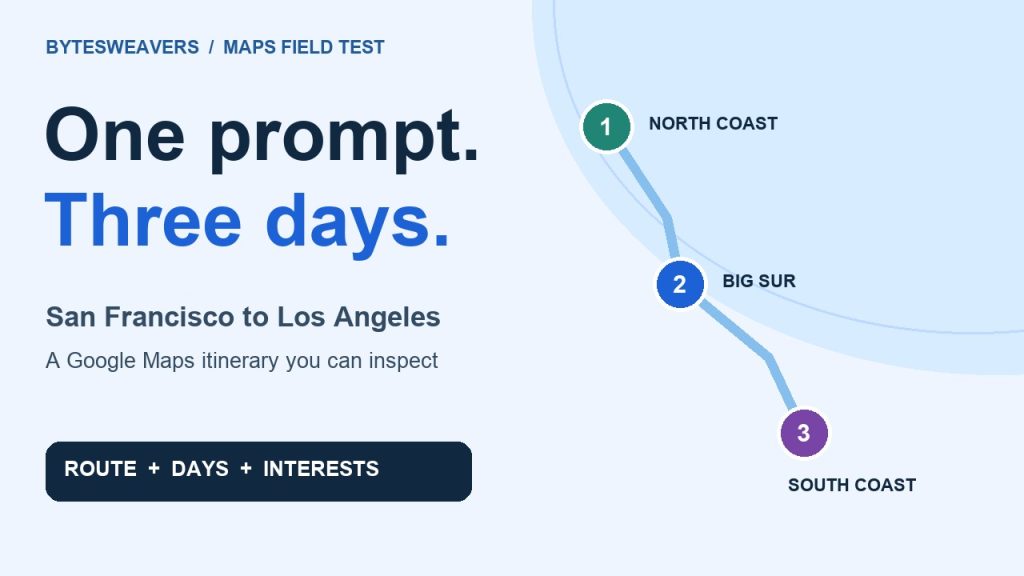
A saved pin tells you where a place is. It doesn’t tell you which day to visit it. Ask Maps can now take a trip request and turn it into a day-by-day outline with numbered stops. We tested it on desktop with a three-day drive down the California coast. Here’s the prompt, what came back and what we’d check before using the plan.
1. Give Ask Maps a route and a time limit
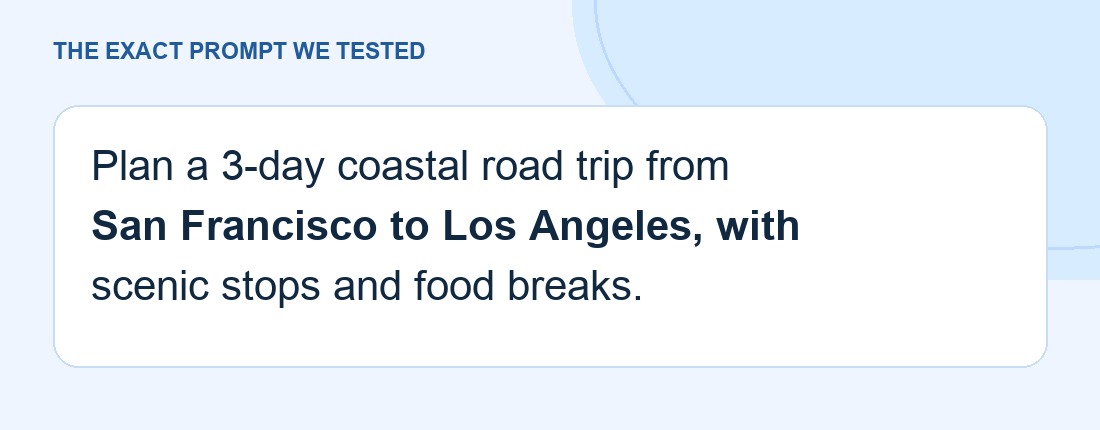
Open Google Maps and choose Ask Maps. Start with your departure city, destination and number of days. Add the stops you care about in plain language: scenic viewpoints, short walks, food breaks or places that are easy to reach without a long detour. Our first request was:
Plan a 3-day coastal road trip from San Francisco to Los Angeles, with scenic stops and food breaks.
2. Inspect the stops on the map
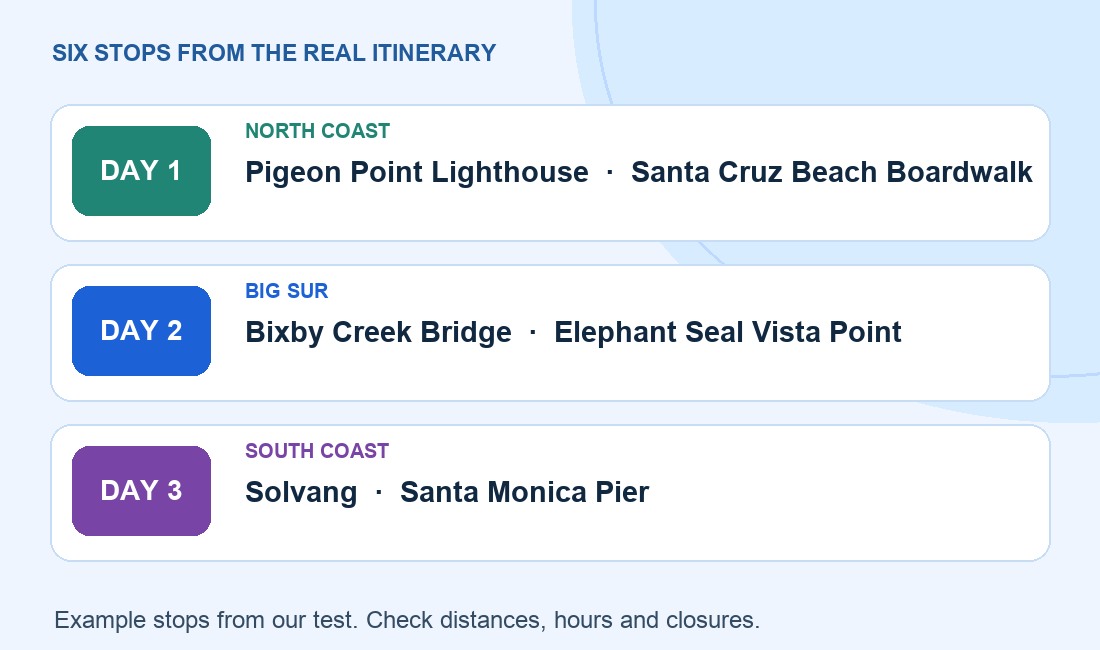
The result offered two stops per day. Day 1 included Pigeon Point Lighthouse and Santa Cruz Beach Boardwalk. Day 2 suggested Bixby Creek Bridge and Elephant Seal Vista Point. Day 3 included Solvang and Santa Monica Pier. The numbered pins made it easier to see how those stops fit along the coast.
Open the plan card and select a stop. In our desktop test, selecting Bixby Creek Bridge opened its regular Maps place panel and showed a Directions button. This is where I’d check whether a detour makes sense before committing to it.
3. Add the constraint that matters most
If someone in the group can’t handle a long driving day, include that before asking for revisions. For example: “Keep the driving under three hours each day and leave time for a lunch stop.” Treat the answer as a suggestion, then check the actual drive times with Directions. We tested the original prompt above; this is a follow-up you can try.
4. Check the plan before sharing it
Confirm road closures with the relevant road authority and check opening hours for each stop. Read the times against the dates you’re actually going, especially around holidays. Give yourself a backup stop if a place closes or the drive takes longer than expected.
Google began rolling out the new itinerary features on November 16. Availability can vary during rollout. If Ask Maps isn’t visible in your app or account, use regular Maps to save places and check directions.

Writes guides and product notes for Bytesweavers.