How to Fix Pink Textures in Blender After Moving a Project
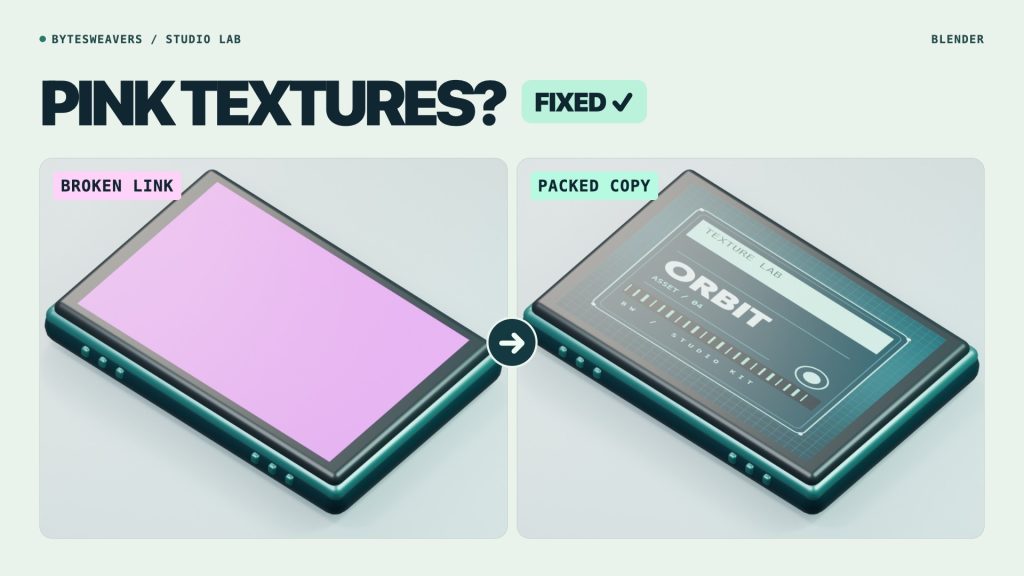
A pink surface after moving a Blender project often means the file can no longer find an image texture. This real test shows what broke, how to reconnect it, and how to check that it stays fixed on handoff.
Check which part of the material turned pink
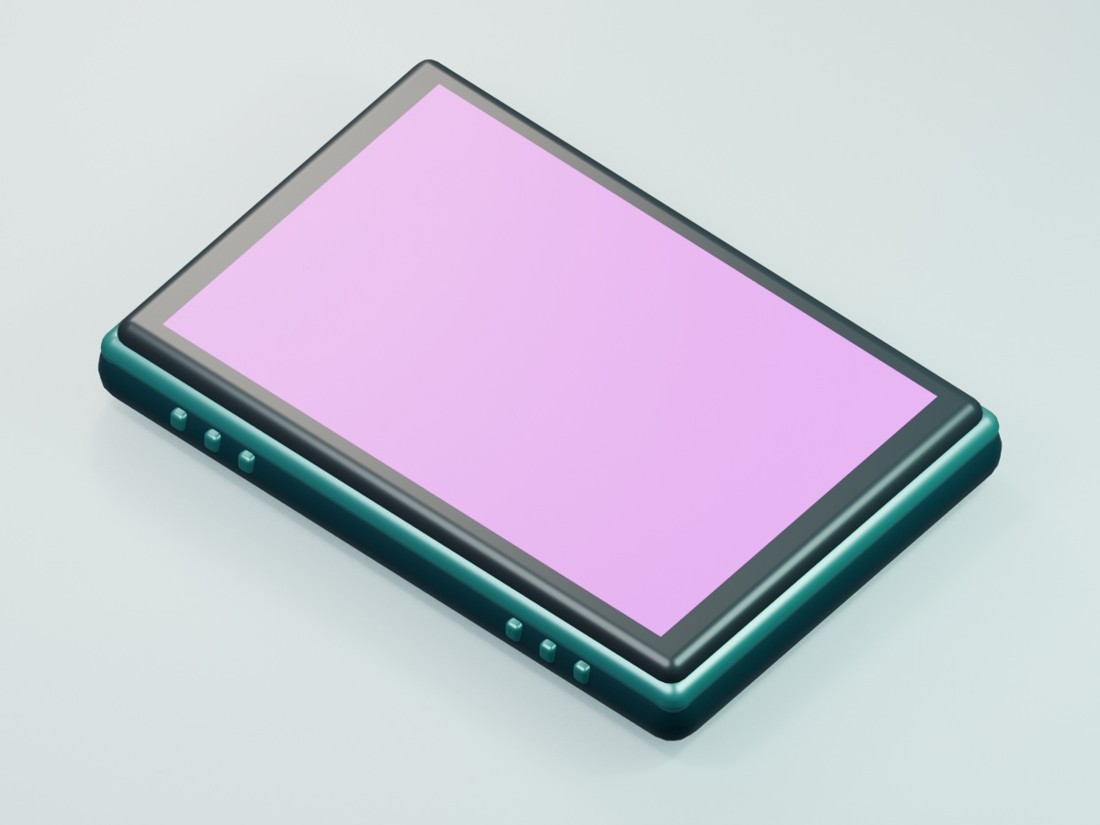
In our Blender 5.2.1 test, the dark metal still looked right; only the ORBIT label went pink. We had moved its PNG from the textures folder to an Archive folder. The image existed, but Blender was still looking in the old location. To check the path, start with File → External Data → Report Missing Files, then inspect the Image Texture node if you need the filename.
Relink the image in its new folder
Open File → External Data → Find Missing Files and point Blender at the folder that contains the original PNG. Pick the smallest useful folder; searching a whole drive can pick up a backup with the same filename. Check the viewport: the intended label should return. If the file was renamed, point the image node at the correct file directly.

Pack Resources and then save
A repaired path on your Mac does not put the texture inside the project. For supported resources like our PNG, use File → External Data → Pack Resources, then save a new copy. Check movies, external caches and linked libraries separately.
Open the copy before sending it
We reopened the packed copy in an empty handoff folder while the original PNG was unavailable. The render matched the relinked version pixel for pixel. Try this on a disposable copy before sharing. On Mac, preview any cleanup and keep active project folders together; Blender handles the repair shown here.

Writes guides and product notes for Bytesweavers.