OCR for Receipts, Invoices, and Tables: How to Improve Accuracy

OCR can read a clean document surprisingly well. It struggles when the photo is dark, the page is tilted, or a table has tight columns. Receipts, invoices, and tables each fail in slightly different ways.
The best fix is usually not a stronger OCR setting. Start with a better capture, make the page easier to read, and then check the parts that matter before you export the text.
Quick accuracy checklist
| Document | Common problem | First check |
|---|---|---|
| Receipt | Small, faint, or curled print | Use even light and keep the whole receipt flat |
| Invoice | Mixed fields, totals, and columns | Keep the page straight and review numbers |
| Table | Rows merge or columns shift | Capture the full grid and verify row alignment |
Why structured documents confuse OCR
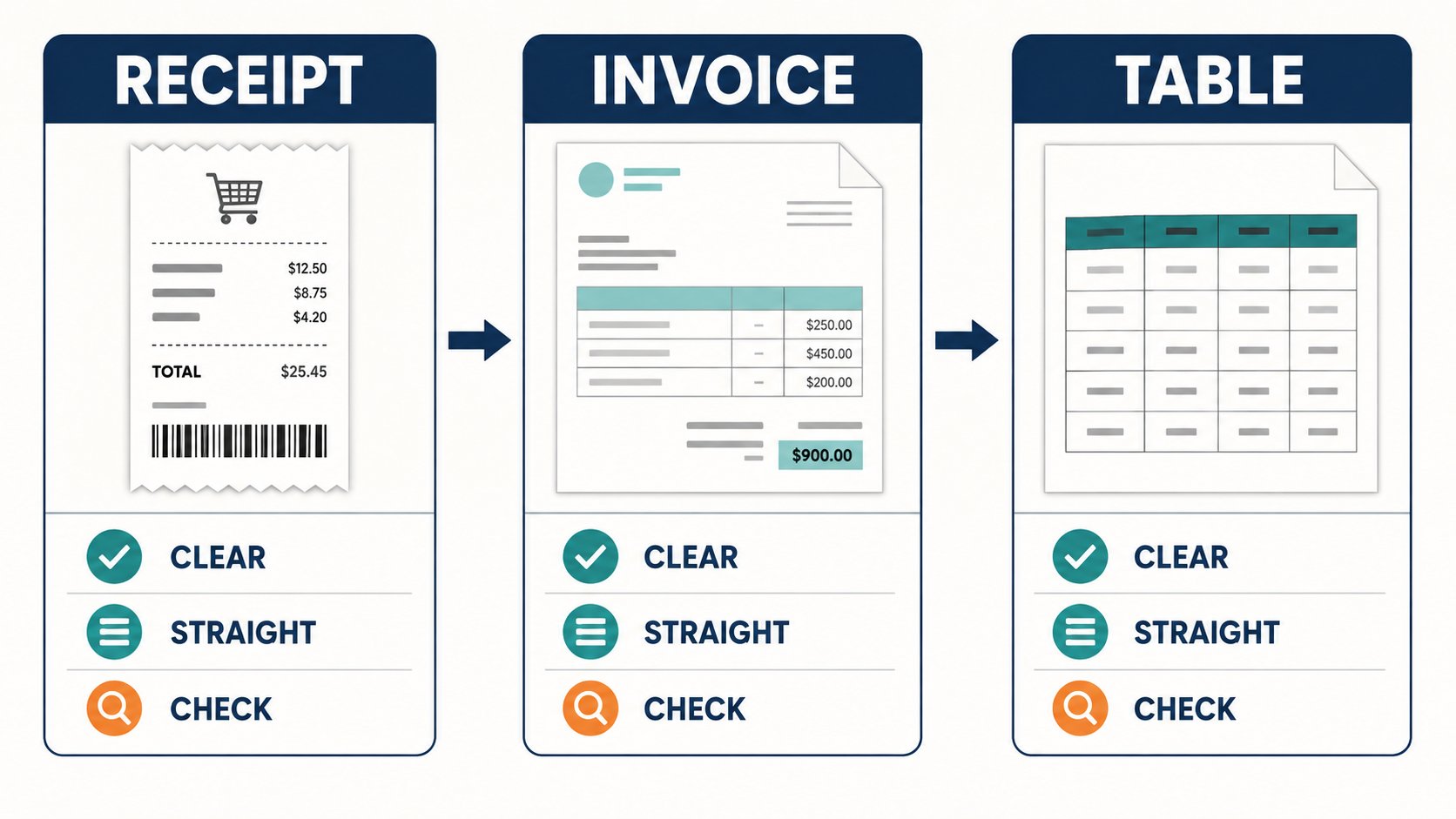
OCR sees shapes and lines before it understands meaning. A receipt may have a narrow column of prices beside small item names. An invoice may mix a logo, address, dates, tax details, and a total. A table adds another problem: the spaces between cells carry part of the meaning.
When those boundaries are faint or skewed, text can still look correct while landing in the wrong field. That is why a quick visual review matters more for invoices and tables than for a simple paragraph.
Start with a clear capture
- Use bright, even light. Avoid a hard shadow across the amount or total.
- Keep the camera parallel to the page. A strong angle makes one side of the document much smaller than the other.
- Fill the frame, but leave a small border around the page. Cropped edges can remove digits or table lines.
- Tap to focus and hold the camera still. A slightly blurred receipt is difficult to rescue later.
Preprocess before you recognize text
Deskew the page if its top edge is not level. Crop away the desk or background, but do not cut off a header, date, or total. Moderate contrast can help faded print. Too much contrast can erase thin decimal points and table lines.
For a receipt, a grayscale copy often makes faint type easier to separate from the paper. For an invoice or table, keep enough detail to preserve thin rules and small labels. If the page has colored highlights, test both the original color image and a grayscale version.
Use the right language and layout settings
Choose the document language when the OCR tool supports it. This helps with character shapes and common words. If a page contains two languages, test the primary language first and then compare the result with a multilingual setting.
Use a layout mode that matches the page. A single-column setting can be fine for a receipt. An invoice or table needs a mode that keeps blocks and columns separate. If the output is one long line, the tool may have treated a structured page like a paragraph.
Review the fields that can cause real mistakes
Do not read every character with the same level of attention. Check the fields that change the meaning or the amount:
- Receipt: date, item quantities, decimal points, tax, and total.
- Invoice: invoice number, due date, account details, tax rate, and final amount.
- Table: column headings, row order, negative signs, units, and blank cells.
A useful habit is to compare the original beside the OCR result. For a table, check three rows near the top, middle, and bottom. For a receipt or invoice, check every number even if the words look right.
A small accuracy test
Make three versions of one document: the original photo, a straightened crop, and a straightened crop with light contrast adjustment. Run the same OCR settings on all three. Record the fields that are correct and the fields that need repair.
This gives you a useful baseline without pretending that one accuracy percentage applies to every document. A receipt can score well on words but still fail on a single total. A table can contain mostly correct text while two shifted columns make the export unusable.
Export and verify
If the result is going into a spreadsheet, inspect the columns before you continue. Check that numbers are numbers, not text with hidden spaces or missing decimal points. Keep the original image beside the exported file until the review is finished.
For private or sensitive documents, process them locally when possible. A local OCR workflow avoids sending receipts, invoices, or business tables to a third-party upload service. Bytesweavers’ Windows OCR tool and Mac OCR app are options for that kind of workflow.
Bottom line
Better OCR starts before the scan button: use even light, keep the page straight, preserve the edges, and choose a layout that matches the document. Then review the numbers and table structure instead of trusting a single accuracy score.

Writes guides and product notes for Bytesweavers.