How to Turn an Image into a 3D Model on Windows: What to Check Before Exporting
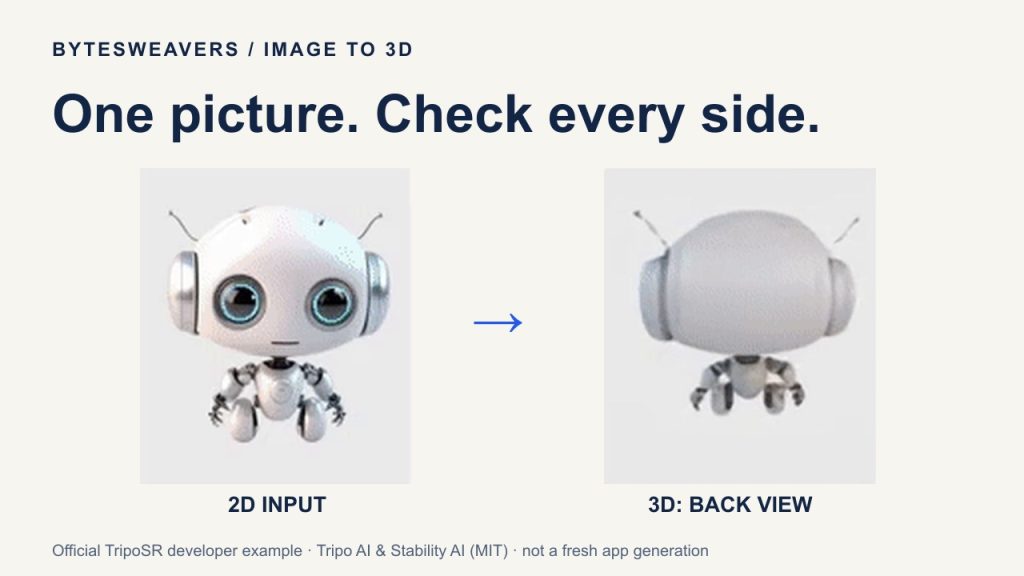
A single image can be the starting point for a 3D concept. The useful part is not just watching an object spin: it is finding out whether the reconstructed sides, geometry and export are suitable for your next step.
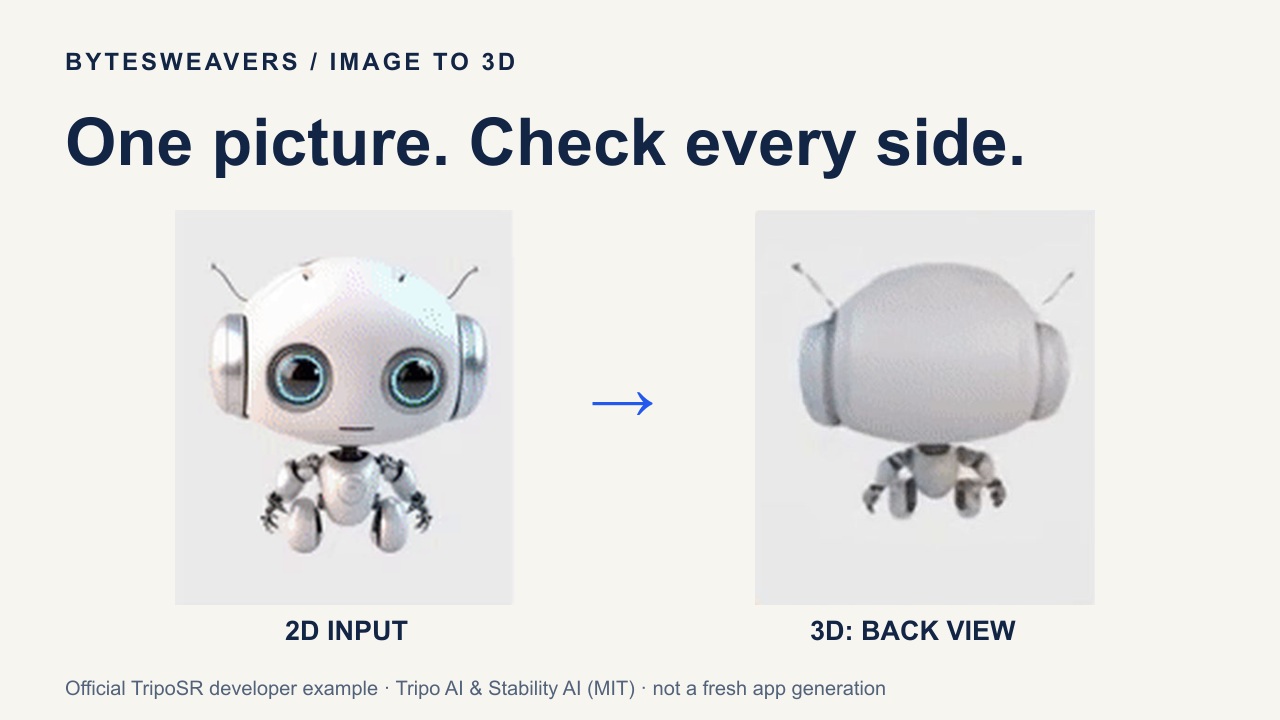
Disclosure: Bytesweavers develops AI Text & Image to 3D Generator Pro. The robot comparison in this guide is the official TripoSR developer example, not an output newly generated in our app. The interface inset is our actual v3.0.6 source build on Mac; this is not an installed Windows/MSIX test.
1. Choose one clear object
Start with an object that has a readable silhouette and is not hidden behind other objects. A busy room, multiple overlapping subjects or a heavily cropped reference leaves more for the model to guess. Use an image you own or have permission to process and publish.
Think about the goal before choosing the image. A small game-prop concept and a dimensionally accurate replacement part are different tasks. A single picture does not provide reliable measurements of the hidden surfaces. Do not treat the result as an engineering model or protective equipment.
2. Use the image workflow, not the text prompt
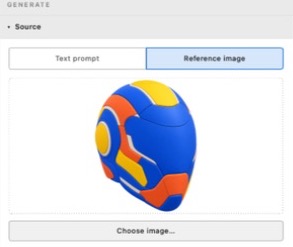
In the inspected source interface, the Create workspace has a Reference image option and a Choose image… control. The model catalog includes TripoSR for image-to-3D reconstruction. Select an engine compatible with the task and your hardware, and check its setup requirements before generation.
Models may require first-use weight downloads. The edit accompanying this article does not load any generation weights on the Mac and does not establish a runtime or memory benchmark. Do not infer that a lightweight video preview means the generation itself is lightweight.
3. Rotate before deciding that it worked
A front view can look convincing while the back, underside or thin components need work. Inspect the object from multiple angles. Ask whether a feature is actual geometry or only a colour pattern on the surface. Look for unexpected hollows, bridges between separate parts and pieces floating away from the main object.
Single-image models infer surfaces that the input does not show. This is a reconstruction concept, not a guarantee that the hidden side matches the real object. An appealing preview is a starting point for inspection and editing.
4. Pick an export for the destination
| Next step | Useful starting point | Check after import |
|---|---|---|
| Preview in a compatible 3D viewer | GLB | Orientation, scale and material appearance |
| Edit in a DCC tool or game workflow | Supported GLB or OBJ workflow | Geometry, shading, texture/vertex-colour support and triangle budget |
| Explore a printing workflow | Supported STL/3MF export | Units, geometry validity, thickness, supports and slicer preview |
Export support is not a promise of production readiness. A file can open successfully and still be unsuitable for a game, print or commercial deliverable. Keep the original and test a copy in the software you will actually use.
5. Keep the reference and the evidence together
Save the source image, engine/version, settings and generated asset in the same project record. That makes it easier to understand what changed between attempts and avoids presenting someone else’s demonstration as your own app result. If you publish an example, explain what was generated, what was edited and which parts were not tested.
A practical starting point on Windows
AI Text & Image to 3D Generator Pro brings supported model workflows and export preparation into a desktop workspace. Check the current Store listing for pricing and system requirements. We have not verified the installed Store package in this demonstration, so menu wording and availability may differ from the inspected source build.
The best first result is not necessarily the most dramatic render. It is a concept whose limits you understand and whose next step you can test.
Sources and example licence
- Official TripoSR repository: model explanation, developer visual and setup information.
- TripoSR MIT licence, copyright 2024 Tripo AI & Stability AI.
Full MIT notice for the adapted developer example
MIT License

Copyright (c) 2024 Tripo AI & Stability AI

Permission is hereby granted, free of charge, to any person obtaining a copy
of this software and associated documentation files (the "Software"), to deal
in the Software without restriction, including without limitation the rights
to use, copy, modify, merge, publish, distribute, sublicense, and/or sell
copies of the Software, and to permit persons to whom the Software is
furnished to do so, subject to the following conditions:

The above copyright notice and this permission notice shall be included in all
copies or substantial portions of the Software.

THE SOFTWARE IS PROVIDED "AS IS", WITHOUT WARRANTY OF ANY KIND, EXPRESS OR
IMPLIED, INCLUDING BUT NOT LIMITED TO THE WARRANTIES OF MERCHANTABILITY,
FITNESS FOR A PARTICULAR PURPOSE AND NONINFRINGEMENT. IN NO EVENT SHALL THE
AUTHORS OR COPYRIGHT HOLDERS BE LIABLE FOR ANY CLAIM, DAMAGES OR OTHER
LIABILITY, WHETHER IN AN ACTION OF CONTRACT, TORT OR OTHERWISE, ARISING FROM,
OUT OF OR IN CONNECTION WITH THE SOFTWARE OR THE USE OR OTHER DEALINGS IN THE
SOFTWARE.

Writes guides and product notes for Bytesweavers.