How to Back Up Settings in a Windows Desktop App Locally
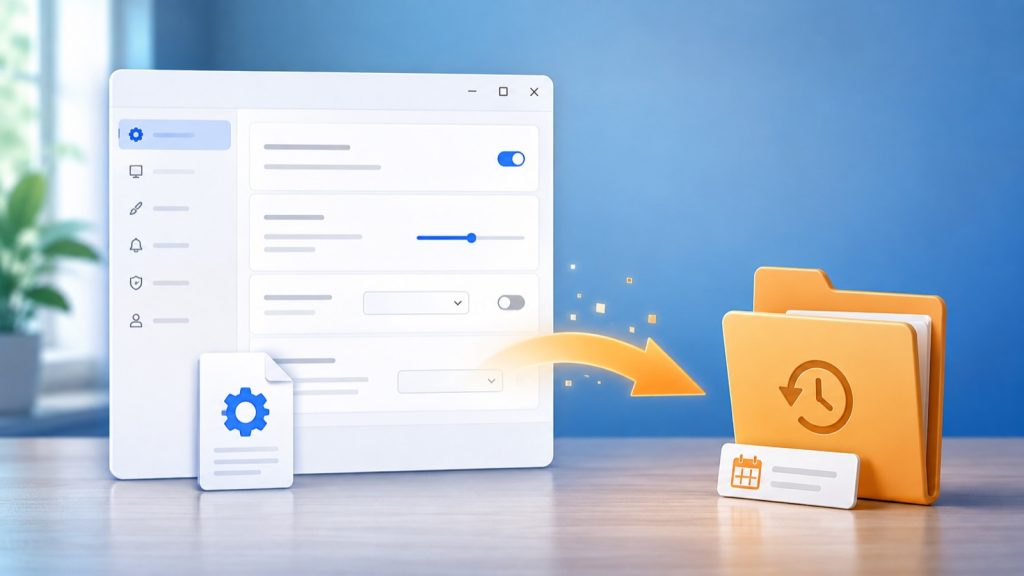
A settings file is easy to ignore until an update, reinstall, or bad edit wipes it out. Then small choices—window size, saved folders, shortcuts, or the last-used workspace—have to be entered again.
A local backup gives a Windows desktop app a simple way back. It does not need a server. It does not need a sign-in. The important parts are choosing safe data, writing the backup carefully, and checking it before restore.
Start with the settings that are safe to restore
Make a short list before writing code. Good candidates are:
- window size and position
- theme, language, and display choices
- recent folders or workspace names
- keyboard shortcuts and editor preferences
- small app-specific choices, such as the last export format
Keep passwords, API keys, access tokens, and private certificates out of this backup. Store secrets in Windows Credential Manager or another proper secret store. A settings backup is meant to be convenient, not a second password vault.
Use a separate, versioned backup folder
Keep the live settings file and its backups in different locations. A practical Windows layout looks like this:
%LOCALAPPDATA%\ExampleCompany\ExampleApp\settings.json
%LOCALAPPDATA%\ExampleCompany\ExampleApp\Backups\settings-2026-09-04-0930.json
LocalApplicationData is a useful default for machine-local preferences. Use a dated filename or a small manifest so a person can see which copy is newest. Do not silently overwrite the only backup.
Write the file in two steps
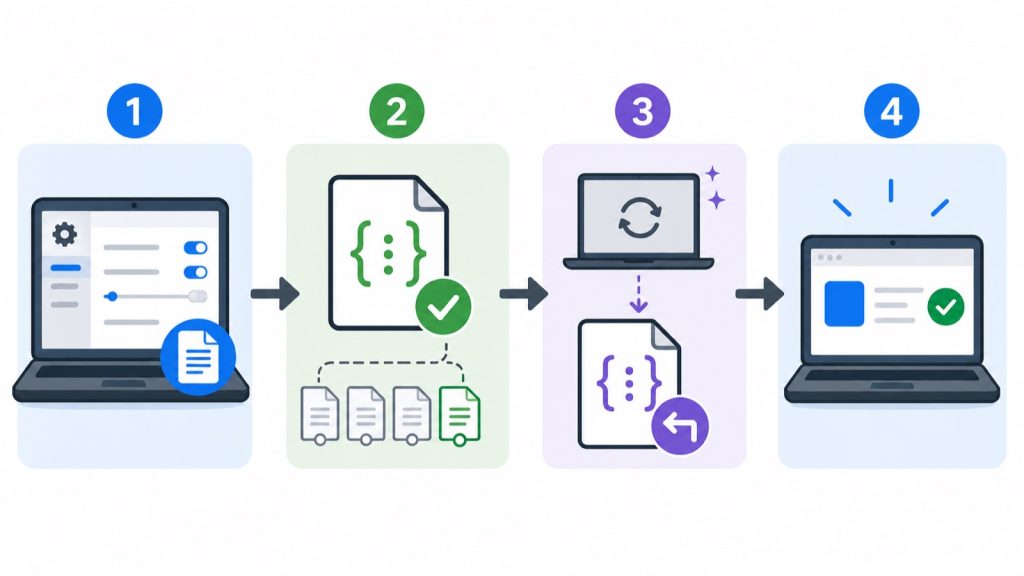
A crash during a direct write can leave a half-written JSON file. The safer pattern is simple:
- serialize the settings to JSON
- write the JSON to a temporary file in the same folder
- flush and close that file
- replace or rename it into the final backup name
Keeping the temporary file beside the destination makes the final move much safer than writing to a different drive or a random temporary folder. If the app closes during the write, the previous good backup is still available.
Put a version inside the JSON
Settings change as an app changes. Add a small schema version to every backup:
{
  "schemaVersion": 2,
  "savedAtUtc": "2026-09-04T04:00:00Z",
  "theme": "dark",
  "window": { "width": 1280, "height": 800 },
  "recentFolder": "C:\\Work"
}
When version 1 is restored into version 2, the app can fill new fields with safe defaults. This is much better than assuming every old file still has the current shape.
Keep a few copies, not a giant archive
Most desktop apps only need a small rolling set. Keeping the latest five or ten files gives people an escape hatch without filling the disk.
Prune after a successful new backup. Sort by the timestamp stored in the filename, keep the newest copies, and never delete the last remaining good file just because cleanup ran at the wrong time. If you need stronger protection, keep one copy from each of the last few days.
Validate before restoring
Do not load a backup straight into live settings. Check it first:
- is the file valid JSON?
- is the schema version supported?
- are numbers within sensible limits?
- do saved paths still exist, or should the app ask for a new one?
- are unknown fields ignored safely?
Restore into a new in-memory object. If validation passes, save the current settings as a safety copy, apply the restored values, and restart only if the app truly needs it. A failed restore should leave the user where they started.
Make recovery visible
A backup that no one can find is not very useful. Add a small “Back up settings” action and a “Restore settings” action in the app’s settings screen. Show the date of the latest good backup. If restore fails, explain what happened in one sentence and point to the untouched current settings.
Keep the wording plain. “Restore the copy from yesterday” is clearer than “Rollback configuration state.”
Test the failure cases
Before shipping, test more than the happy path:
- create a backup and open it in a text editor
- close the app during a test write
- restore an older schema version
- restore a file with one bad value
- remove the backup folder and run the app again
- check that a restore failure leaves the current settings intact
Also test paths with spaces, non-English characters, and a read-only folder. These are the cases that tend to appear on a customer’s machine even when development machines look perfect.
Keep the pattern small
The useful design is not a large backup system. It is a separate local folder, versioned JSON, safe file replacement, a few retained copies, and validation before restore. That is enough to protect everyday preferences without adding a cloud account or making the app harder to use.
If you are choosing the Windows UI foundation for a new desktop app, see our WinUI 3 vs WPF comparison. For a broader build, see Windows App Development.

Writes guides and product notes for Bytesweavers.