How to Reduce Photo Size Below 100 KB: A Real Squoosh Test
A website asks for a photo under 100 KB, but your image is several megabytes. Taking another photo usually does not solve that file-size problem. You need a smaller exported file—and you need to select that new file when you return to the form.
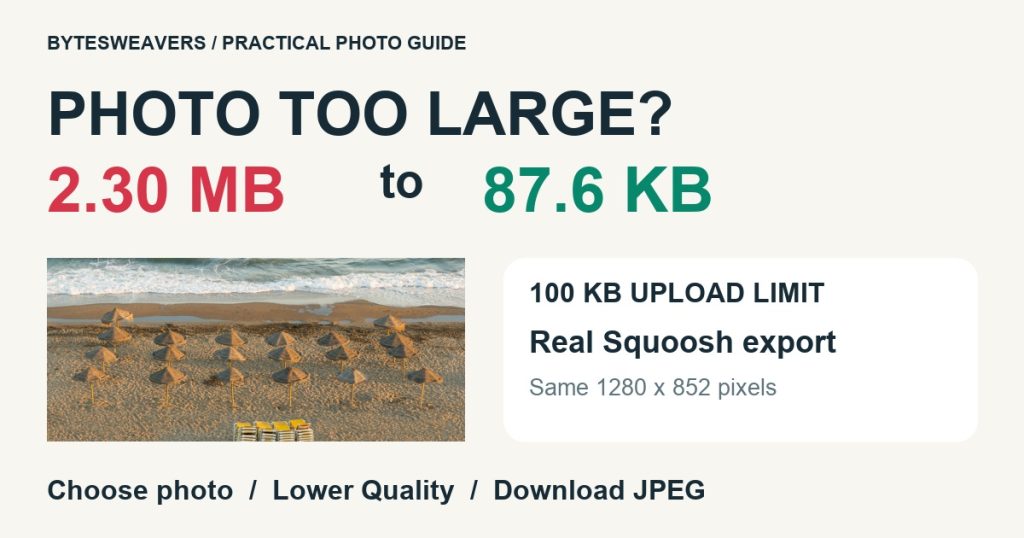
We tested the steps below using Squoosh, a browser-based image compressor. Our original PNG was 2,304,755 bytes. The downloaded JPEG was 87,642 bytes, below a 100,000-byte limit. Its pixel dimensions stayed at 1280 × 852.
First, read the form’s requirements
File size, dimensions and format are separate requirements. “Under 100 KB” is a file-size limit. “600 × 800 pixels” is a dimension requirement. “JPG only” is a format requirement. Meeting one does not automatically meet the others. Some forms also specify aspect ratio, background, framing or document-photo rules.
Our reel uses a labelled demonstration form to explain the size check. It does not show an exam portal or promise that an external service will accept this particular sample image.
1. Open the original photo in Squoosh
Go to squoosh.app in your browser. Select the pink image-picker area and choose your original photo. The desktop controls in our screenshots may appear in a different layout on a small screen.
Keep an untouched copy. Working from the original is better than repeatedly compressing an already compressed JPEG. Check that the selected photo is the one you intend to attach.
2. Use JPEG and watch the output size
In the Compress panel, select MozJPEG if it is not already selected. For a form that accepts JPEG photos, this gives you a quality setting and a live output-size readout. It is not the right format for every image: JPEG does not preserve transparency, and text-heavy scans can need different settings.
Move Quality down gradually. Wait for the output size to update. Inspect the photo as you go, especially faces, small text and edges. Stop once the file is below the form’s limit while still looking acceptable.
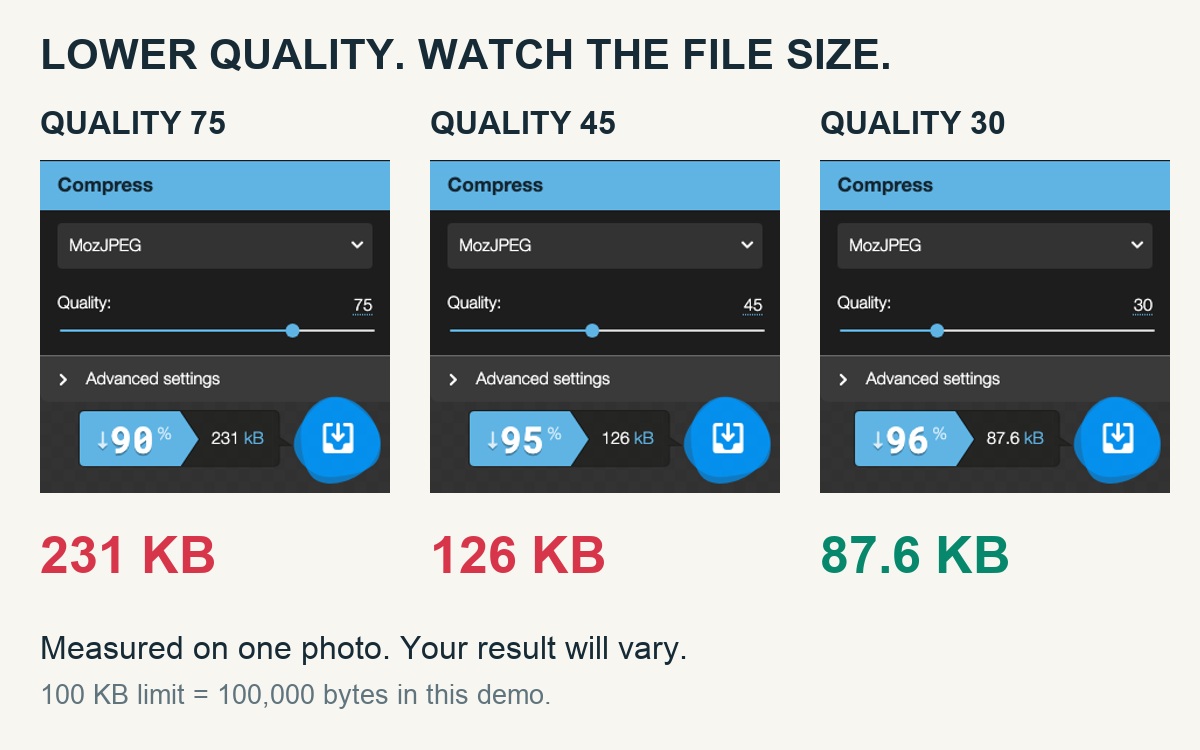
Our real result: 2.30 MB to 87.6 KB
| Setting | Output shown by Squoosh | Below 100 KB? |
|---|---|---|
| Original PNG | 2.30 MB | No |
| MozJPEG Quality 75 | 231 KB | No |
| MozJPEG Quality 45 | 126 KB | No |
| MozJPEG Quality 30 | 87.6 KB | Yes, for this file-size check |
Different images compress differently. A detailed photograph may need different settings from a plain-background portrait. Quality 30 was sufficient for this beach photo; it is not a recommendation to use 30 for every upload. Compression is lossy and can reduce detail.
3. Download, then attach the new JPEG
Select the blue download control at the bottom right of the compressed-image panel. Note the downloaded filename and its location. Our input was room-original.png; Squoosh’s download was room-original.jpg.
Return to your form and choose the downloaded JPEG. Selecting the original PNG again brings the same oversized file back. Check the actual size in your file manager if there is any doubt.
What if it is still too large?
If lowering Quality makes the photo look poor, review the permitted pixel dimensions. Reducing an unnecessarily large image can help, but do not shrink it below the form’s required dimensions. Keep the required aspect ratio. If the form specifically requires a different format, follow that rule rather than forcing JPEG.
Do not assume a screenshot fixes the problem. It may change framing, reduce useful detail or produce a larger PNG. Export deliberately and check the result.
What about a 20 KB limit?
The process is similar, but this test only demonstrates a result below 100 KB. We did not validate a 20 KB export. Much smaller limits can require a combination of permitted resizing and lower quality. Inspect the result and follow the form’s exact specifications.
Before you press Submit
- The selected file is the downloaded export, not the original.
- Its actual byte size is below the limit.
- Its dimensions, aspect ratio and format meet the requirements.
- The important detail remains readable.
Test disclosure: the Squoosh controls and export sizes are real. The sample is a CC0 beach photograph by Jebulon from our existing test fixture. The upload-form graphics are illustrative. We are Bytesweavers; this is a practical guide, with no app purchase required for the shown workflow.
Sources: Squoosh and its official source repository.

Writes guides and product notes for Bytesweavers.