How to Remove Location Data From Photos Before You Send Them (iPhone and Android)

Every photo from your phone can quietly carry a hidden line of data: the exact place where you took it. It is called GPS metadata (part of EXIF), and it is stored inside the image file. If you photograph your balcony, your desk or your front door and then send the original file, the person who opens it can often see a map pin.
Most big social apps remove that data when you post. Email attachments, AirDrop, cloud links and “send as document” options may not. Here is how to check and remove it in under a minute.
See what a photo reveals
On iPhone, open the photo in Photos and swipe up. If it has a location, you will see a small map with a pin. That map is built from data stored in the file.
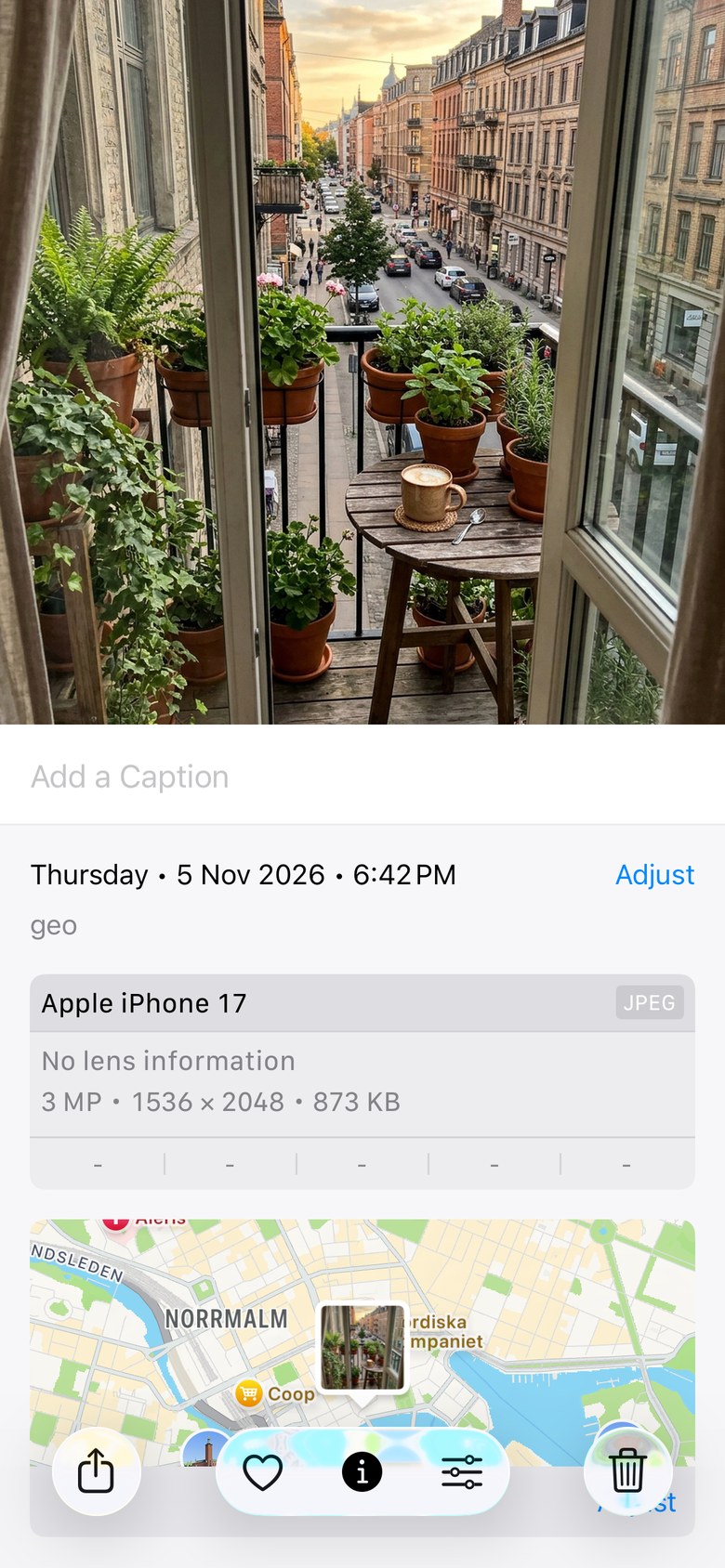
iPhone: remove location when you share
- Open the photo and tap Share.
- Look under the photo thumbnail. If it says “Location Is Included”, the file carries a location.
- Tap Options, then switch Location off, and tap Done.

This removes the location from the copy you send and leaves your original photo untouched.
iPhone: remove location from the photo itself
- Open the photo and swipe up.
- Tap Adjust under the map.
- Choose No Location.

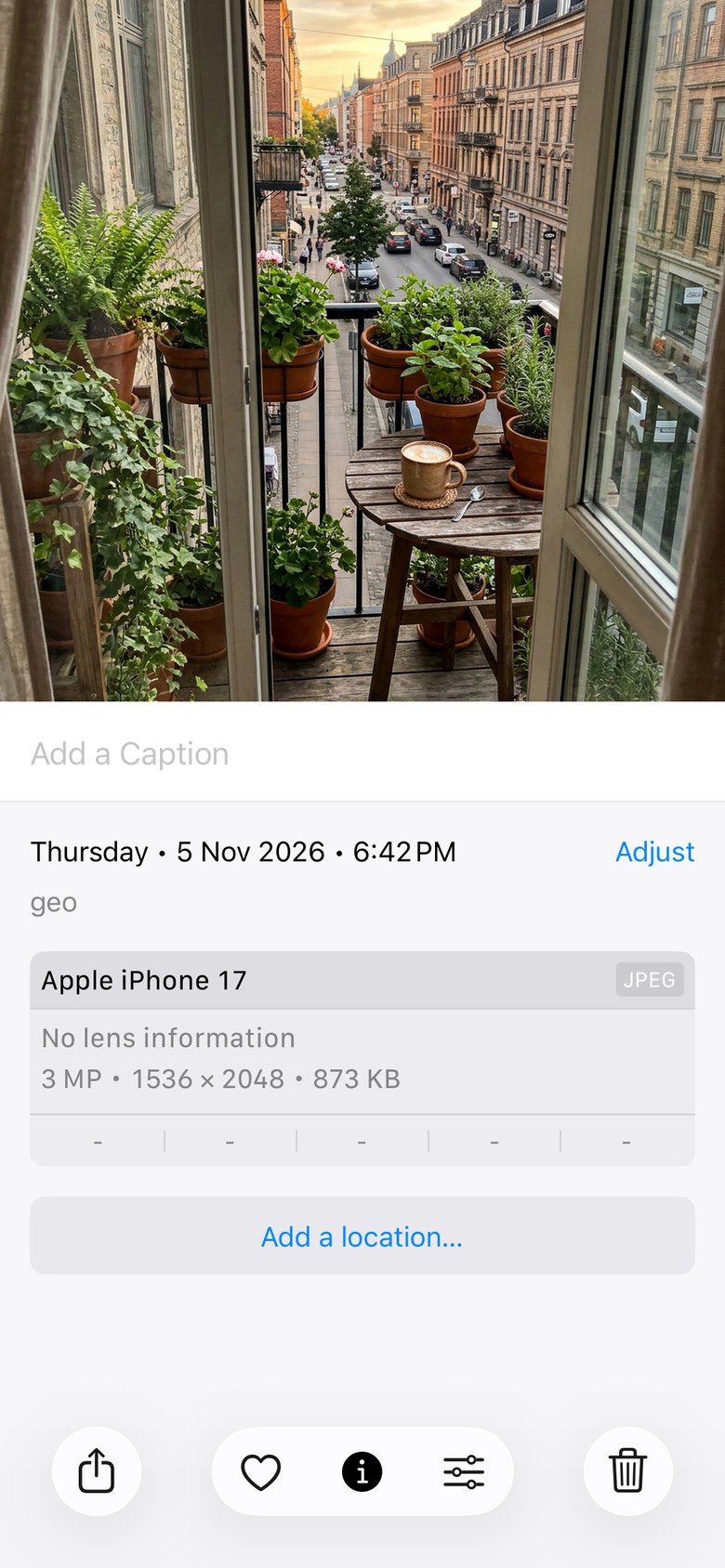
This changes the photo in your library, so use it for pictures you never want to share with a location.
Android (Google Photos)
Open the photo, swipe up to see its details, tap the pencil next to the location and choose Remove location. Menus differ between phone brands and app versions, so look for “Location” in the photo details.
Stop adding it in the first place
- iPhone: Settings, Privacy and Security, Location Services, Camera, set to Never.
- Android: open the camera settings and turn off the location tag option (the name varies by phone).
Windows and Mac
- Windows: right-click the file, Properties, Details, then Remove Properties and Personal Information.
- Mac: open the image in Preview, Tools, Show Inspector, GPS tab, then Remove Location Info.
Quick questions
Does a screenshot carry my location? Usually not, because a screenshot is a new image rather than a camera photo, but check the details if it matters.
Will removing location make the photo worse? No. Only the metadata changes, not the pixels.
Should I do this every time? Do it for anything taken at home, school or work before you send the original file.
The sample photo in this article is AI-generated and its location is an example. Screens are from the iPhone Simulator running Photos. Steps can vary by device and app version.

Writes guides and product notes for Bytesweavers.