How Much VRAM and RAM Do You Need for Local AI Video on Windows?
You download an AI video model, enter a prompt, and the job fails with an out-of-memory error. The confusing part: your PC has plenty of RAM. The missing detail is that system RAM and GPU memory are different pools. Having 32 GB of one does not mean you have 32 GB of the other.
Before downloading model weights, check both. This guide uses concrete settings from the model catalog of our Windows app, AI Text & Image To Video Generator Pro. These are catalog profiles, not fresh performance benchmarks or universal minimums for every installation.
1. Find your dedicated GPU memory in Windows
Open Task Manager → Performance → GPU. Note the GPU name and the capacity shown for Dedicated GPU memory. If Windows lists more than one GPU, inspect the NVIDIA card rather than assuming the integrated graphics entry is the one doing generation.
Then select Memory in the Performance sidebar to check system RAM. Do not add shared GPU memory to dedicated VRAM and treat the total as equivalent hardware. Memory-sharing and offloading strategies depend on the workflow and can change performance substantially.
2. Compare a specific model profile, not a vague “AI-ready” label
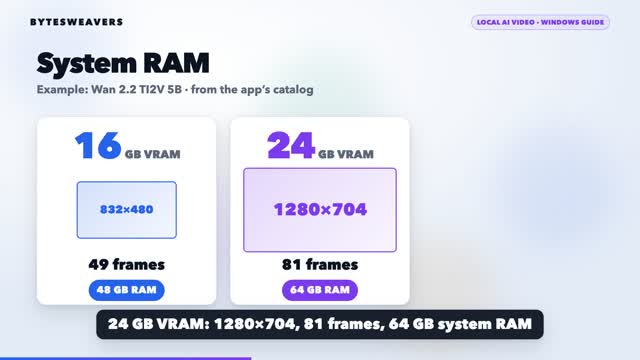
Here is one example from our app’s catalog: Wan 2.2 TI2V 5B. Its three NVIDIA profiles pair GPU memory with different output settings and system RAM requirements.
| Dedicated VRAM | System RAM | Output dimensions | Frames |
|---|---|---|---|
| 16 GB | 48 GB | 832 × 480 | 49 |
| 24 GB | 64 GB | 1280 × 704 | 81 |
| 32 GB | 64 GB | 1280 × 704 | 121 |
Source: app catalog 2026.09.02-dev4. Wan 2.2 profile is marked preview. These figures describe this app’s configured profiles; other runtimes, quantization levels and offloading settings may differ. Hardware validation remains open.
3. “Offline” still needs an initial download
Local generation is not the same as a zero-download setup. You first need the application runtime and the selected model files on disk. Our app’s documented workflow forces generation offline after model installation. Leave space for weights, caches and exported clips, and avoid assuming a download is complete just because the interface opened.
The Windows source build includes a model manager, a queue and separate job processes. A separate process can contain a failed job, but it does not make an undersized GPU capable of running every model. Most models in the catalog are preview or experimental.
4. Start with a small, readable test
Choose a supported profile, keep the initial clip short, and use one subject with one simple camera movement. For example:
A close-up of modular robotic machinery assembling in midair. Titanium parts click together. Slow camera push. Dramatic side lighting. No people.
Keep the model, resolution and frame count unchanged while checking that the workflow works. Change one setting at a time afterward. If a job fails, record the model, profile and error instead of repeatedly launching larger jobs.
5. Check the model license before commercial use
“Runs locally” does not mean every model has identical commercial terms. Read the license for the exact model and version you install. Start with the official Wan repository and LTX-Video repository, then follow the license for your chosen weights. This is a technical checklist, not legal advice.
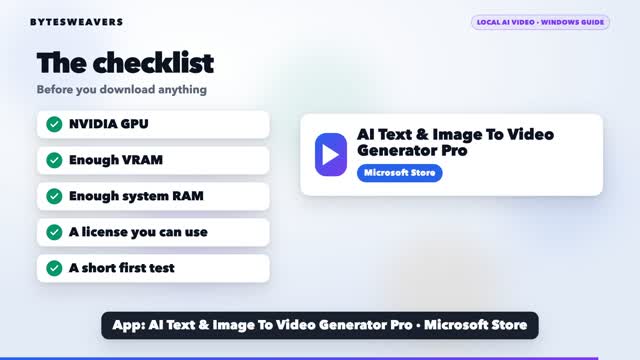
Your first-run checklist
- Identify the NVIDIA GPU and dedicated VRAM.
- Check system RAM separately.
- Match the exact model profile, resolution and frame count.
- Complete runtime and model downloads; keep disk space available.
- Read the model’s license.
- Run one short test before committing to a larger project.
Watch the guide: How to Generate AI Videos Offline on Windows (scheduled for 4 November, 17:30 IST). For the quick hardware check, watch the Short.
Disclosure: Bytesweavers develops AI Text & Image To Video Generator Pro. This article is based on its source documentation and model catalog; we did not run a new Windows GPU benchmark for this guide. The video uses a credited Comfy Org LTX 2.3 example, not an output generated in our app. No generation time or output quality is guaranteed.

Writes guides and product notes for Bytesweavers.