How to Make Bright Websites Dark in Safari 27.3 Beta
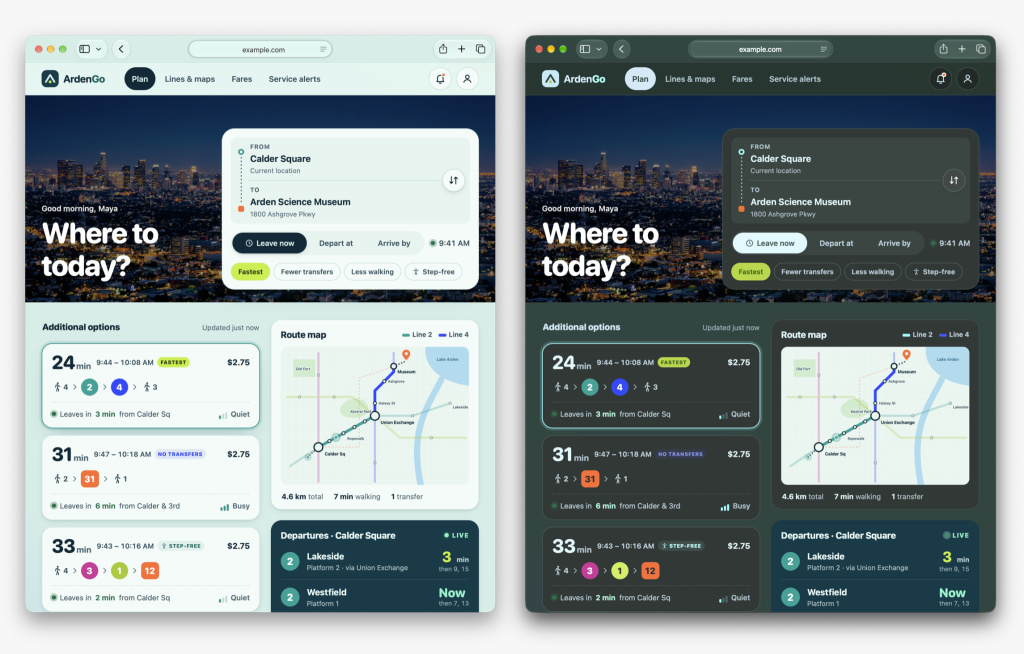
Your device is already in Dark Mode. You open a timetable, a recipe or an old help page, and the whole screen lights up. The site may not have a dark design. Safari 27.3 beta can adapt eligible pages itself.
Try it on a bright page
- On a device running Safari 27.3 beta, set system appearance to Dark.
- Open a bright site that stays light even with Dark appearance on.
- If Safari offers an Adaptive Dark Mode preview, tap Try, then scroll and read whether labels, buttons and images are still usable.
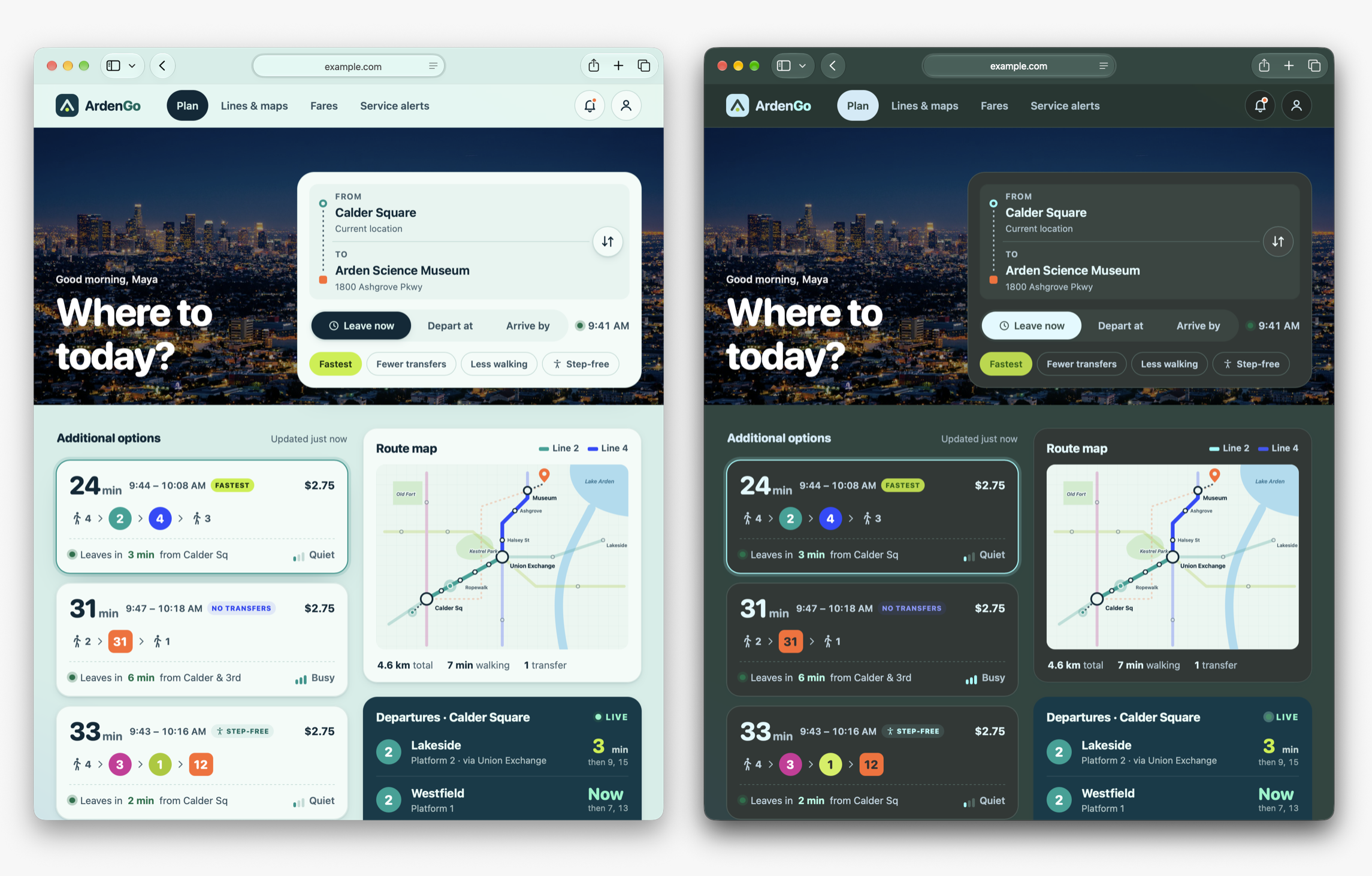
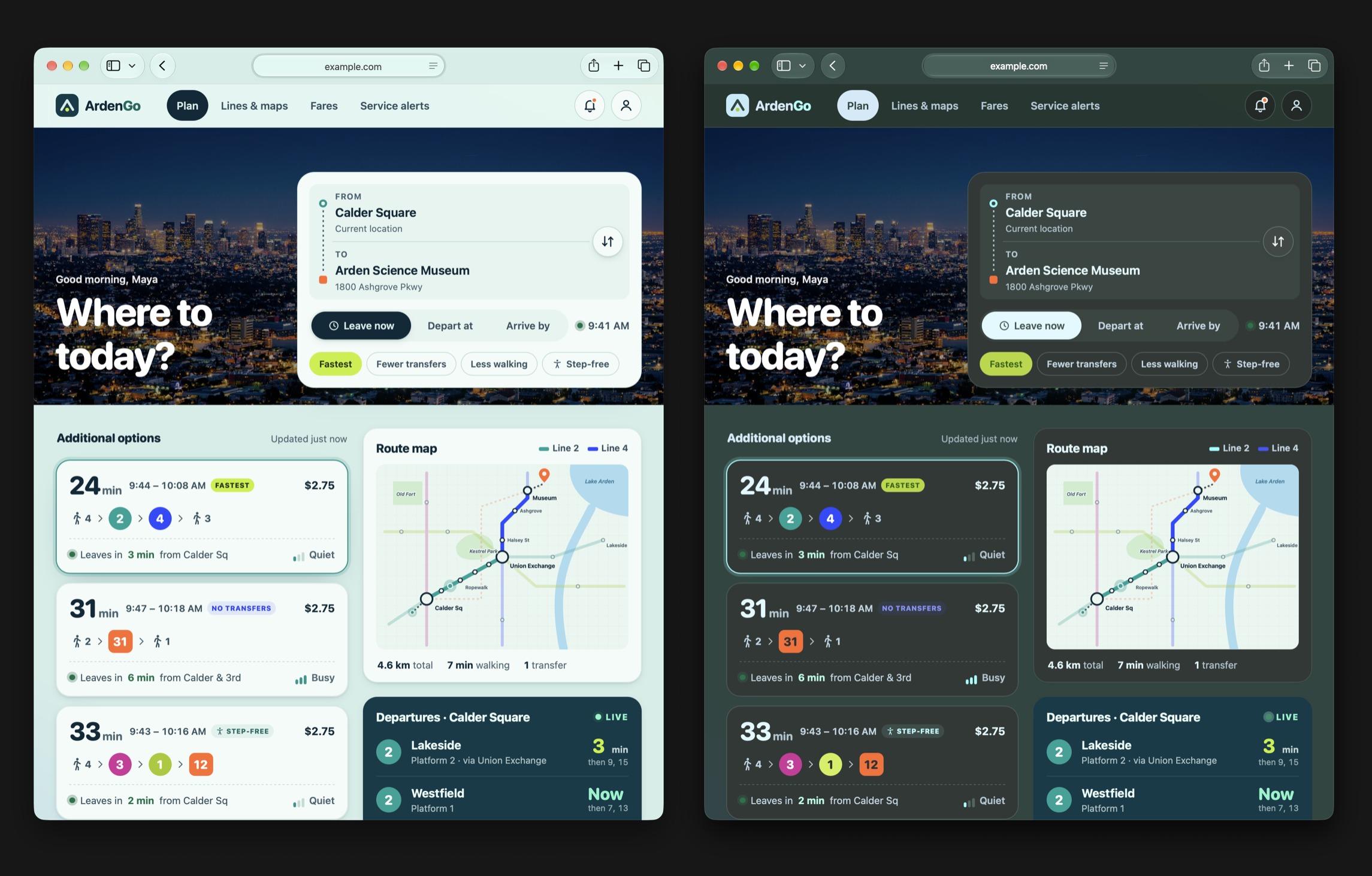
Before and after
Why you might not see Try
First check that you’re actually on the 27.3 beta and that system appearance is Dark. A site with its own dark design or an already dark page may not offer a conversion. Try a different bright site before assuming the feature is missing.
What changes on the page?
Safari adjusts the way the page looks in your browser. In WebKit’s example, the pale route cards turn dark and the labels turn lighter, while the city photo and route map stay recognizable. Check the result on your own page; this is still a beta.
Watch the 15-second comparison or read WebKit’s explanation and availability notes. The reel uses WebKit’s demo captures with an illustrated tap.

Writes guides and product notes for Bytesweavers.