How to Run Qwen-Image 2512 Locally on Windows (Images With Readable Text)
Most image prompts describe what to draw. This one has a harder job: the picture has to spell something. Qwen-Image 2512 is built for that, and AI Text To Image Generator Pro for Windows lists it as a built-in model. This guide shows where to choose it, what to check before the first download, and how to inspect the lettering afterwards.
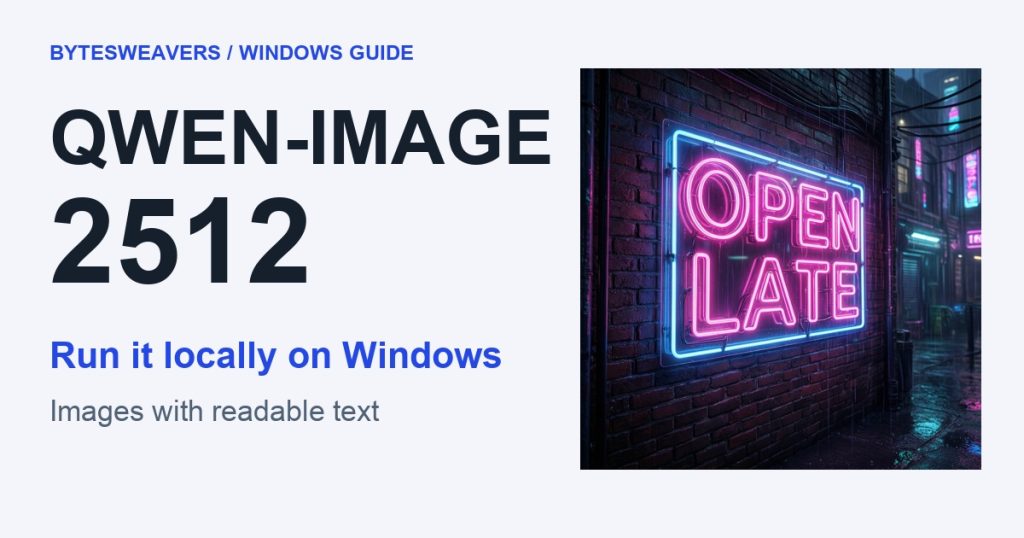
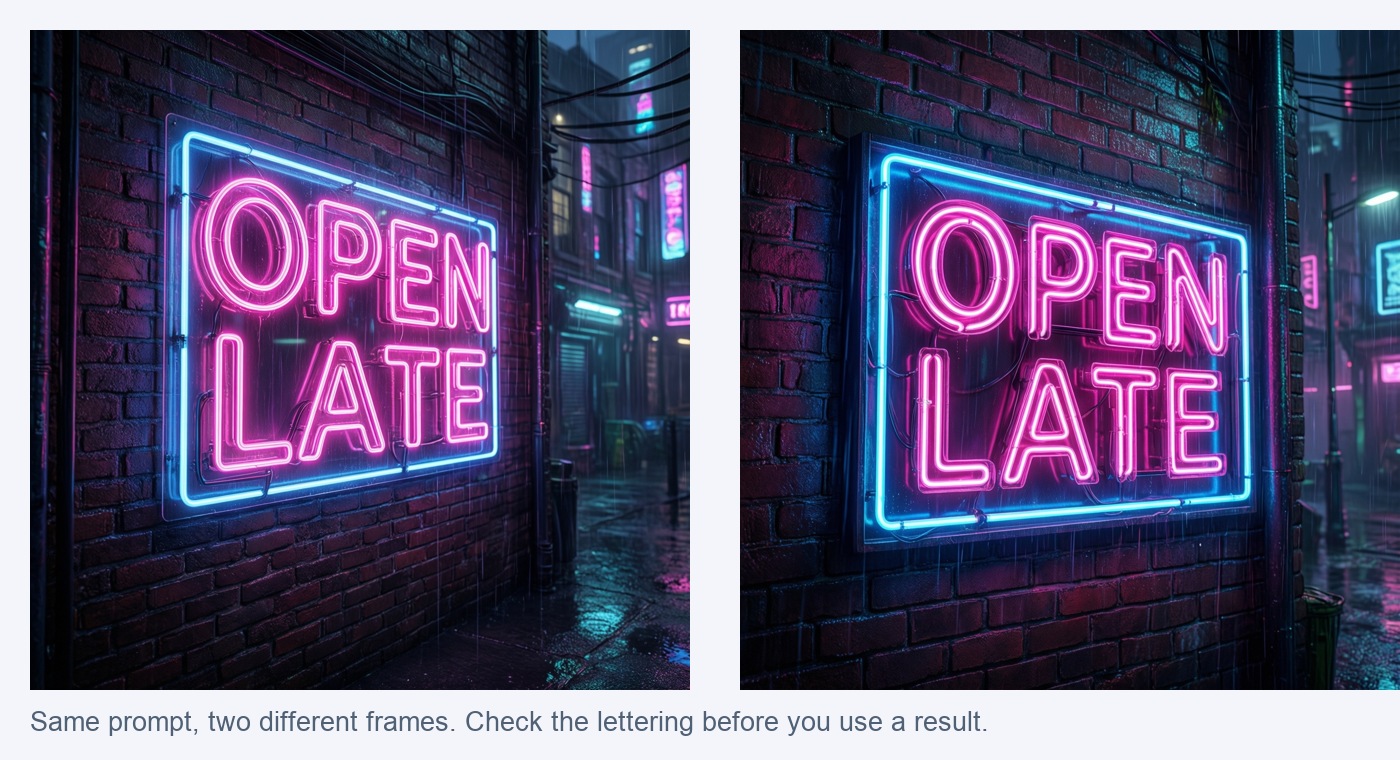
The neon-sign images in this post are Qwen-Image 2512 samples from a public dataset, credited below. They were not rendered in the Windows app for this guide. The app screens come from the Pro 1.2.20 workflow.
What Qwen-Image 2512 is
Qwen-Image 2512 is an open image model from the Qwen team at Alibaba, released under the Apache-2.0 license. Its model card highlights more realistic people, finer natural detail and better text rendering. In the app it appears as Qwen-Image 2512 (Text, 24 GB+), which tells you it is a large model.
It is separate from the optional Qwen Image 2.1 gateway in the custom model manager. You do not need that gateway for this walkthrough.
Check your PC first
The app labels this model for graphics cards with 24 GB of memory or more, and lists a first download of roughly 54 GB. What actually runs on your PC depends on your hardware, so read the model guide in the app before you commit to the download.
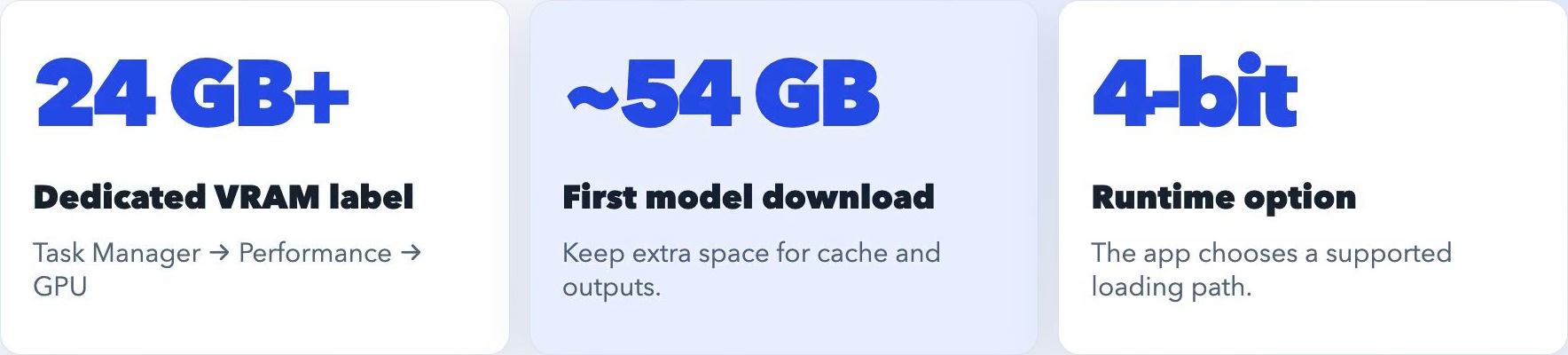
To see your dedicated GPU memory, open Task Manager, go to Performance and select GPU.
Step 1: Pick the model
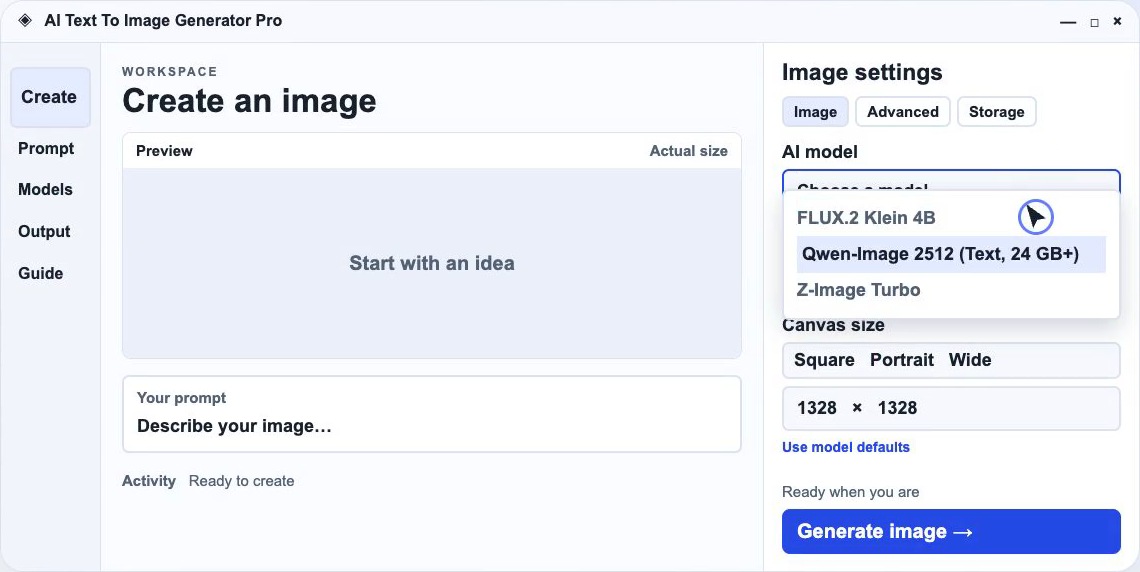
In the Image settings panel, open AI model and choose Qwen-Image 2512 (Text, 24 GB+). The description underneath calls it a 20B model for sharp text, posters and detailed scenes.
Step 2: Write the prompt in three parts
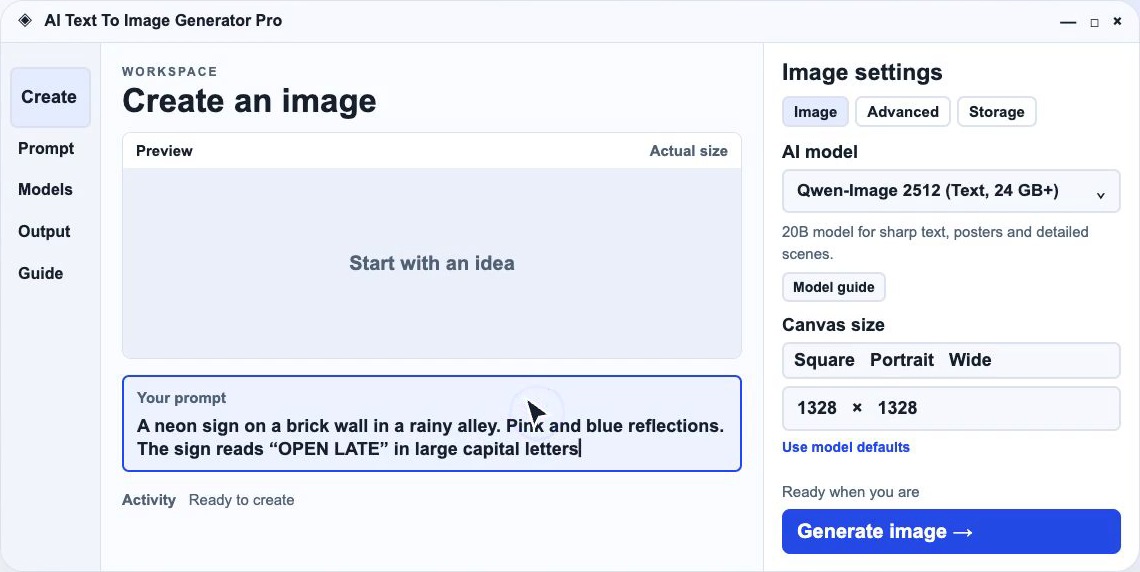
Give the model three separate instructions: the scene, the exact words in quotes, and where those words go. Keep your first test to one short phrase.
A neon sign on a brick wall in a rainy alley. Pink and blue reflections. The sign reads "OPEN LATE" in large capital letters.
Step 3: Start with the defaults
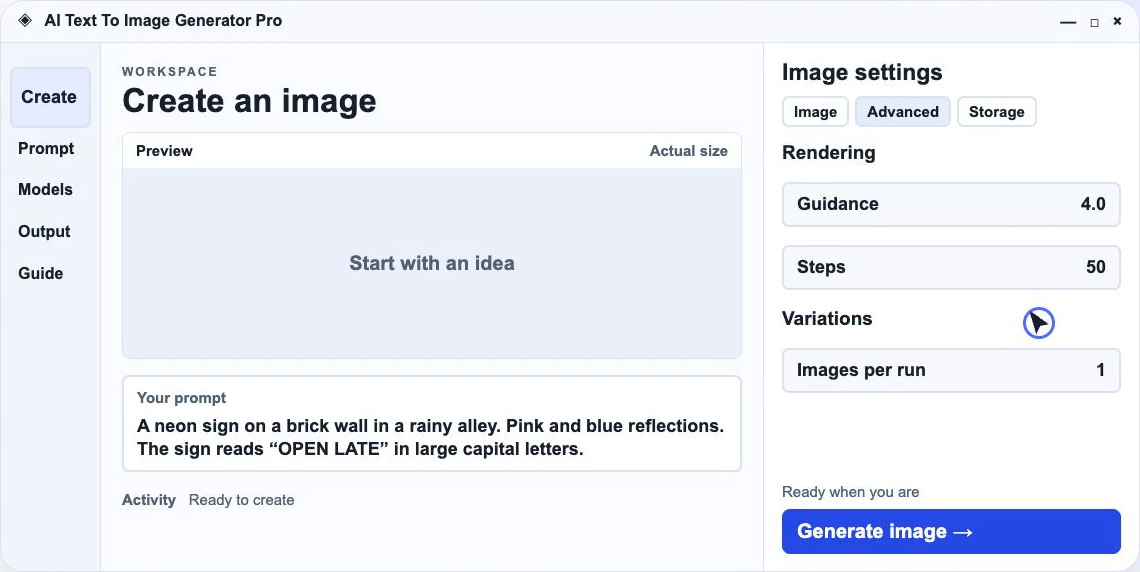
Under Canvas size, choose Square. The model defaults start at 1328 × 1328. On the Advanced tab, the defaults are 50 steps and guidance 4.0, and one image per run is a sensible start. Change one setting at a time so you can tell what made the difference.
Step 4: Choose an output folder and generate
On the Storage tab, choose where images are saved. Then click Generate image. The first run downloads the model files, so allow time for it. The app can use a 4-bit loading path on compatible hardware, but it still downloads the model first. Once the files are saved, generation runs locally.
Check the lettering at full size
Use Actual size above the preview. Read the large sign first, then look for stray letters, doubled characters and missing punctuation around it. Small labels are harder for any image model than a big headline.
When a word comes out wrong
- Shorten the line and make it larger in the scene.
- Try another variation before rewriting everything.
- If a customer will read it, generate the artwork with room for a headline and add the final text in an editor.
Credits and notes
Qwen-Image 2512 is by the Qwen team (Apache-2.0): model card. The sample images come from stablellama’s Qwen-Image-2512 Samples, generated in ComfyUI with the BF16 model and shared under CC BY-SA 4.0. They are shown here reframed and zoomed. No endorsement is implied.
Disclosure: AI Text To Image Generator Pro is our app. This guide is based on the 1.2.20 source. Check the version available to you, and check hardware requirements before you download the model.

Writes guides and product notes for Bytesweavers.