How to Fix a Low-Resolution Photo Warning Before You Print
You open a photo book or print order, and a yellow warning appears: low resolution. The picture looked fine on your phone, so what changed? Nothing in the file. A phone screen is small and forgiving, while a print asks every pixel to cover far more space. Here are three checks to run, in order, before you pay for a frame or a photo book.
1. Find the original file, not a copy
Screenshots, chat apps and social networks all shrink photos. If the picture came through a messaging app, ask the sender for the original, or look for the camera file in your own photo library. This one step fixes more warnings than any tool, because a bigger source simply contains more pixels.
2. Check the pixels, not the megabytes
File size does not tell you whether a photo is sharp enough to print. Pixel dimensions do. On iPhone, open the photo in Photos and tap the information button to see the width and height in pixels. Then use a quick rule of thumb: divide the pixels by the print width in inches.
- A 450-pixel-wide photo printed 6 inches wide gives only 75 pixels per inch.
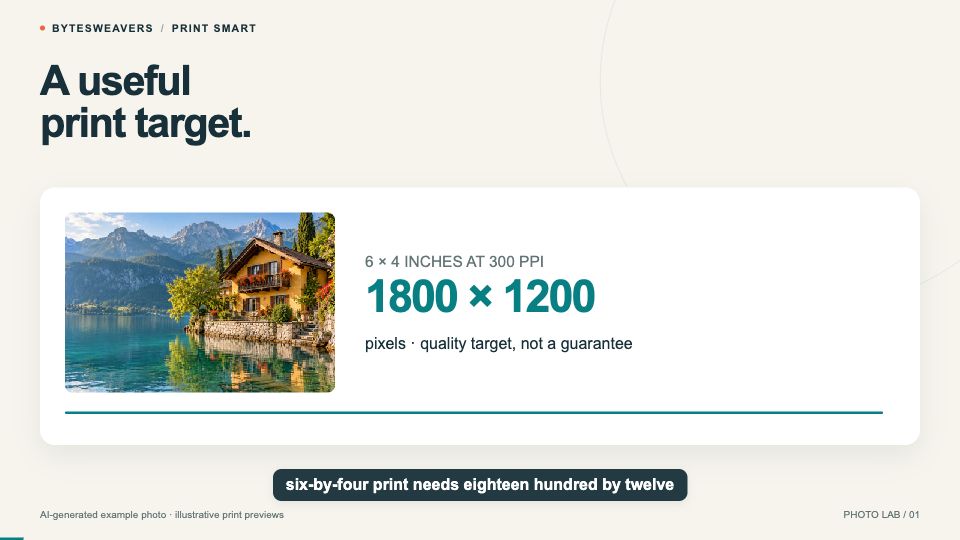
- A 6×4-inch print at 300 pixels per inch needs about 1800×1200 pixels.
- Treat 300 as a useful target, not a guarantee. Many labs accept less for wall prints viewed from a distance.
3. Crop less, or print smaller
Cropping throws pixels away, and a larger print asks the remaining pixels to do more. If a warning appears, try a smaller photo box or a less aggressive crop first. Changing the DPI number in a file’s metadata to 300 does not help by itself. If the real pixel dimensions stay the same, you have not created any extra picture detail.
4. Only a small copy left? Compare an upscale honestly
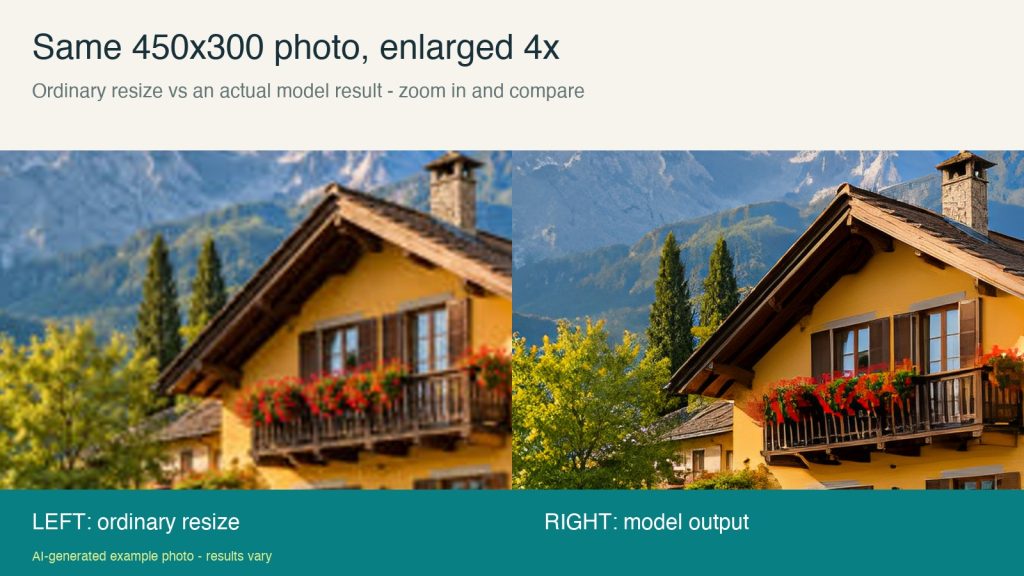
If you cannot recover a better original, an AI upscaler can help. We tested the same 450×300 image enlarged four times on each side to 1800×1200 pixels: an ordinary resize on the left, an actual model result on the right. Zoom in on edges such as the balcony rails and roof lines, and judge the difference yourself.
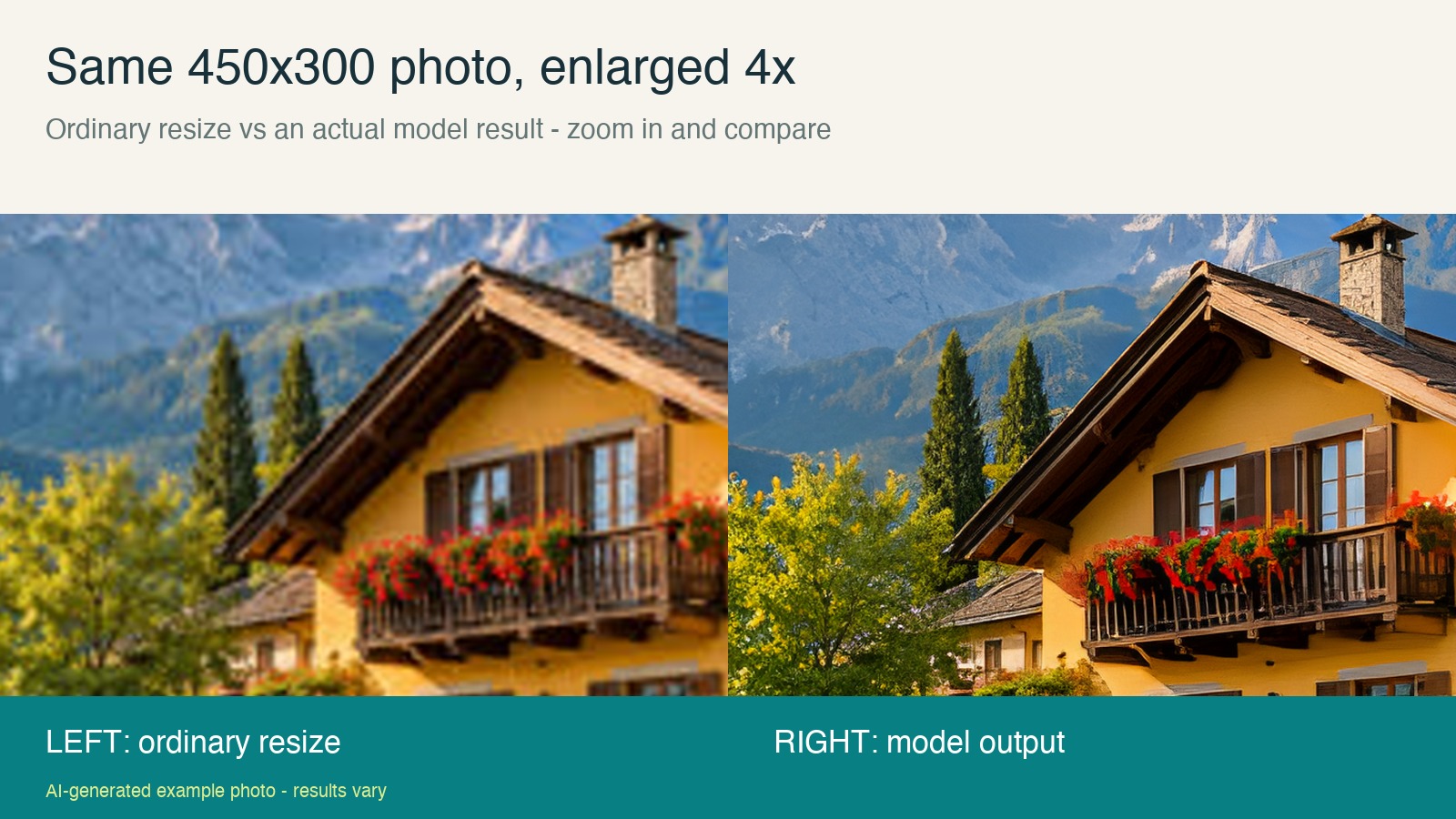
Be realistic about the limits. Four times the width and height means sixteen times the pixel count, not sixteen times the real detail. An upscaler estimates texture, so it can invent details or change faces. Keep your original file and check faces, text and edges before you order.
Quick checklist before you order
- Use the original camera file, not a screenshot.
- Check the pixel dimensions and do the pixels-per-inch maths.
- Crop less or choose a smaller print size.
- If you still need more pixels, try an upscale, then zoom in and inspect it.
- Export the enhanced file and upload that file, not a screenshot of the preview.
Prefer to see it step by step? Watch the full walkthrough on YouTube or the 20-second version. We make AI Photo Upscaler for iPhone and iPad; check the App Store for current pricing and compatibility.
Transparency note: the travel photo is AI-generated, the comparison uses a real model run on a Mac, and no physical prints were ordered or tested. Results vary by photo.

Writes guides and product notes for Bytesweavers.