How to Delete Thousands of Promotional Emails in Gmail Without Losing Important Mail
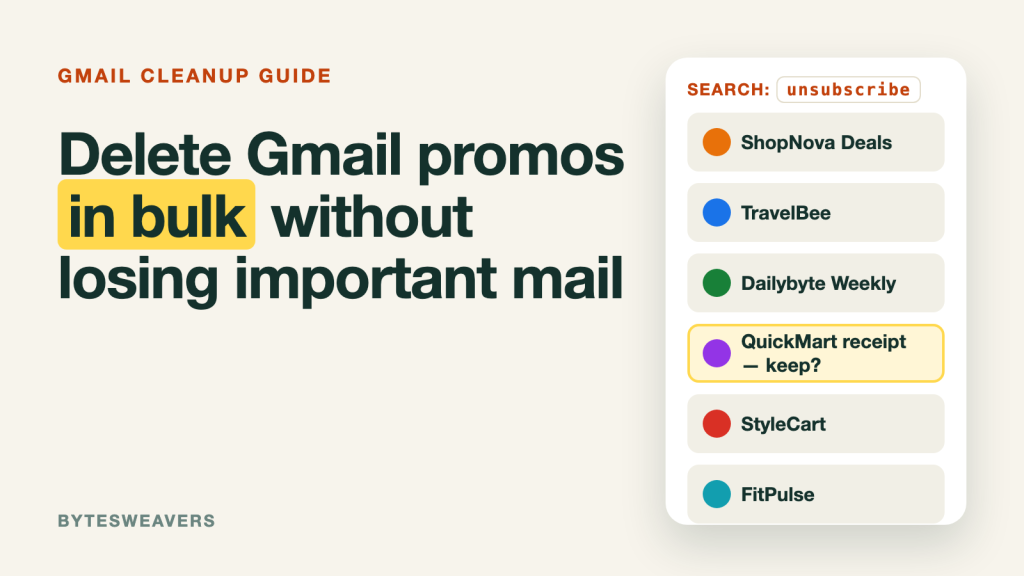
An inbox with thousands of unread promotions is not just messy. It buries the mail that matters. The good news is that Gmail can clear them in bulk, in about a minute, if you do it in the right order. This guide shows the search, the selection step most people miss, and the check that keeps you from deleting something you need.
The inbox in the example images and video uses made-up senders and sample emails for illustration. Your results will differ.
Step 1: Search the word “unsubscribe”
Most newsletters and promotional emails include an unsubscribe link in the footer, so searching that word in the Gmail search bar pulls many of them into one list. It is a shortcut, not a perfect filter: receipts and notices from stores can contain the same word.
Step 2: Select everything that matches, not just the page
Tick the checkbox at the top left of the list. Gmail selects the 50 conversations on screen and shows a banner. Click “Select all conversations that match this search” in that banner. Without this click, you only act on one page at a time.
Step 3: Skim before you delete
Look through the visible rows for anything you need: order receipts, booking confirmations, bank or account notices. Untick those, or run a narrower search first. This is the step that makes bulk deletion safe.
Step 4: Delete, and remember Trash holds mail for 30 days
Click the trash icon. Deleted mail goes to Trash, where Gmail keeps it for 30 days before removing it permanently, so you can open Trash and move something back if you made a mistake.
Safer searches than “unsubscribe” alone
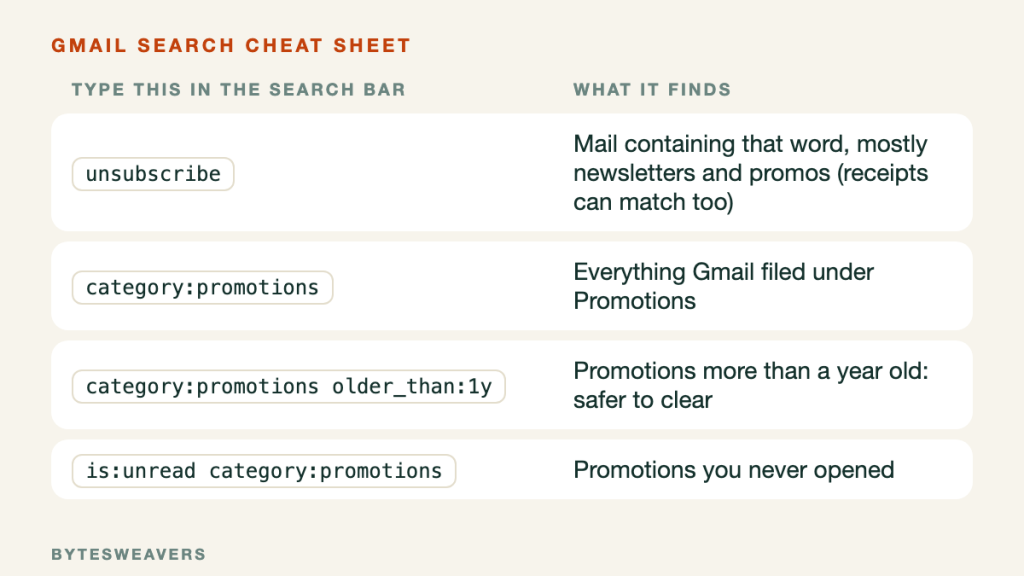
category:promotionslists everything Gmail has filed under Promotions.category:promotions older_than:1ylimits that to mail more than a year old, which is usually safe to clear.is:unread category:promotionsfinds promotions you never opened.
Stop the next wave
Deleting does not stop new mail. For senders you no longer want, open one of their emails and use the Unsubscribe link near the sender’s name, or the one in the footer. Then delete the old messages.
Limits
Gmail labels and categories are automatic and sometimes wrong, so a search will not catch everything and may catch something you want. Large deletions can take a little while to finish. Always skim first, and check Trash if something seems missing.
Prefer to watch? Here is the 18-second version: Gmail cleanup on YouTube Shorts.
Published by Bytesweavers. This guide is tool-neutral and does not promote a product.

Writes guides and product notes for Bytesweavers.