How to Convert Text to Handwriting on Android and Save It as a PDF
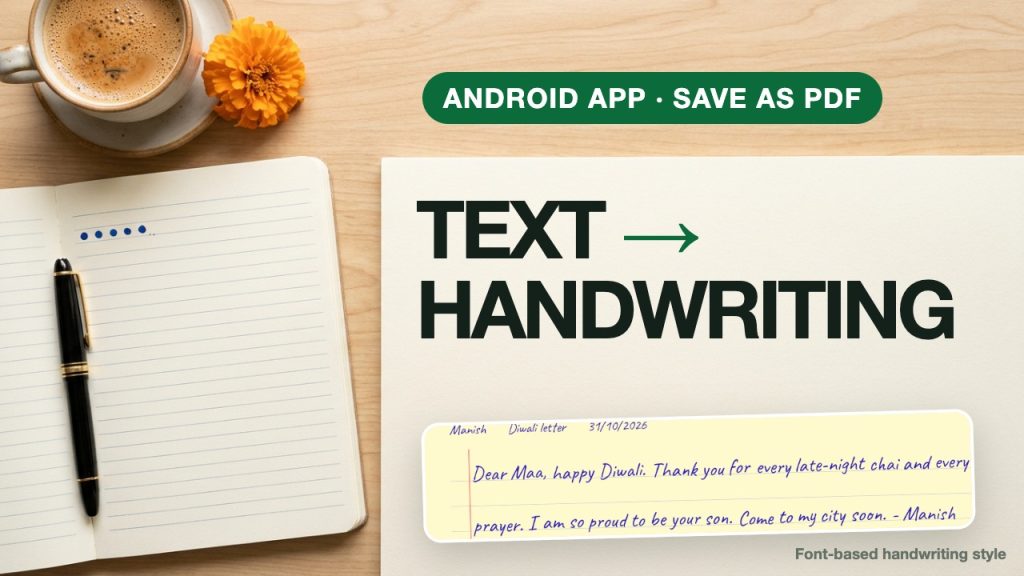
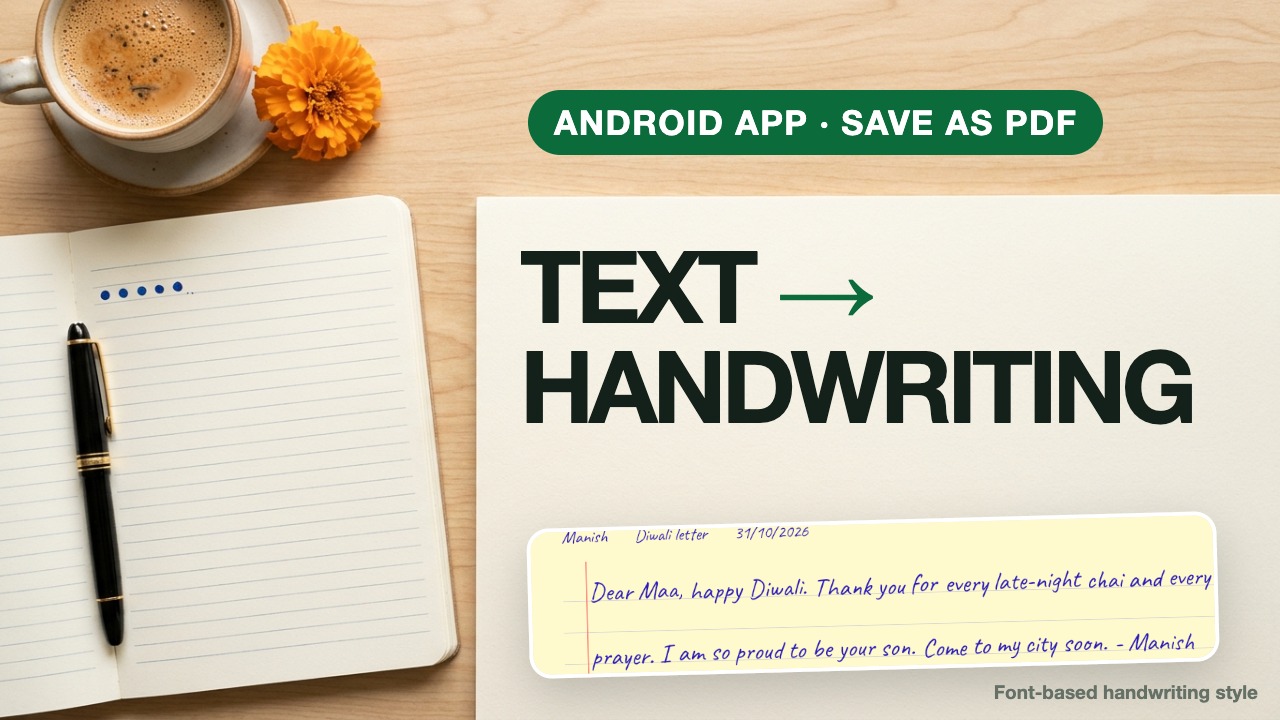
Sometimes a typed message feels too cold: a birthday card, a thank-you note, a journal page. AI Handwriting Generator for Android turns typed text into a handwriting-style page on ruled paper, which you can save as a PDF or images, or share. This guide walks through the whole Editor flow, step by step.
Disclosure: We are Bytesweavers, the app’s developer. The screenshots below were captured from the app (a debug build, so you can see a “Test Ad” banner) running on an Android emulator. The Editor uses handwriting-style fonts, not your own handwriting.
What you need
Install AI Handwriting Generator on Google Play on an Android phone. The Editor tab works with the fonts built into the app. The app shows ads, and two other tabs (Write and Design) use credits or a plan, covered at the end. Check the current Play listing for the latest details.
1. Pick a font and a paper
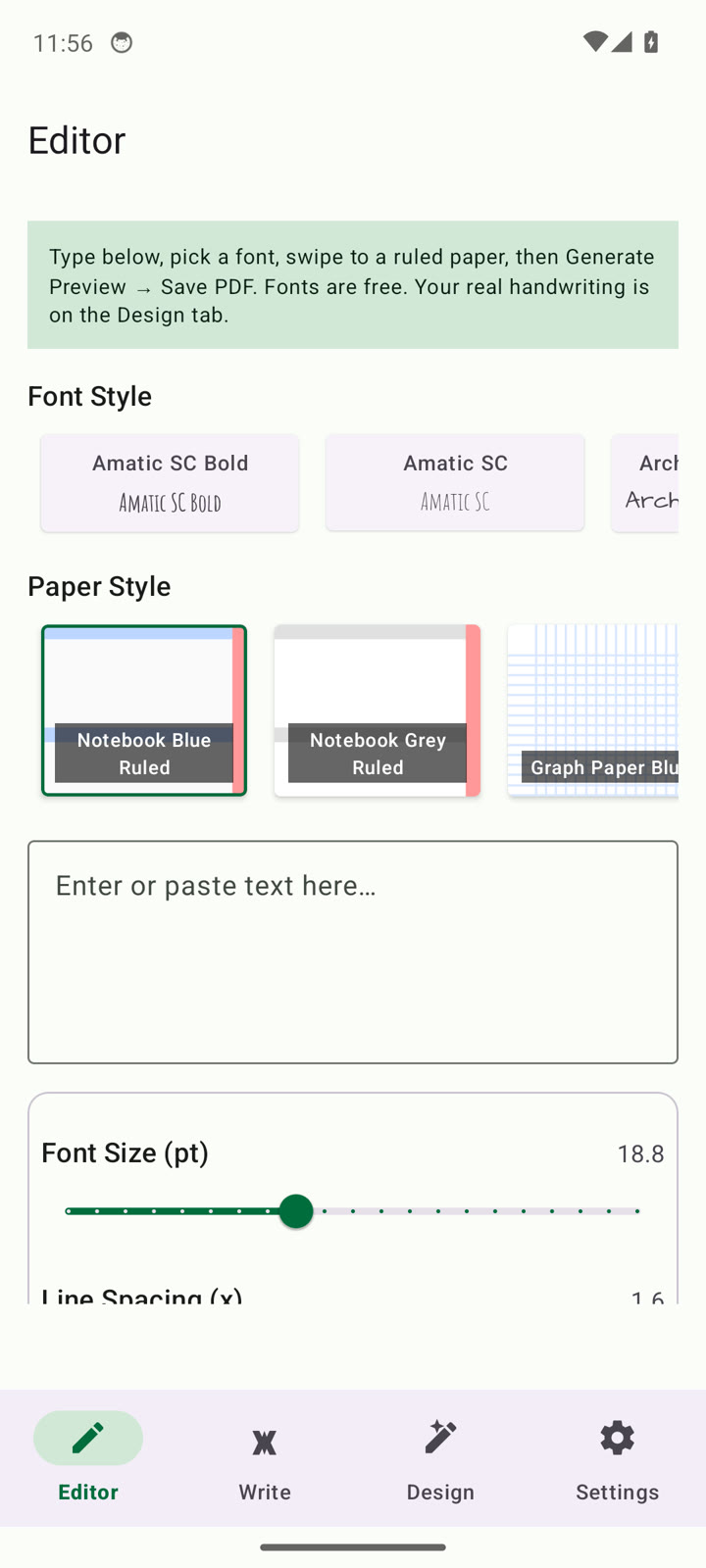
Open the Editor tab. Swipe the Font Style list sideways and tap a font. Swipe the Paper Style row and choose a paper, such as a ruled notebook page, graph paper or plain paper. A ruled notebook with a casual font looks the most like a real letter.
2. Type or paste your note
Tap the text box and write your note, or paste text you already have. Short messages look best on a single page; long text runs onto more pages.
3. Set size, spacing and ink color
Use the Font Size and Line Spacing sliders to match the lines on your paper. Under Ink Color, tap Change, pick a color on the wheel and tap Select. Blue ink reads like a ballpoint pen.
4. Choose how tidy it looks
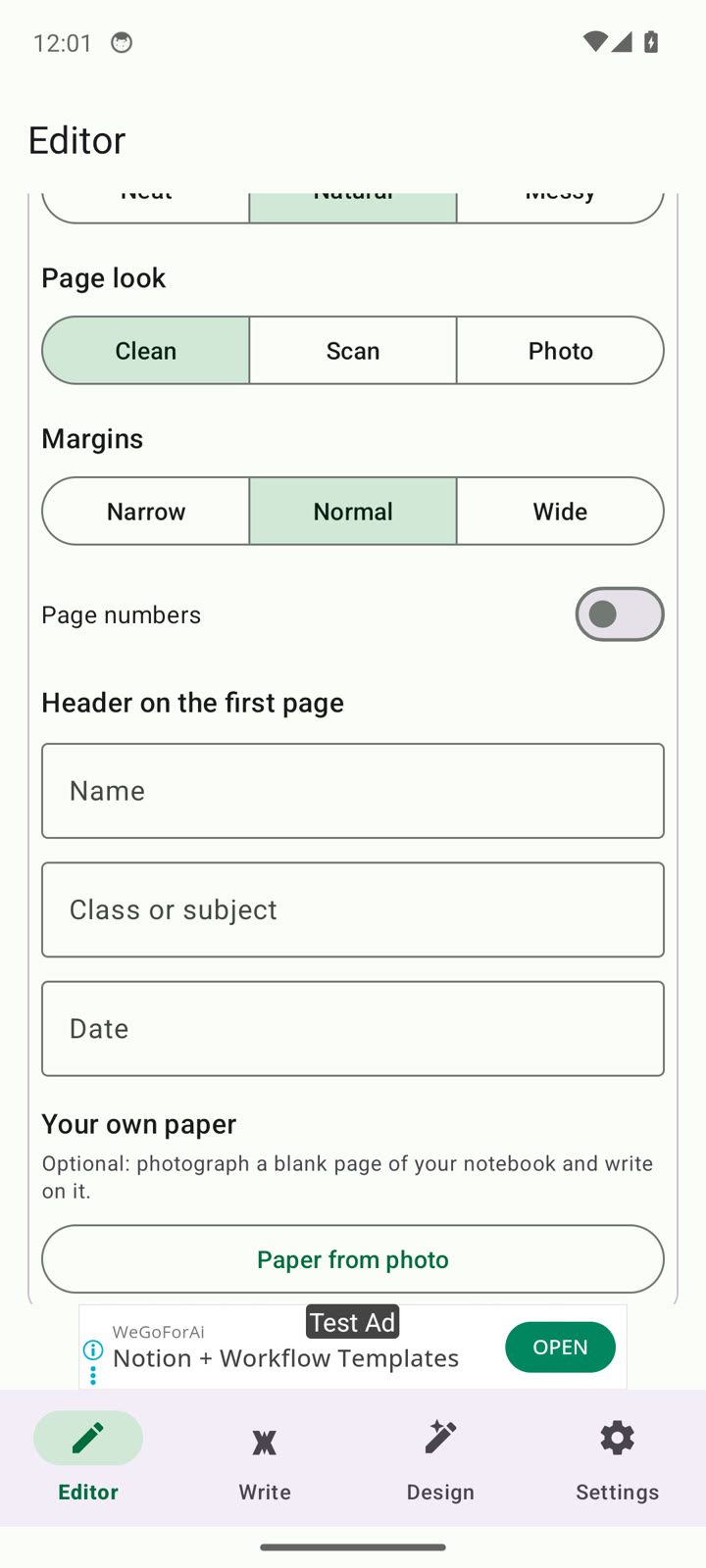
- Natural writing: Neat, Natural or Messy.
- Page look: Clean, Scan or Photo.
- Margins: Narrow, Normal or Wide.
- Page numbers: an optional switch.
You can also fill in a header on the first page with a name, a subject or title, and a date. There is also a “Paper from photo” option if you want to photograph your own blank notebook page and write on it.
5. Generate the preview
Scroll down and tap Generate Preview. The app builds your page and opens a preview.
6. Save as PDF, save images or share
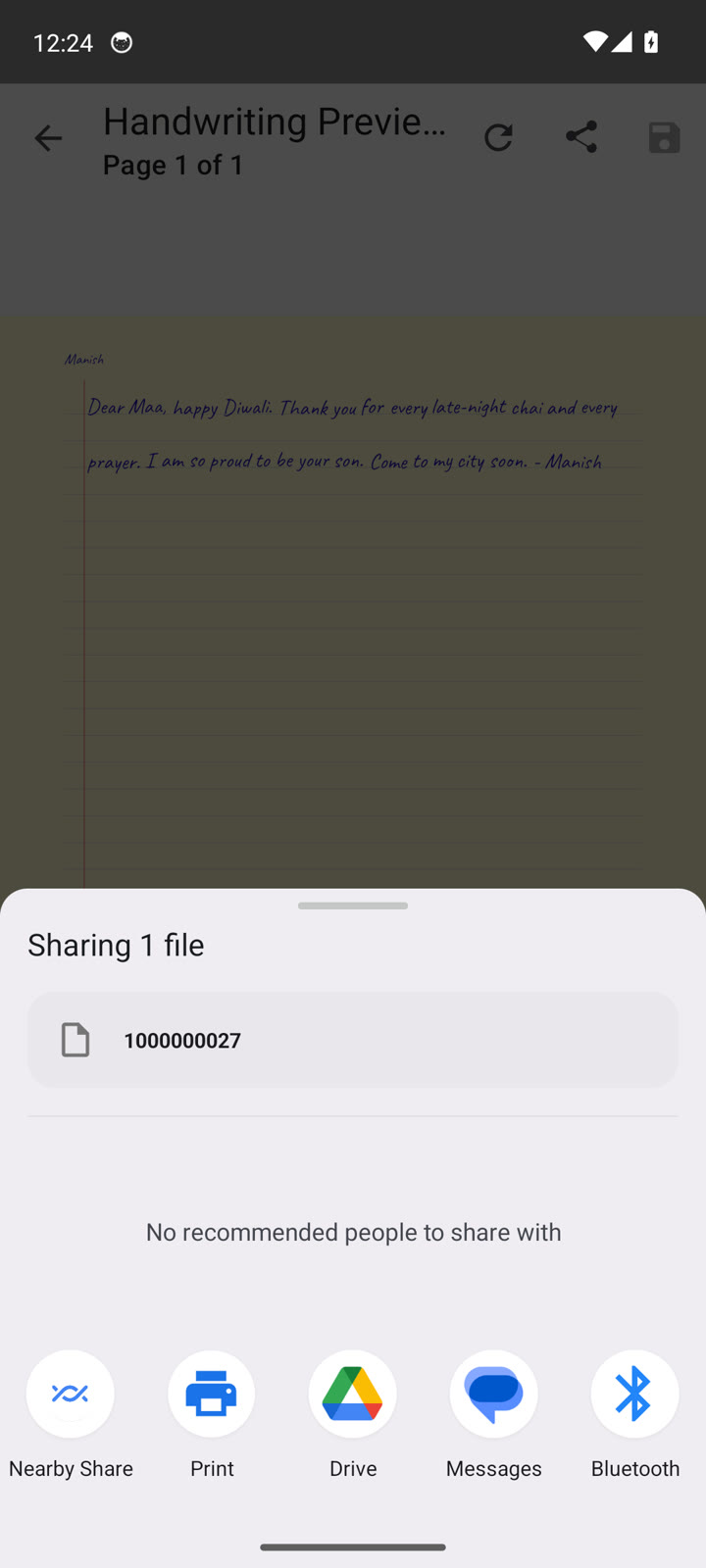
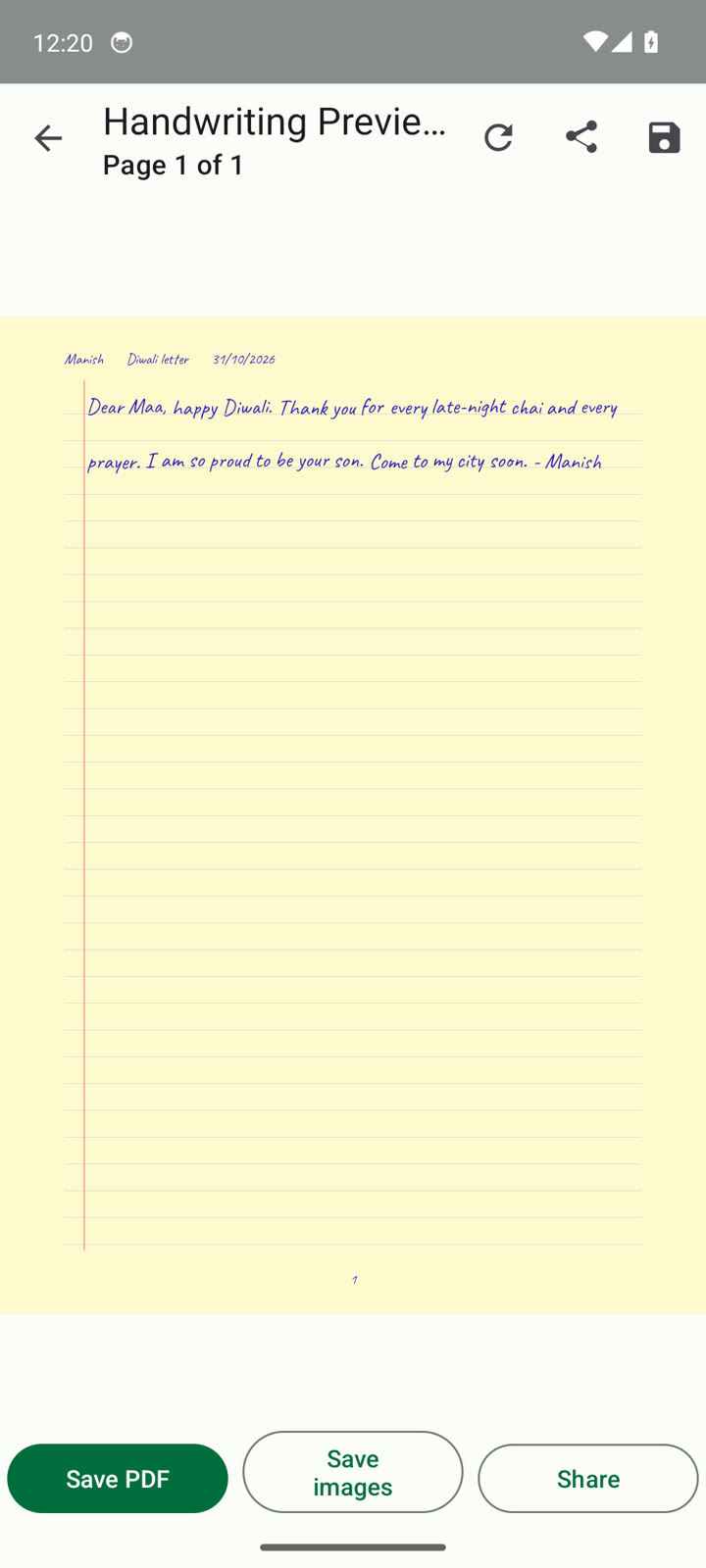
Below the preview are three buttons: Save PDF, Save images and Share. Save PDF shows a “PDF saved” confirmation. Share opens Android’s share sheet so you can send the file from another app.
The other two tabs
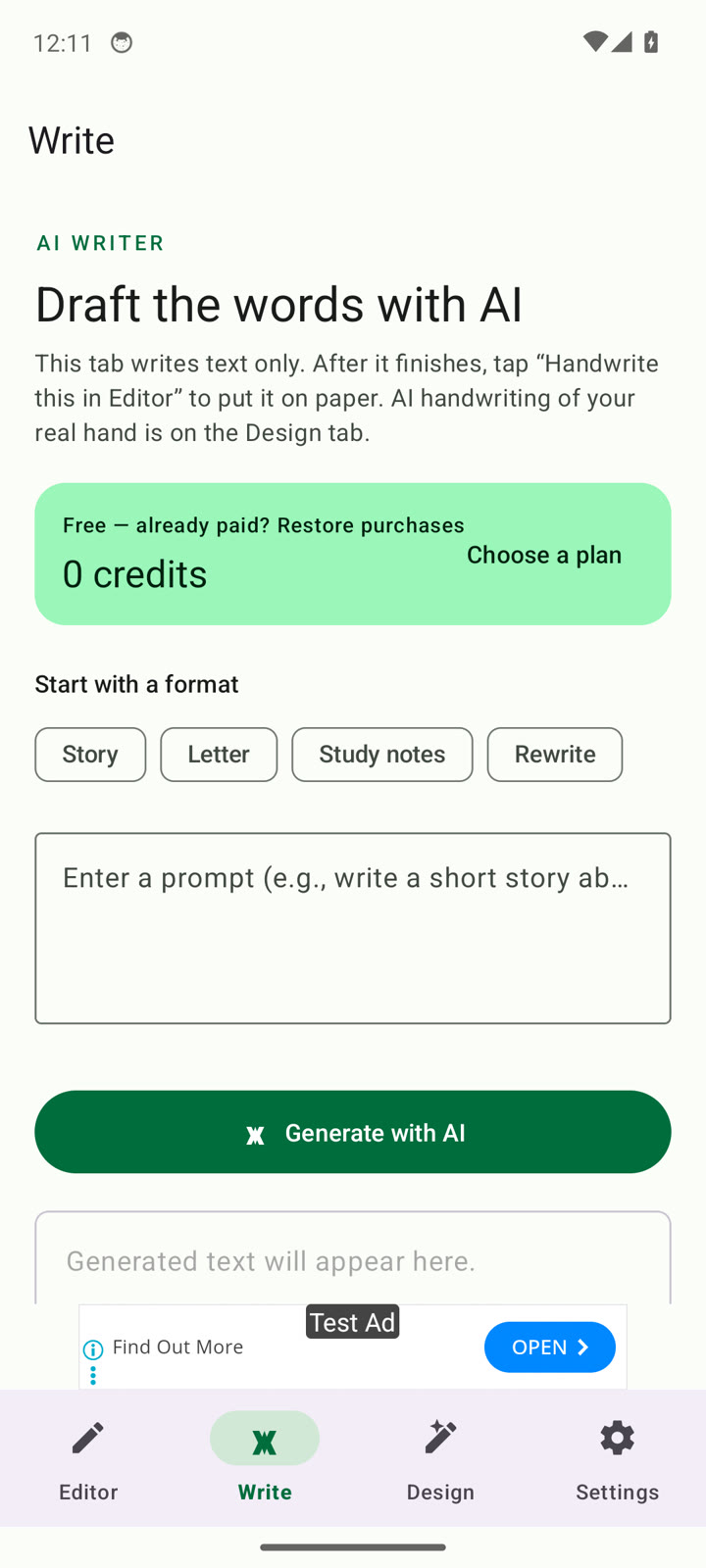
The Write tab can draft a story, letter, study notes or a rewrite with AI. It runs on credits, so the free Editor is not affected. Design Lab (beta) is meant for your own handwriting: you photograph a page of your handwriting and a blank sheet, add the text and tap Create pages. It needs a plan. We did not test either of these in this walkthrough.
Good uses, and one honest warning
Handwriting-style pages work well for greeting cards, letters, journal entries, labels, invitations and notes. Do not hand them in where handwriting is required, such as an exam or an assignment that asks for your own writing.
Frequently asked questions
Is it my real handwriting? No. The Editor uses handwriting-style fonts. Design Lab is the feature aimed at your own handwriting.
Can I save a PDF? Yes: tap Save PDF in the preview. You can also save images or share.
Does it work offline? We have not tested offline use, so we are not making that claim.
Get AI Handwriting Generator on Google Play, or watch the full video walkthrough on the Bytesweavers YouTube channel.

Writes guides and product notes for Bytesweavers.