How to Add Subtitles to a Video Offline on Windows (No Upload Needed)
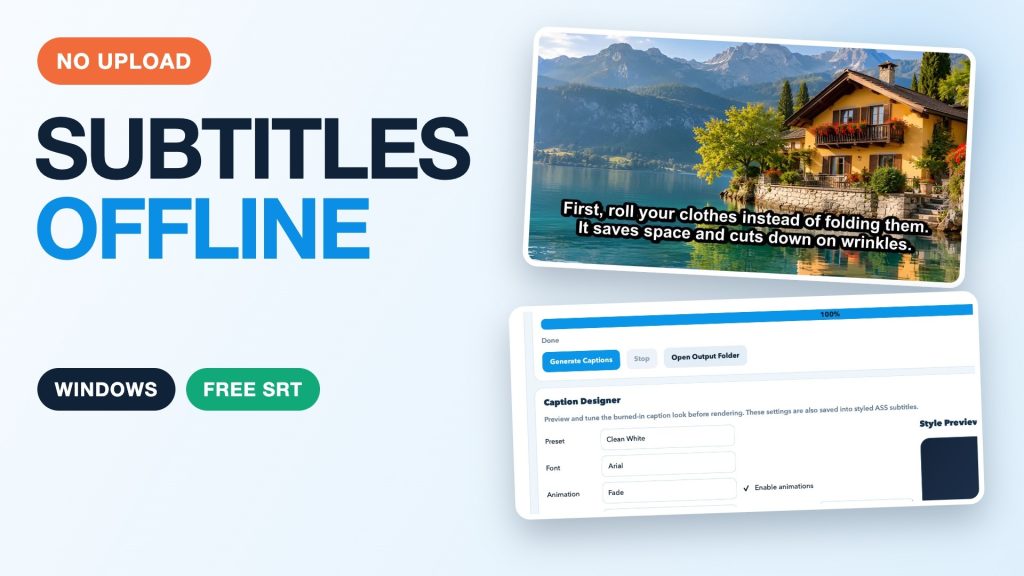
Most online subtitle tools want you to upload your whole video first. You do not have to. If you use Windows, you can generate subtitles on your own computer, fix the mistakes, and export a standard SRT file without sending the video anywhere.
Quick answer
Choose a video, generate captions with a local speech model, correct the text in an editable table, then export SRT, VTT or TXT. Below, I use AI Auto Captions Pro (Windows, Microsoft Store). Disclosure: I develop this app at Bytesweavers.
Why generate subtitles offline?
- Privacy: the video stays on your computer.
- No upload wait: you can start right away, even with a slow connection.
- Works without internet: after the one-time speech model download, no connection is needed.
What you need
- A Windows PC and any video file (MP4, MOV, MKV and similar).
- AI Auto Captions Pro from the Microsoft Store. The free plan covers single videos with the tiny and base models and SRT, VTT and TXT export.
Step-by-step
1. Choose your video and output folder
Pick the video, choose where the files should be saved, and leave the model on base with the language on Auto Detect. The first run downloads the speech model once.
2. Pick the file types
- SRT: works with YouTube and most video editors.
- VTT: for web players.
- TXT: a plain transcript for notes and scripts.
3. Press Generate Captions
In my test, a 24-second clip took about 2 seconds with the base model on a Mac CPU. That is a Mac measurement; the Windows speed on your PC will differ, and longer videos take longer.
4. Check and fix the text
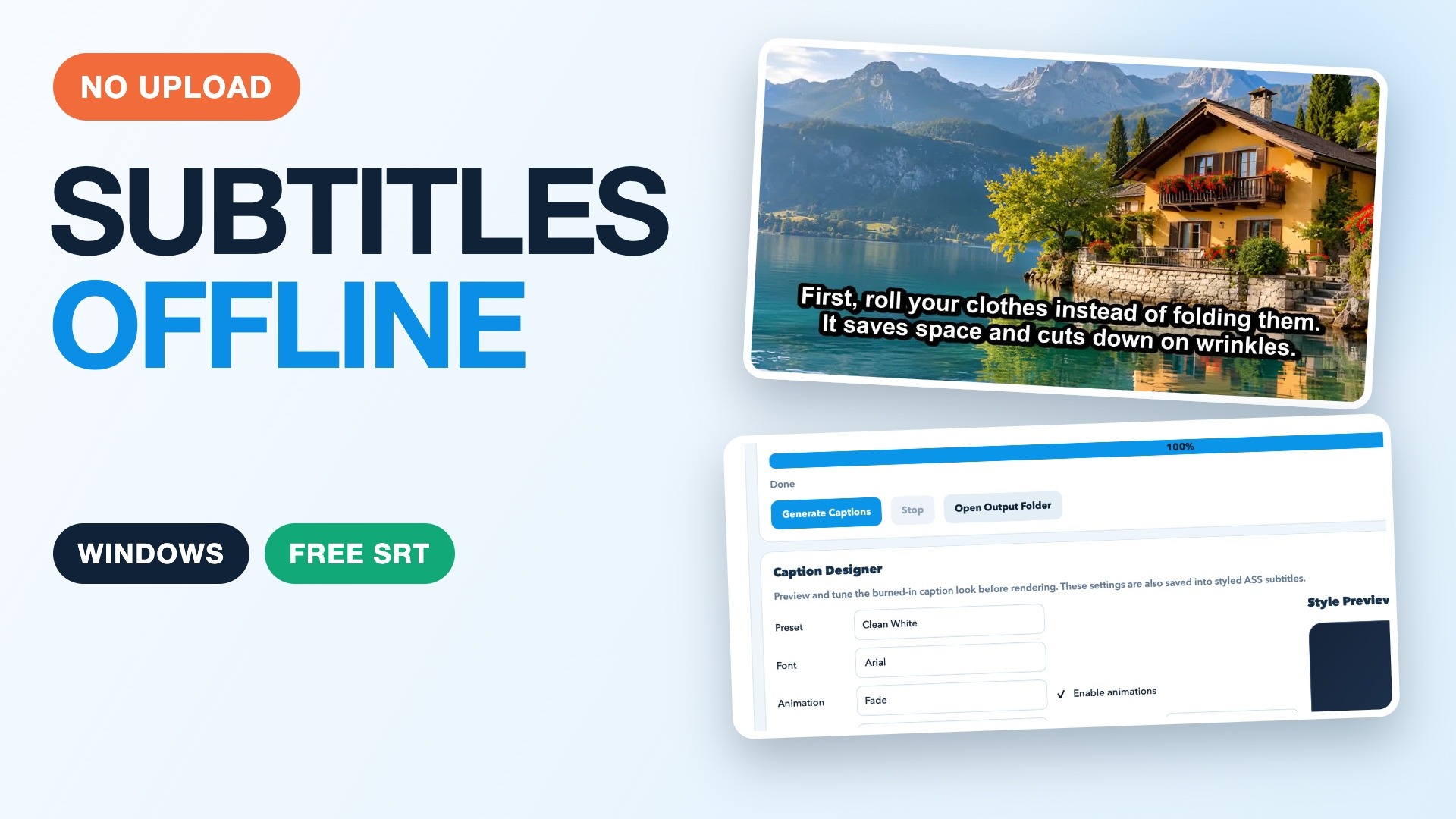
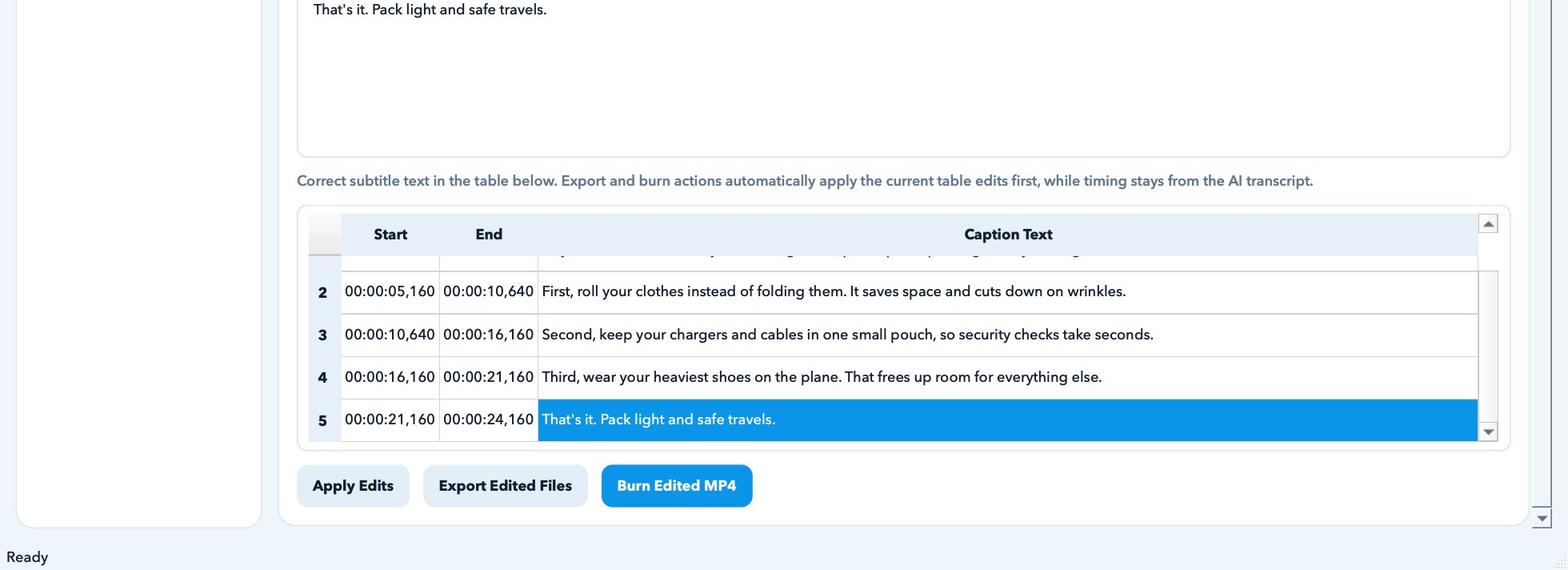
Speech recognition is not perfect. In my sample the model heard “save travels” instead of “safe travels”. Click the line in the table, correct it, press Apply Edits, then Export Edited Files.
5. Use the SRT file
Load the corrected SRT next to your video in an editor or media player, or add it as a subtitle file on YouTube (Studio, Subtitles, add a language, upload file, with timing). Menu names can change, so check YouTube’s current layout.
Tips for better accuracy
- Use clean audio with the voice in front and music low.
- Pick the language yourself if you know it.
- Always check names, brands and numbers, which is where speech models slip most.
Free plan vs Premium
Free: single videos, tiny and base models, SRT/VTT/TXT export. Premium adds burned-in MP4 export, batch jobs and larger models.
Honest notes
The demo uses the real Windows source build of the app captured on a Mac, and a sample clip made with a synthetic voice over an AI-generated image. Accuracy drops with background music, heavy accents and noisy recordings.
Watch the walkthrough on YouTube: 60-second Short.

Writes guides and product notes for Bytesweavers.