How to Convert MP4 to SRT Offline on Windows
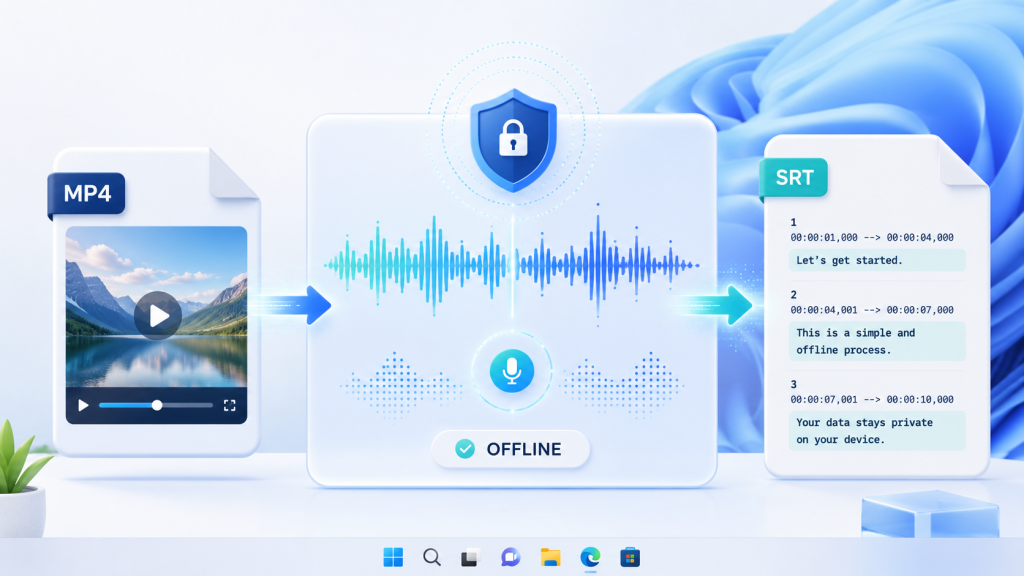
If a video contains a meeting, interview, lecture, or voice note you need to caption, you do not have to upload it to a web service first. An offline workflow can turn an MP4 into a usable SRT subtitle file while keeping the source recording on your Windows computer.
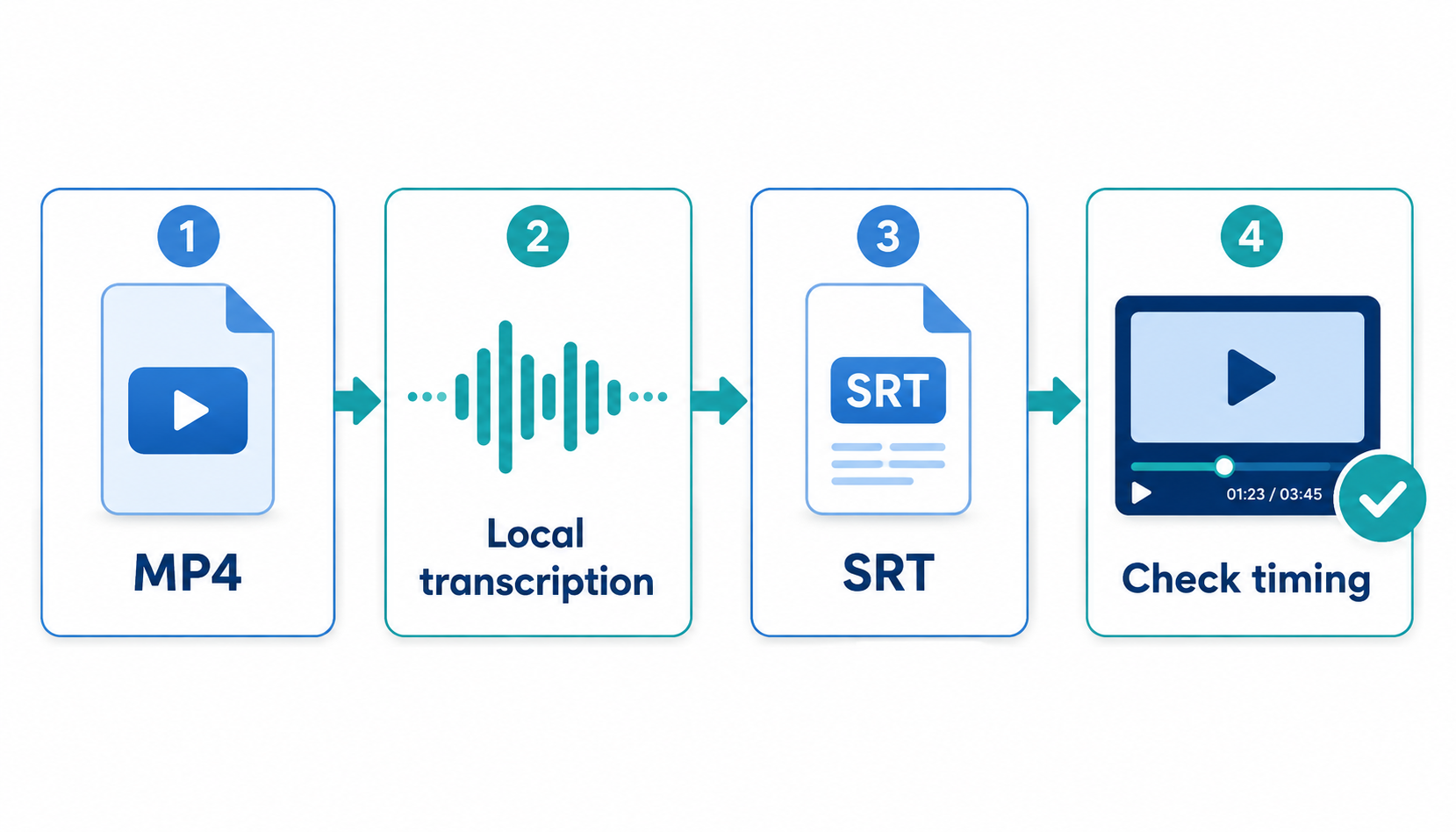
This guide covers the complete path: preparing the MP4, selecting the language, transcribing locally, correcting the transcript, exporting SRT, and testing the result in a media player or video editor.
What an MP4-to-SRT conversion actually does
An SRT file is a plain-text subtitle file made of numbered caption blocks. Each block contains a start time, an end time, and the words spoken during that interval. Converting MP4 to SRT therefore has two parts:
- Speech recognition: the audio track is converted into text.
- Timing: the text is split into readable cues and assigned timestamps.
The MP4 is only the container. The workflow reads its audio track; it does not need to change the original video. You can keep the source file untouched and create the SRT beside it.
Offline MP4-to-SRT workflow
- Make a working copy. Keep the original MP4 unchanged. Use a short, descriptive filename such as
team-meeting-2026-08-03.mp4. - Choose the spoken language. A correct language setting improves names, punctuation, and word boundaries. For mixed-language recordings, expect more manual review.
- Transcribe the video locally. Open the MP4 in a Windows transcription app, choose the local model available on the machine, and start the conversion. Network access should not be required after the model is installed.
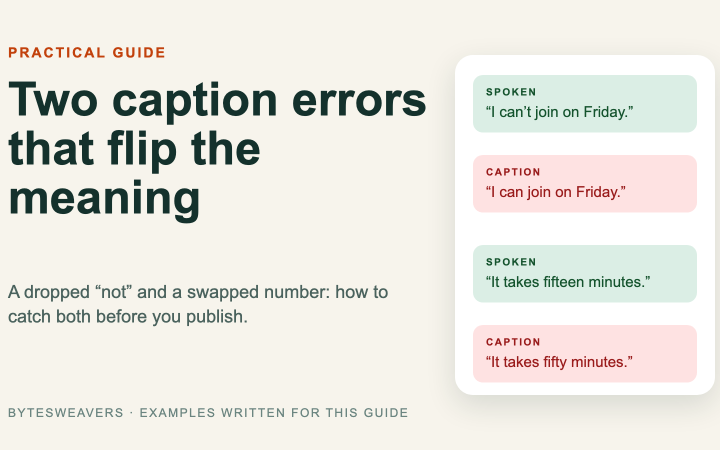
- Review names and technical terms. Speech recognition is strongest on clear speech. Check people’s names, product names, acronyms, URLs, and numbers first.
- Fix caption readability. Avoid cues that contain a full paragraph. Split long lines at natural pauses and keep each caption on screen long enough to read.
- Export as SRT. Save the subtitle file with the same base name as the video, for example
team-meeting-2026-08-03.srt. This makes it easy for players to pair the files automatically. - Test the export. Open the MP4 and load the SRT in VLC or your editor. Check the first minute, one middle section, and the final minute for timing drift.
What a valid SRT file looks like
1
00:00:02,400 --> 00:00:05,900
Welcome to the product review.

2
00:00:06,100 --> 00:00:10,300
Today we will compare the two workflows.
The timestamp separator is an arrow, milliseconds use a comma, and caption blocks are separated by a blank line. If an editor rejects the file, inspect these details first.
Settings that improve the result
| Situation | Recommended choice | Why it helps |
|---|---|---|
| Clear single speaker | Standard transcription model | Fast enough with fewer unnecessary corrections |
| Several speakers | Enable speaker labels if available | Creates a useful first pass for meeting review |
| Names and acronyms matter | Review the transcript with the audio waveform | Fixes errors that spellcheck cannot identify |
| Long recording | Process in sections or chapters | Makes timing and correction work easier |
| Video editing next | Export SRT before burning captions | Keeps subtitles editable and reusable |
How to fix subtitle timing drift
If captions are correct near the beginning but increasingly late or early near the end, the problem is usually a mismatch between the media’s timing information and the subtitle timeline. First confirm that the MP4 plays at its normal speed. Then check whether the recording was edited after transcription, whether the frame rate changed, or whether a section was removed.
For a simple constant offset, shift all captions by the same amount. For progressive drift, use the first and last known-good cue to rescale the subtitle timeline. Always verify a point in the middle after making the correction.
When SRT is the right export
Choose SRT when you need broad compatibility with media players, editors, and video platforms. Choose VTT when the destination is a web video player that expects WebVTT features. Keep the transcript as TXT or DOCX as well when you need searchable meeting notes rather than captions.
Keep the recording private
Before processing a sensitive recording, confirm where the model runs and whether the application requires an upload. For confidential meetings, client interviews, internal training, or unpublished footage, local processing can simplify the privacy review because the source stays on the workstation.
Try the offline workflow
Video to Text: Offline Meeting Transcriber is designed for local video and audio transcription on Windows. Use it when you want to turn an MP4 into searchable text or subtitle files without sending the recording to a cloud service.
Next step: Test the workflow with a short, non-sensitive MP4 first. Compare the first-pass SRT with the audio, correct the names and timing, and then process your longer recordings.

Writes guides and product notes for Bytesweavers.
1 comment