How to Play GTA 6 on iPhone or Android With PS5 Remote Play
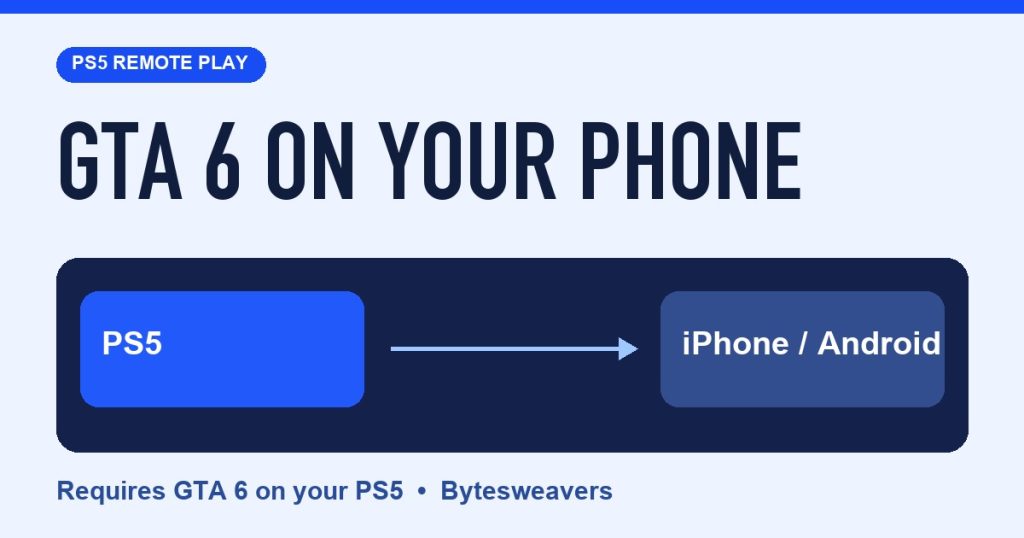
If you have GTA 6 on a PS5, you can use Sony’s PS Remote Play app to stream it to a compatible iPhone or Android phone. The PS5 runs the game and sends the picture to your phone. Here’s what to switch on before you leave the TV.
1. Enable Remote Play on your PS5
Start on the PS5 home screen. Open Settings → System → Remote Play and enable Remote Play for your user. Do your first connection with the console turned on so you can confirm the setup before trying to wake it remotely.
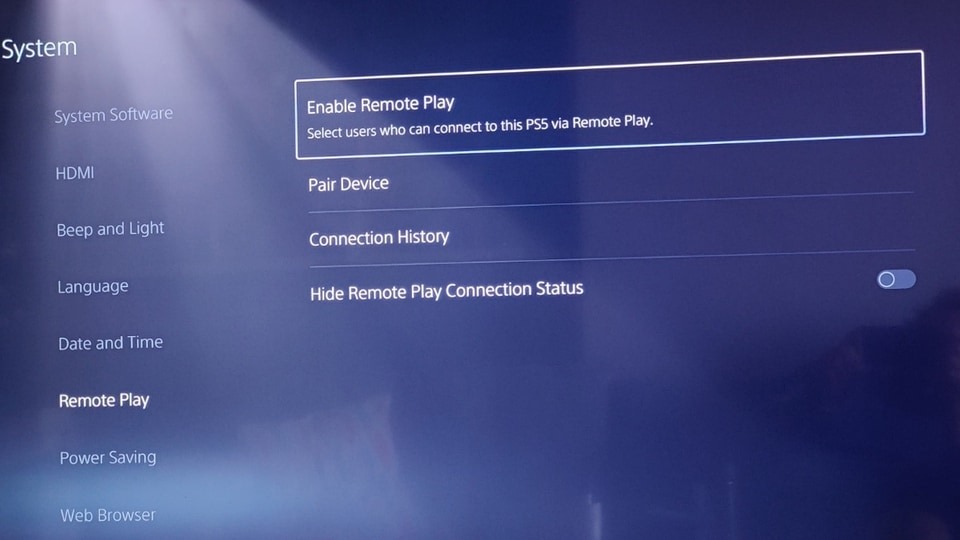
2. Connect your phone to the same PlayStation account
Install PS Remote Play from the App Store or Google Play. Sign in with the account you use on the PS5, select PS5, and choose your console if the app finds more than one. When the console screen appears, open GTA 6 from its game library.
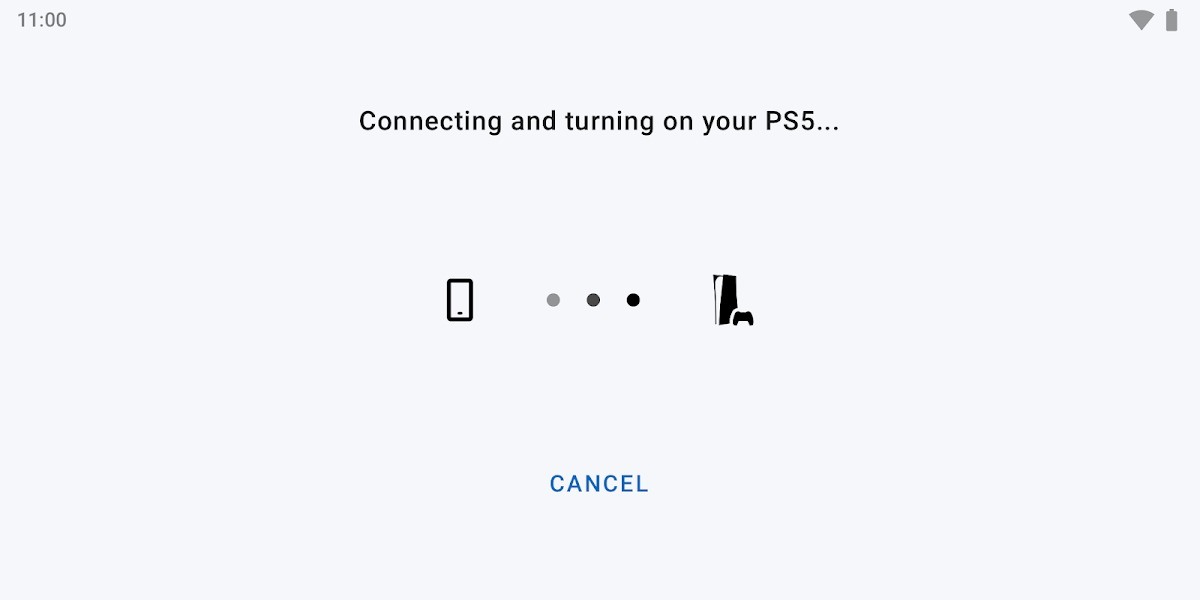
3. Set up rest-mode wake before you leave home
On the PS5, go to Settings → System → Power Saving → Features Available in Rest Mode. Turn on Stay Connected to the Internet and Enable Turning On PS5 from Network. Keep the console in rest mode when you want to connect later. A stable connection matters for both picture quality and input delay.
What about the GTA 6 APK?
Rockstar’s November 19 launch lists PS5 and Xbox Series X|S. Sony’s Remote Play app streams from your console. A file offering a native GTA 6 mobile install falls outside that setup, and ESET has documented fake files using the name GTA6.apk.
This walkthrough follows PlayStation’s setup guide and Rockstar’s Remote Play announcement. The 15-second reel uses reference screens and credited trailer footage. We haven’t verified a live GTA 6 stream on a phone. Read ESET’s fake-download report.

Writes guides and product notes for Bytesweavers.