Upscayl “vkCreateInstance failed -9”: 5 Fixes to Try (and What If Your GPU Can’t Run It)

You drop an image into Upscayl, click Upscayl, and get vkCreateInstance failed -9. The photo disappears and nothing is upscaled. This guide explains what that error means, five fixes to try in order, and what to do if your graphics card simply cannot run Vulkan.
Quick answer: -9 is Vulkan’s VK_ERROR_INCOMPATIBLE_DRIVER. Upscayl could not start Vulkan on your GPU. Check that your GPU supports Vulkan, force Upscayl onto your real GPU in Windows, update the graphics driver, set the GPU ID, then run the laptop checklist.
What “vkCreateInstance failed -9” means
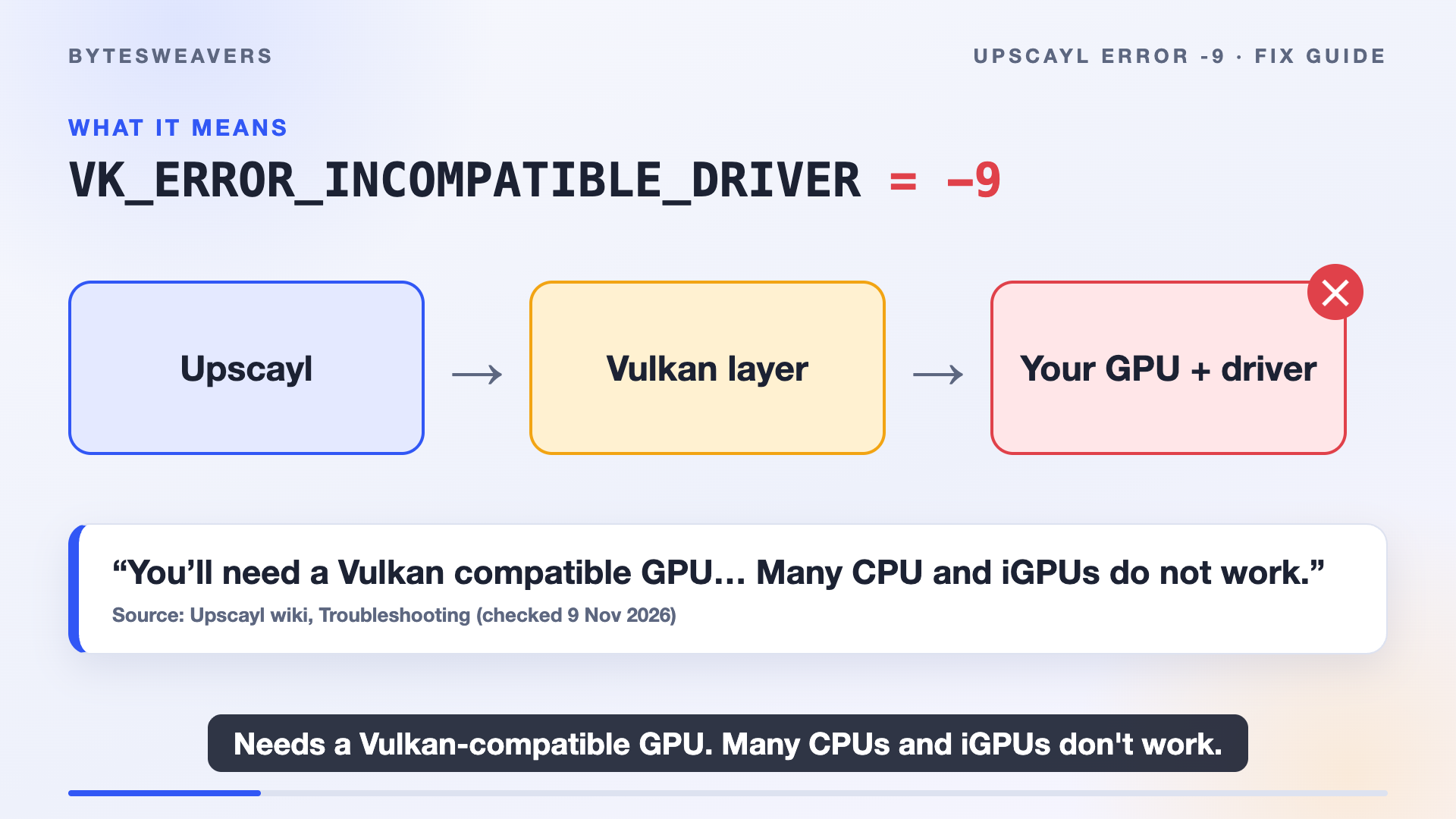
Upscayl uses Vulkan, a graphics layer, to run its AI models on your GPU. Error code -9 is VK_ERROR_INCOMPATIBLE_DRIVER: the Vulkan layer could not find a compatible driver or GPU. The Upscayl wiki: Troubleshooting page says to “triple check your drivers” for this code, and notes that you need a Vulkan-compatible GPU; many CPUs and integrated GPUs do not work.
Fix 1: Check Vulkan support first
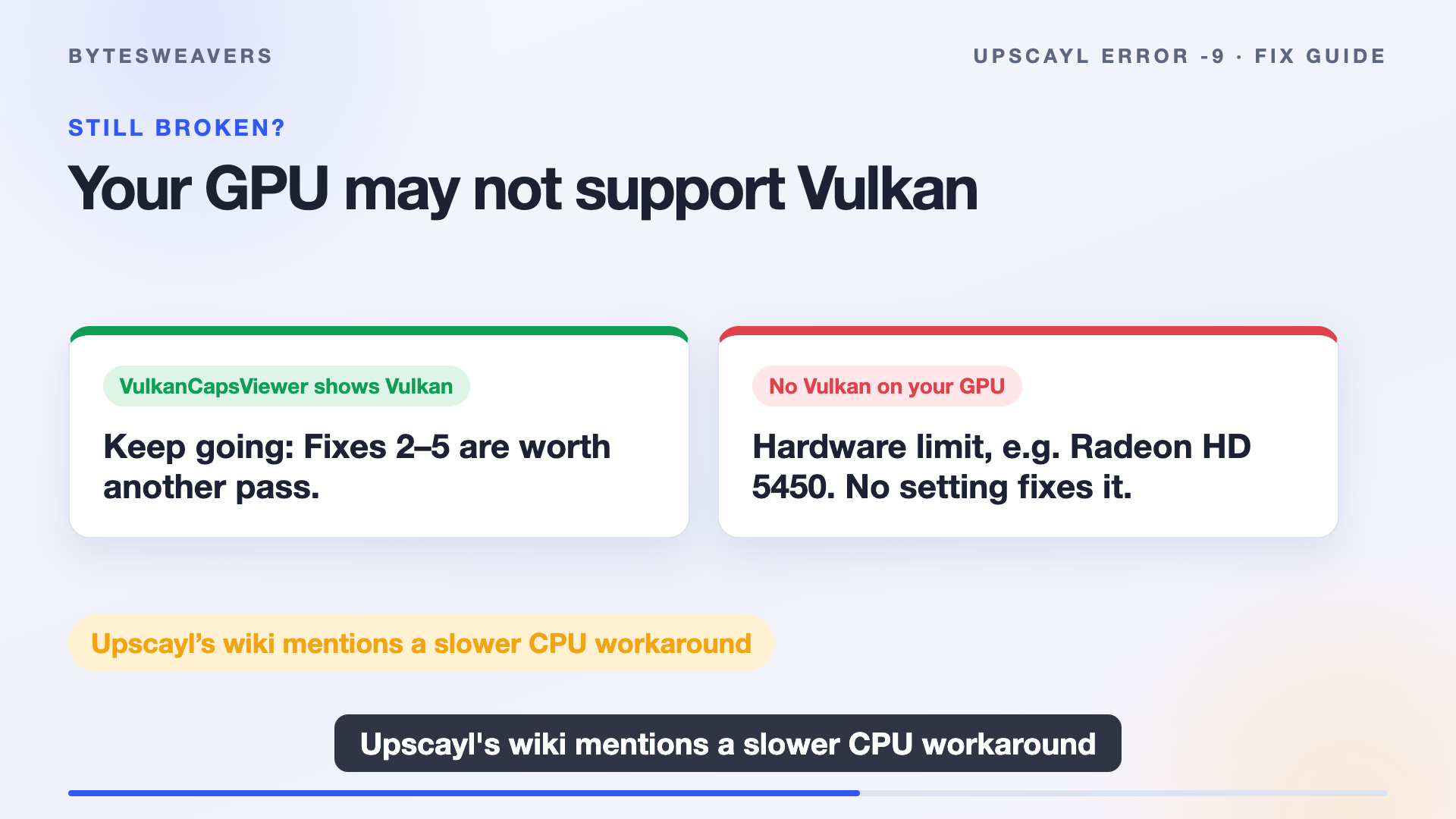
Before changing anything, run VulkanCapsViewer, a free tool the Upscayl wiki recommends. If it lists your GPU with Vulkan support, your driver may be fine and the next fixes are worth trying. If it reports no Vulkan device, jump to the section on unsupported GPUs below.
Fix 2: Force Upscayl onto your real GPU
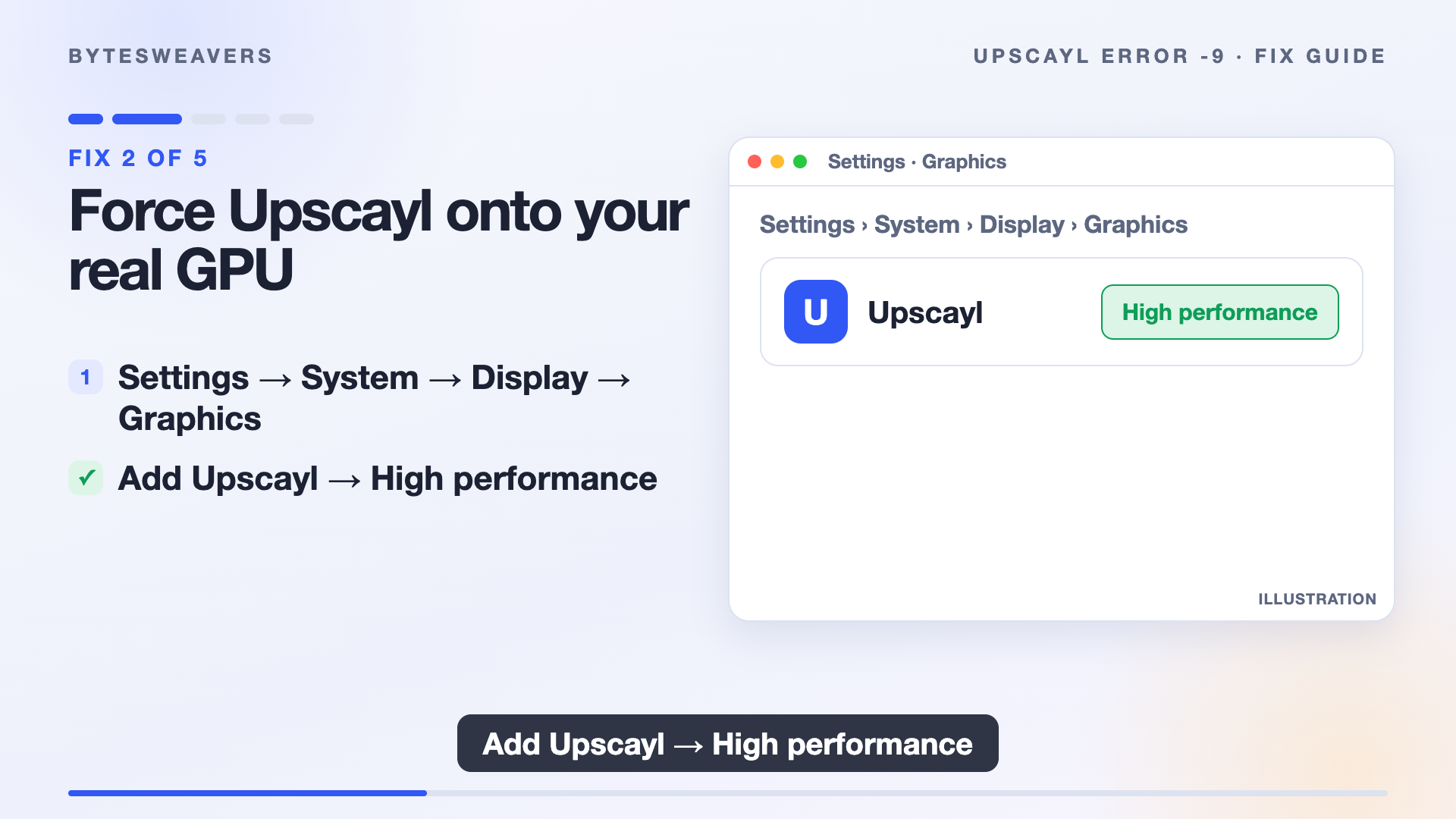
On Windows, open Settings, then System, Display, Graphics. Add Upscayl and set it to High performance so it uses your dedicated GPU rather than integrated graphics.
Fix 3: Update your graphics driver
Download the latest driver directly from NVIDIA, AMD or Intel, install it, and restart. One user on the Upscayl issue tracker reported that the error began right after an Intel Arc driver update, so if that matches your timeline, test rolling back. That is one user’s report, not a confirmed fix.
Fix 4: Set the GPU ID
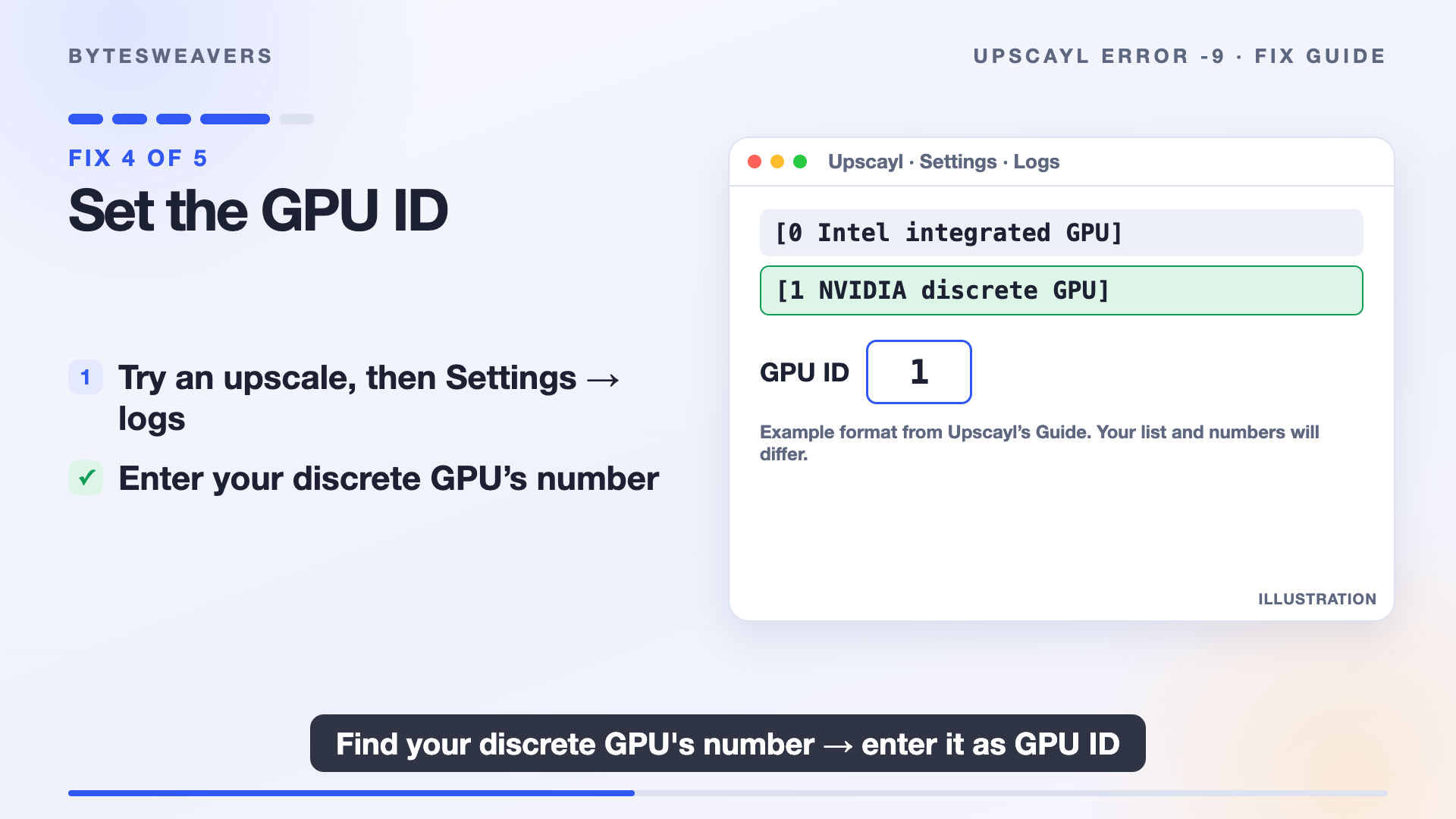
Try an upscale once, then open Settings in Upscayl and scroll to the logs. The log lists your GPUs with numbers. Enter your discrete GPU’s number in the GPU ID box. The Upscayl Guide’s example uses ID 1 for an NVIDIA card, but your numbers will differ.
Fix 5: The laptop checklist
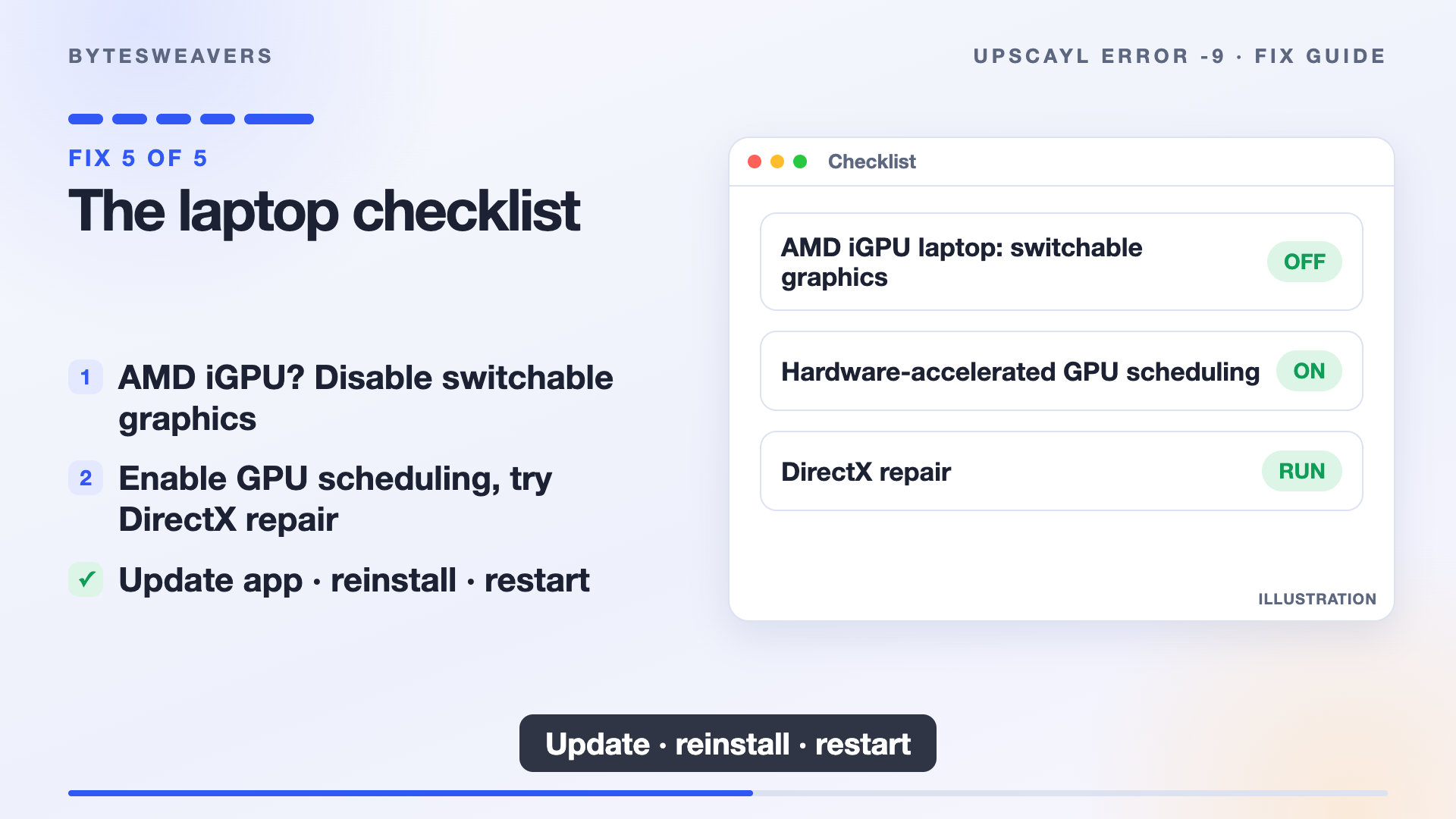
- If you have an AMD integrated GPU, disable switchable graphics if you can.
- Enable hardware-accelerated GPU scheduling in Windows if it is available.
- Try a DirectX repair.
- Update Upscayl, reinstall it, and restart your computer.
If every fix fails: your GPU may not support Vulkan
A very old card, such as a Radeon HD 5450 reported in one of the issues, is too old for Vulkan. That is a hardware limit, not a setting. The Upscayl wiki mentions a slower CPU workaround.
Another option: AI Image Upscaler Pro (our app)
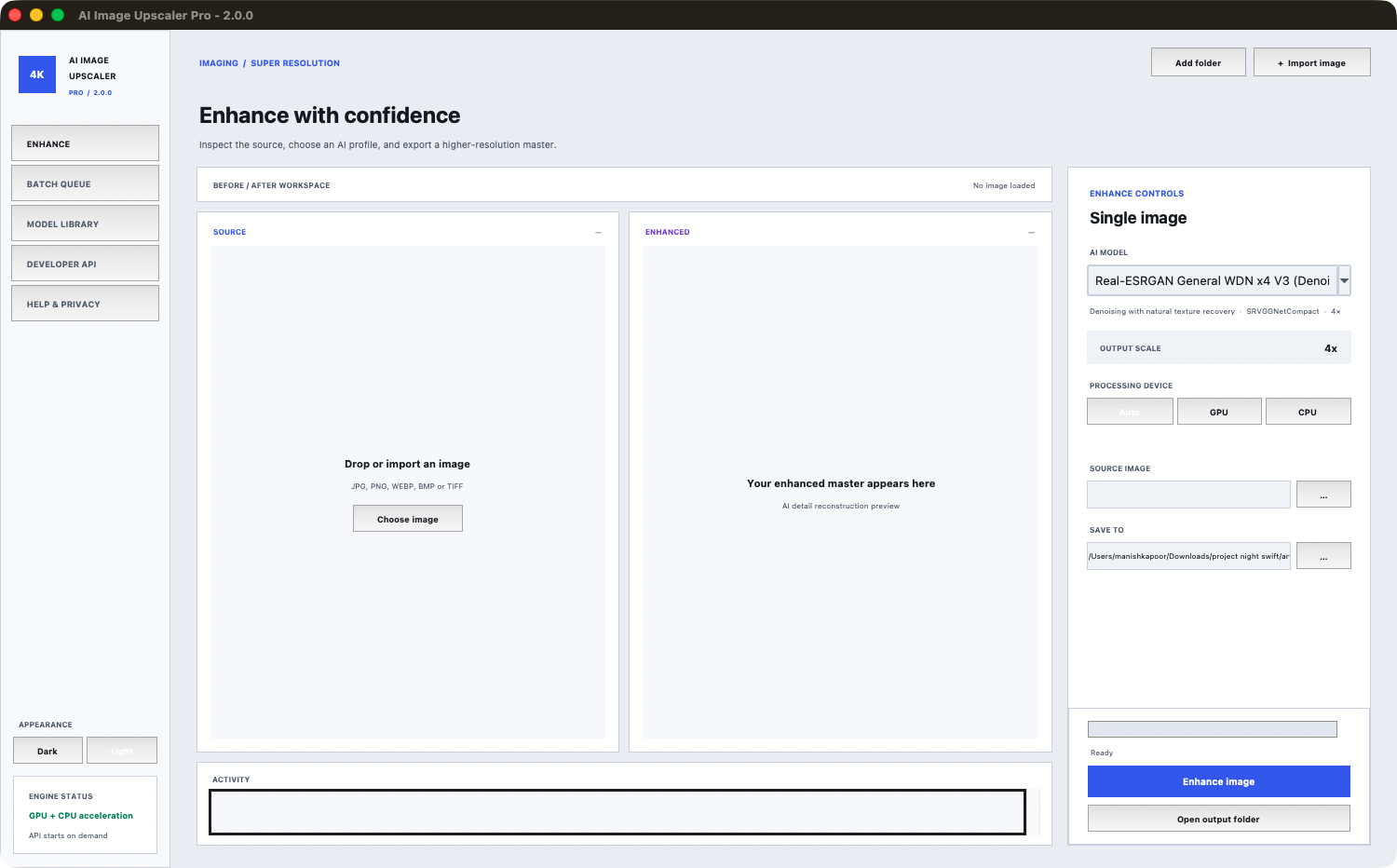
Disclosure: AI Image Upscaler Pro is made by Bytesweavers, and this site is ours. It is not affiliated with Upscayl. The Windows app uses Real-ESRGAN models, detects an NVIDIA GPU when one is present, and its Auto mode falls back to the CPU if the GPU fails. Without an NVIDIA card it runs on the CPU, which is slower. It is listed on the Microsoft Store at $12.99 one-time (prices can vary by region): AI Image Upscaler Pro on the Microsoft Store, details on the Bytesweavers product page.
A real before and after
To keep this honest, here is a quick test. The source is a NASA Apollo 11 photo (public domain), cropped, shrunk to 300 pixels wide and JPEG-compressed. On the left is a plain 4x resize. On the right is the Real-ESRGAN x4 model the app uses, run from the app’s source code on a Mac CPU in 9.2 seconds. Your PC will differ.
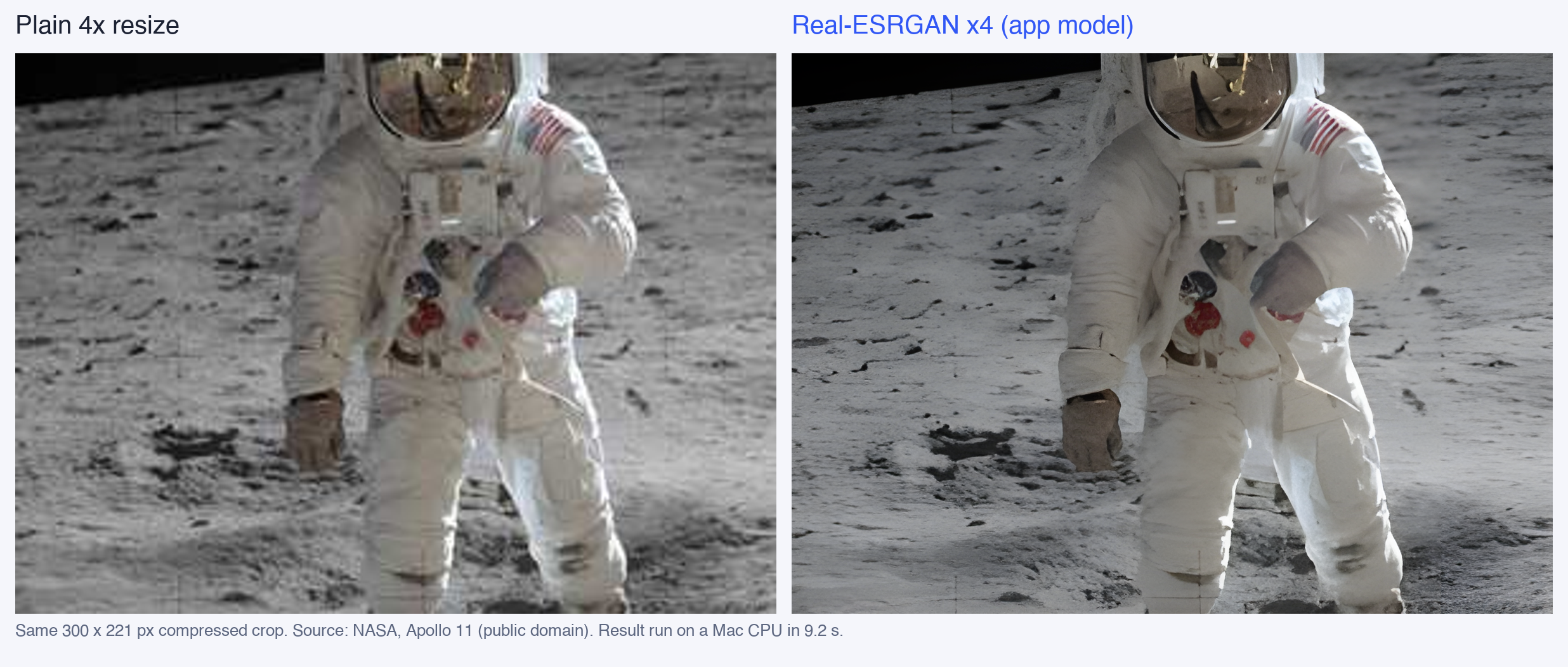
Upscaling guesses missing detail, so it can invent textures, and it cannot rescue a photo that is badly out of focus. Always check faces and text before you use the result.
Watch the walkthrough
The full video walkthrough goes live on our YouTube channel today at 5:30 PM IST: youtu.be/S-NmCtXDTXw.
Sources

Writes guides and product notes for Bytesweavers.