How to Run a ChatGPT-Style AI Offline on Windows (Free Setup with ByteLLM Studio)
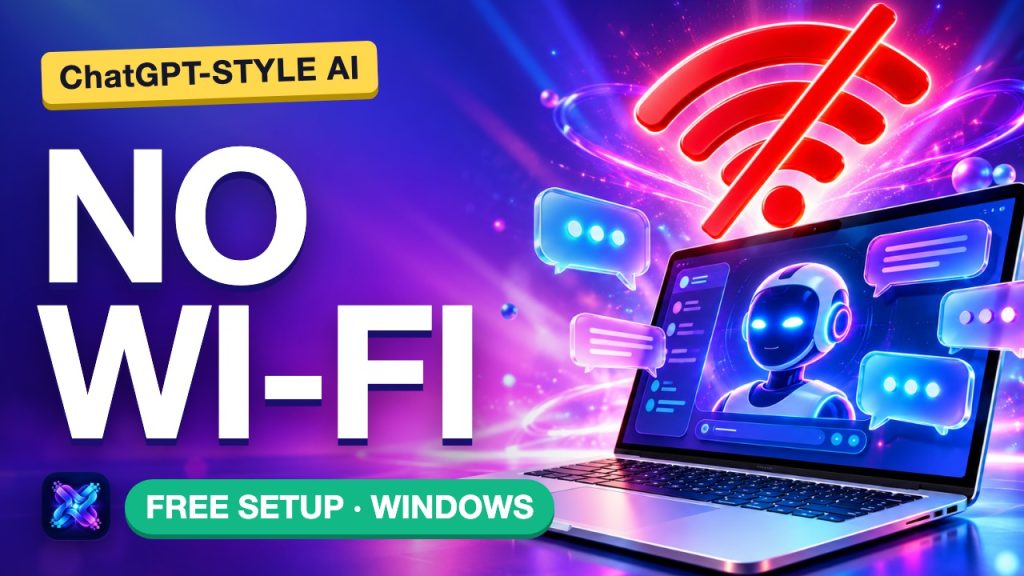
Real ChatGPT can’t run offline: it needs OpenAI’s servers. But a ChatGPT-style AI can run on your own Windows PC, with no internet once it is set up. This guide walks through the whole setup with ByteLLM Studio, then shows exactly where a tiny offline model falls short and how to pick a bigger one.
Disclosure: ByteLLM Studio is my app (Bytesweavers). The app screens in our video are rebuilt from its Windows UI, and the replies shown are real outputs of Qwen2.5 0.5B and Qwen3.5 9B run locally on my Mac, not generated inside the app.
Cloud AI vs local AI
With a cloud chatbot, your message travels to a company’s servers, gets processed there and the answer comes back. A local AI flips that: the model is a file on your drive and your own processor does the thinking. The one catch is that you need internet once, to download the app and the model.
Step 1: install ByteLLM Studio
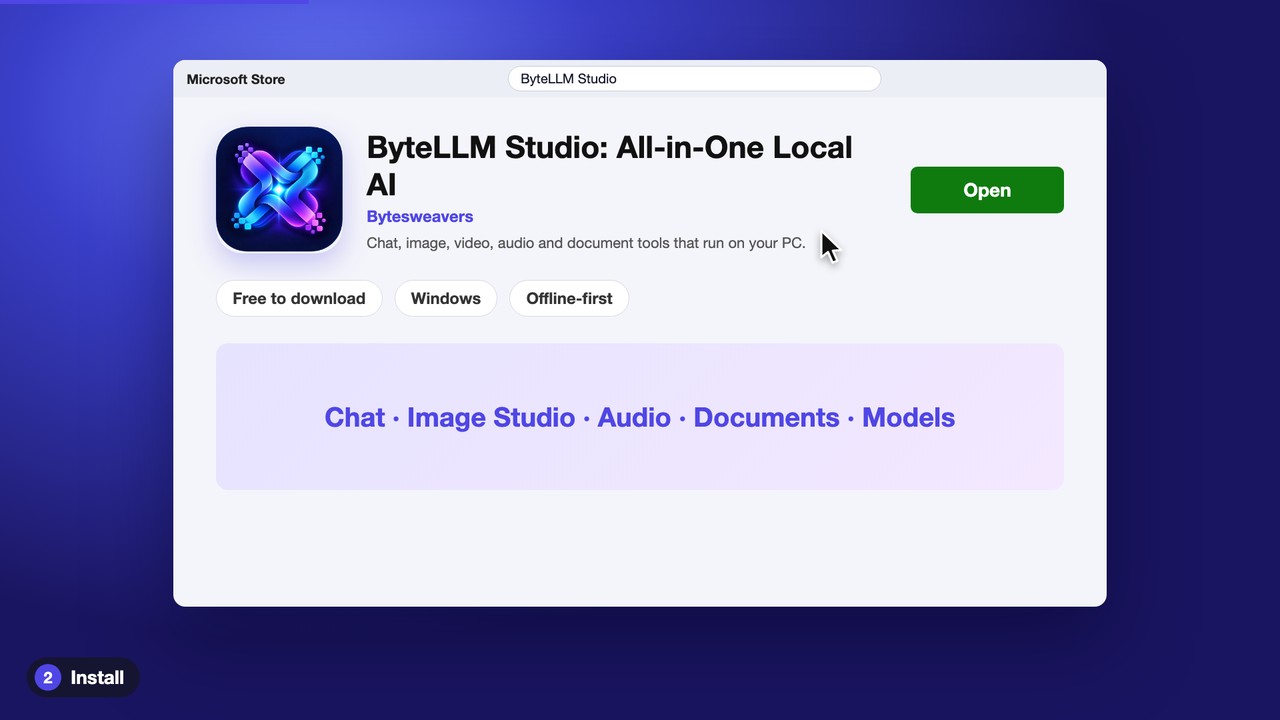
Open the Microsoft Store, search for ByteLLM Studio, press Get and launch it. It is free to download. The app has many tools; you only need Chat.
Step 2: download the starter model
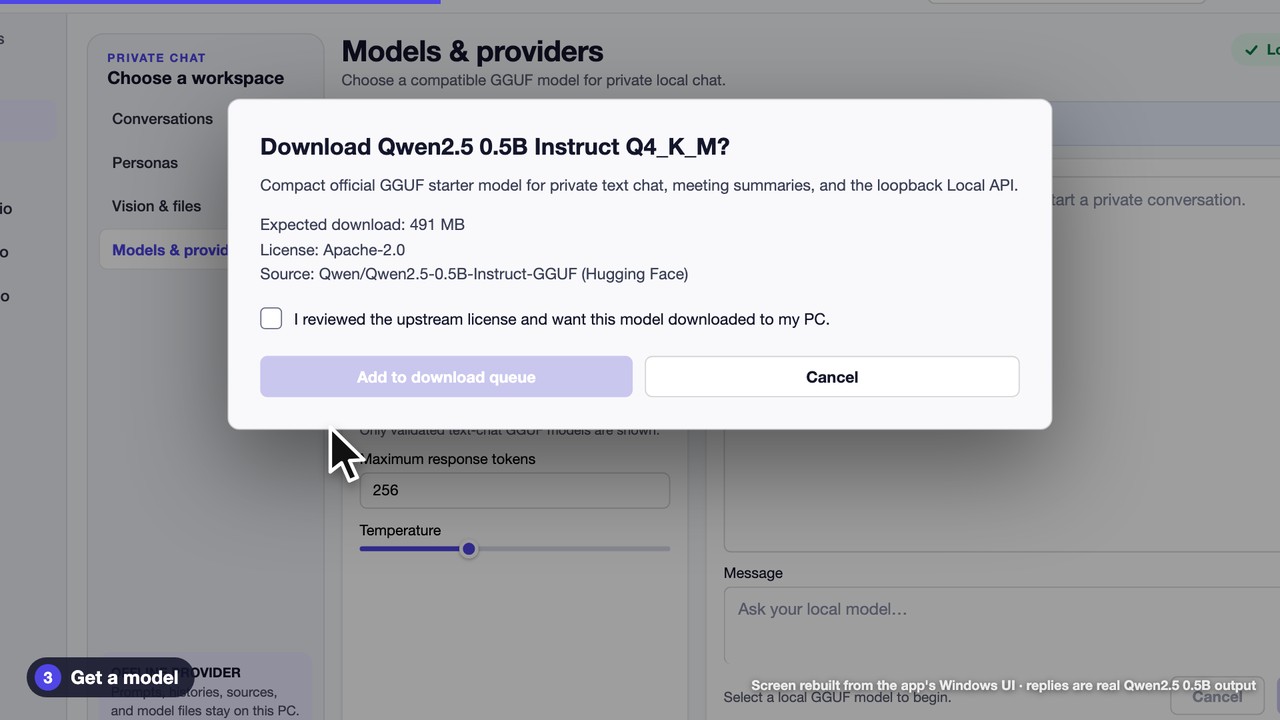
In Chat, the top right says Local llama.cpp, and the sidebar says prompts, histories and model files stay on this PC. Open Models & providers, press Download starter chat model, tick the license box and choose Add to download queue. The starter is Qwen2.5 0.5B Instruct (Q4_K_M), a 491 MB file under the Apache-2.0 license.
Step 3: turn Wi-Fi off and chat
Switch your Wi-Fi off, pick the model, type a question and press Send. The answer is generated entirely on your PC.
The honest limits
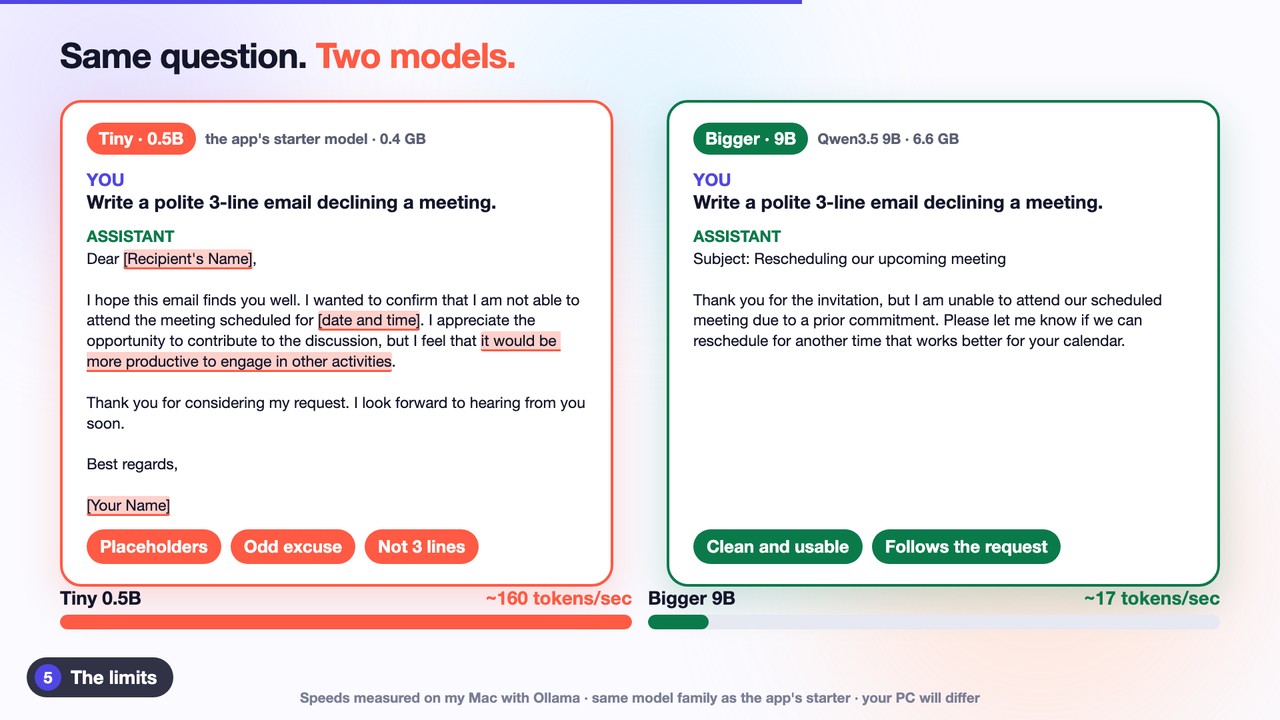
The starter model is tiny. Asked for a polite three-line email declining a meeting, the 0.5B model left placeholders like [Recipient’s Name] in, rambled past three lines and gave a strange excuse. The same question to a 9-billion-parameter model produced a clean, usable email. Bigger models think better, but they need more memory and run slower. On my Mac the 9B model made about 17 tokens per second against about 160 for the tiny one; your PC will differ.
Which model for your RAM?
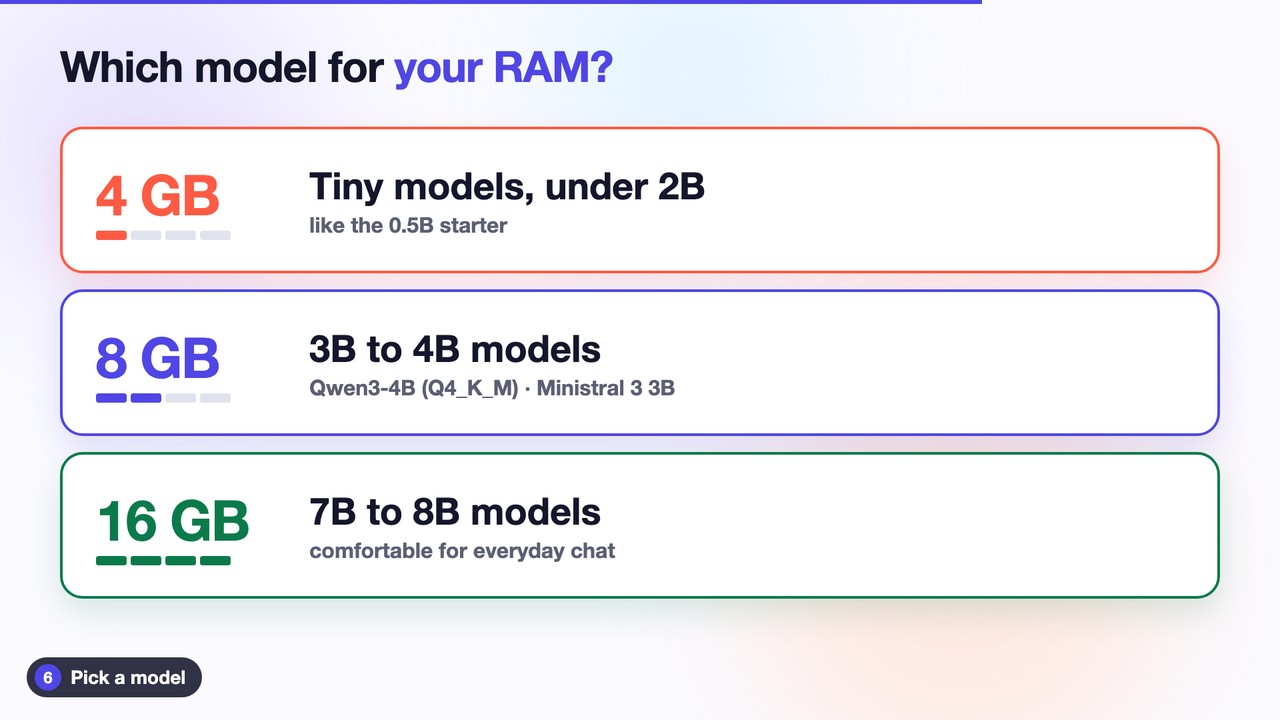
This is a rough rule of thumb, not an app measurement:
- 4 GB RAM: stay with tiny models, under 2B parameters.
- 8 GB RAM: try a 3B to 4B model, such as Qwen3-4B in the Q4_K_M format.
- 16 GB RAM: 7B to 8B models are comfortable.
Add any GGUF model
Download a .gguf file from Hugging Face, then in Models & providers press Add local GGUF model and pick the file. Check the license on the model page first.
Free vs Pro
Free includes local chat and up to five saved conversations. Unlimited history, conversation branching, custom personas and knowledge-grounded chat need Pro. The app states that prompts and histories stay on this PC.
Watch the full walkthrough on YouTube (goes live at 5:30 PM IST today): How to Run a ChatGPT-Style AI Offline on Windows. Get the app: ByteLLM Studio on the Microsoft Store.

Writes guides and product notes for Bytesweavers.