How to Change DNS on Mac to 1.1.1.1 (and When It Actually Helps)
Your Wi-Fi shows full bars, speed tests look fine, and yet pages hang on “looking up host” for several seconds. Before you restart the router for the fifth time, check one setting most people never touch: the DNS server your Mac uses. Here is how to change it to 1.1.1.1 on Mac and iPhone, how to test whether it helps you, and what it will not fix.
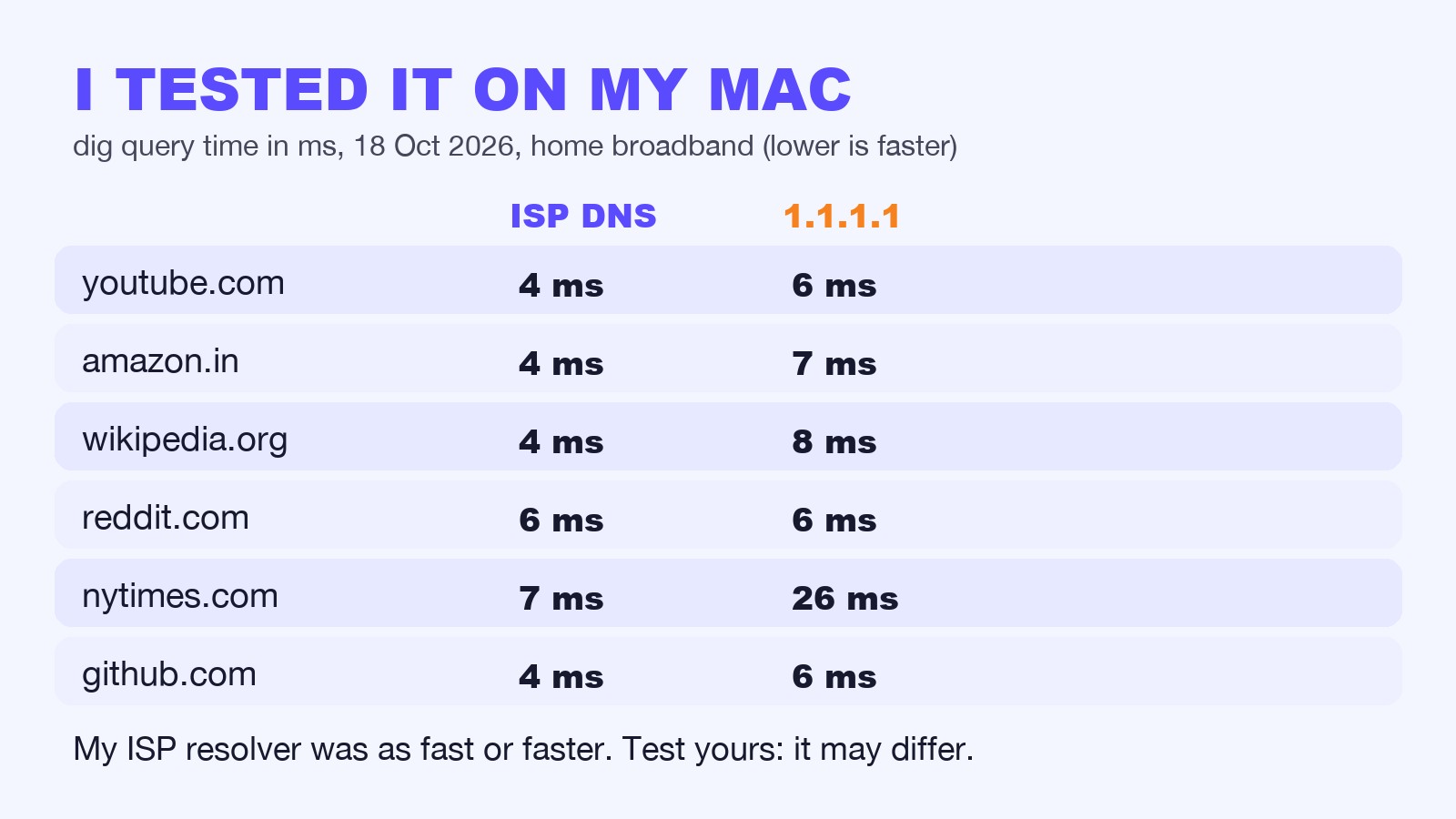
Honest note up front: DNS is the phonebook that turns a website name into an address. It does not change how many megabits you get. On my own Mac, my ISP’s DNS was as fast or faster than 1.1.1.1 (numbers below), so test before you assume a miracle.
How to change DNS on a Mac (macOS Ventura and later)
- Open System Settings, then Wi-Fi.
- Click Details… next to your connected network.
- Open the DNS tab.
- Select the old servers and click the − button to remove them.
- Click + and type
1.1.1.1, then + again and type1.0.0.1as the backup. - Click OK. If it asks, apply the changes.

How to change DNS on iPhone
Go to Settings → Wi-Fi, tap the (i) next to your network, choose Configure DNS → Manual, remove the old entries, add 1.1.1.1 and 1.0.0.1, then tap Save. This applies to that Wi-Fi network only.
Test it first (2 minutes)
Open Terminal and compare your current DNS with 1.1.1.1 for a site you visit a lot:
dig example.com | grep "Query time"
dig @1.1.1.1 example.com | grep "Query time"
Run each a few times, because the second run is often cached. A site that hangs for seconds on your current DNS but answers in milliseconds on 1.1.1.1 is the case where switching helps.
What DNS can and can’t do

- Can help: slow or failing “looking up host” delays, flaky ISP DNS servers, and some sites your ISP’s DNS handles badly.
- Will not change: your speed-test Mbps, a weak Wi-Fi signal, or congestion on your line.
- Know the trade-off: you are choosing a different company to see your DNS lookups. Read Cloudflare’s privacy policy if that matters to you, and note that work networks and VPNs may override your setting.
How to undo it
Go back to System Settings → Wi-Fi → Details → DNS, remove 1.1.1.1 and 1.0.0.1, and click OK. Your Mac goes back to the DNS your router provides.
I’m Manish from Bytesweavers. We build offline-first apps for Windows, Mac, iPhone and Android; you can see them at bytesweavers.tech. This post is just a tip we use ourselves.

Writes guides and product notes for Bytesweavers.