What Actually Changes When You Lower a Video’s Bitrate (Tested at 1080p)
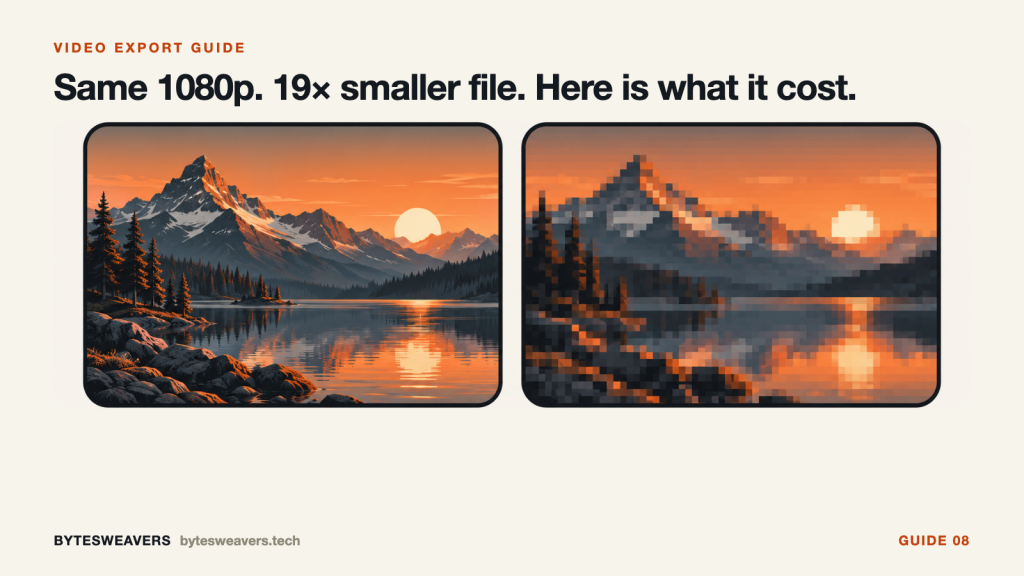
Two exports of the same clip. Same 1920×1080 frame, same 30 fps, same H.264 codec, same duration. One file is 9.6 MB. The other is 508 KB. That is a 19× difference in size from a setting most people never open.
At normal size on a phone, the two exports look nearly identical. This is why so many people conclude that bitrate does not matter much. Magnify the same region three times and the difference stops being subtle: fine detail survives in one file and smears into colour-bled blocks in the other.
This is a reproducible test of one specific question: if you keep the resolution identical and change only the bitrate, what do you actually lose?
How the test was set up
- One source clip, 10 seconds, 1920×1080, 30 fps, generated with a known test pattern so the result can be repeated.
- Two exports, both H.264, both the same resolution, same frame rate, same preset. Only the target bitrate changed.
- Export A targeted 8,000 kb/s. Export B targeted 400 kb/s.
- Both files were measured after encoding, and both were compared against the source using SSIM and PSNR on the full clip, not a single flattering frame.
- Matched frames were pulled from the same timestamp in each file, and the same region was magnified with nearest-neighbour scaling so the block edges stay sharp instead of being smoothed away by the zoom itself.
The source is a test pattern rather than camera footage, and that is deliberate: it makes the experiment repeatable and keeps the comparison honest. It also means the exact numbers below should not be treated as a standard for your own footage. More on that in the limitations section.
The measured numbers
| Setting | Measured video bitrate | File size | SSIM vs source | PSNR vs source |
|---|---|---|---|---|
| High-bitrate export | 8,023 kb/s | 9.6 MB | 0.998 | — |
| Low-bitrate export | 412 kb/s | 508 KB | 0.952 | 32.67 dB |
Two things are worth reading carefully here. First, the low-bitrate file is about nineteen times smaller. Second, its SSIM still reads 0.952, which sounds reassuringly high. That is the trap. SSIM is an average over the whole frame, and most of a typical frame — flat walls, sky, solid colour — survives compression easily. The average hides the parts that fail.
Where the damage actually appears
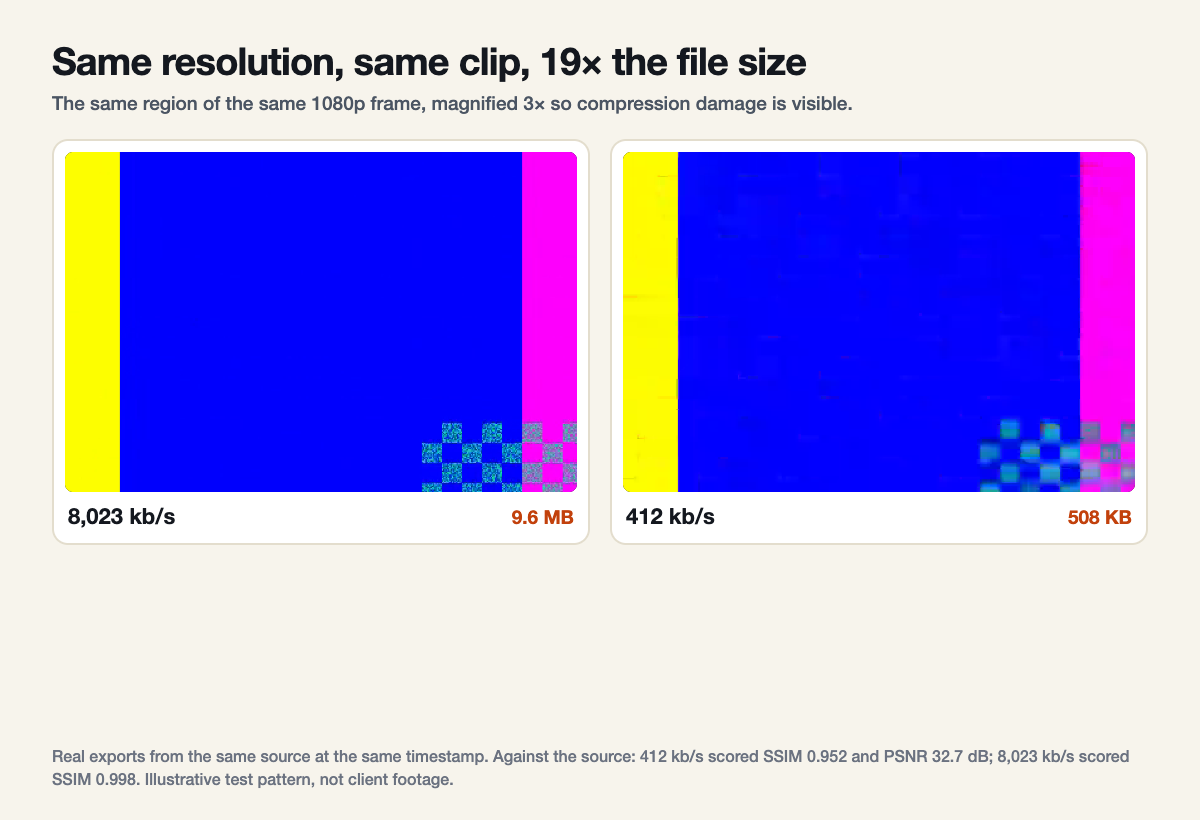
The loss is not spread evenly across the frame. It concentrates in exactly the things that make a shot look expensive:
- Fine repeating detail. Fabric texture, foliage, hair, mesh, and any pattern fine enough to be near the encoder’s block size.
- Smooth gradients. Skies, backdrops, and soft shadows are where banding appears first, because the encoder runs out of bits to describe a gradual change.
- Motion. A still frame can look fine and the same shot in motion can fall apart, because moving detail needs far more data per second.
- Grain and noise. Film grain and sensor noise are close to random, and random data is the most expensive thing you can ask a video encoder to reproduce.
Why the resolution never changed
Resolution and bitrate describe two different things, and mixing them up causes most export mistakes. Resolution is the size of the canvas. Bitrate is how many bits you are willing to spend describing that canvas every second.
A 1080p file at 400 kb/s is not “lower quality 1080p” in some vague sense. It is a real 1080p canvas that has been given a budget far too small for its contents. The encoder does the only thing it can: it throws away detail, concentrating the loss where the human eye is least likely to notice — which is why the damage hides in texture and gradients rather than in the obvious shapes.
This is also why raising your resolution does not fix a bitrate problem. If anything it makes it worse, because a larger canvas needs more bits for the same quality, not fewer.
What to actually use
There is no single correct number, and any guide that gives you one is guessing. Bitrate needs depend on resolution, frame rate, how much motion is in the shot, and how much noise the footage carries. A locked-off interview and a handheld shot of moving water do not need the same budget.
What is reliable is a method:
- Start from the destination’s own guidance. The platform you are uploading to publishes what it recommends, and that beats a generic number from a forum.
- Encode a short test, not the whole file. Ten seconds that includes your hardest shot tells you more than a full export of the easiest one.
- Compare against the source, not against your memory. Put the export beside the original at the same scale.
- Judge at 100% or closer, and then again at normal size. Both views matter, but only one of them reveals the damage.
- Raise the bitrate until the hard shot holds up, then stop. Past a point you are buying file size, not visible quality.
Check your own export in two minutes
- Pick the ten seconds of your edit with the most motion, texture, or grain.
- Export just that section, using the settings you were planning to use for the full video.
- Open the export and the original side by side at the same window size.
- Magnify both to at least 300% on the same region — a smooth gradient and a patch of fine texture are the two best places to look.
- Check a moving shot, not only a paused frame. Play both at normal speed and watch the texture in motion.
- If the detail has collapsed into blocks or the gradient has banded, raise the bitrate and repeat.
Doing this once on a short test costs a few minutes. Discovering it after a long export costs the whole render, and discovering it after publishing costs the video.
What this test does not prove
- It does not give you a universal recommended bitrate. These numbers are specific to this clip, this pattern, and these settings.
- It does not mean low-bitrate files are always unusable. For a short clip of a talking head against a plain background, a low bitrate can be perfectly fine, because there is very little detail to lose.
- It does not account for what the destination platform will do to your file. Most platforms re-encode on upload, so a file that survives your own playback can still change after delivery.
- It does not compare codecs. H.265, AV1, and hardware encoders will all behave differently at the same nominal bitrate, and nominal bitrate is not comparable across encoders.
- SSIM and PSNR are useful for comparing two encodes of the same source. They are not a substitute for looking at the picture, and they can be misleading on noisy footage in particular.
The honest summary: bitrate is a budget, not a quality setting, and the average metrics will not tell you where that budget ran out. Magnify the hard part of your own footage and decide with your eyes.
Bytesweavers builds offline, one-time-priced apps for Windows, Mac, iPhone and Android — bytesweavers.tech.

Writes guides and product notes for Bytesweavers.