How to Fix a Blurry Diwali Photo on iPhone (Offline, No Upload)
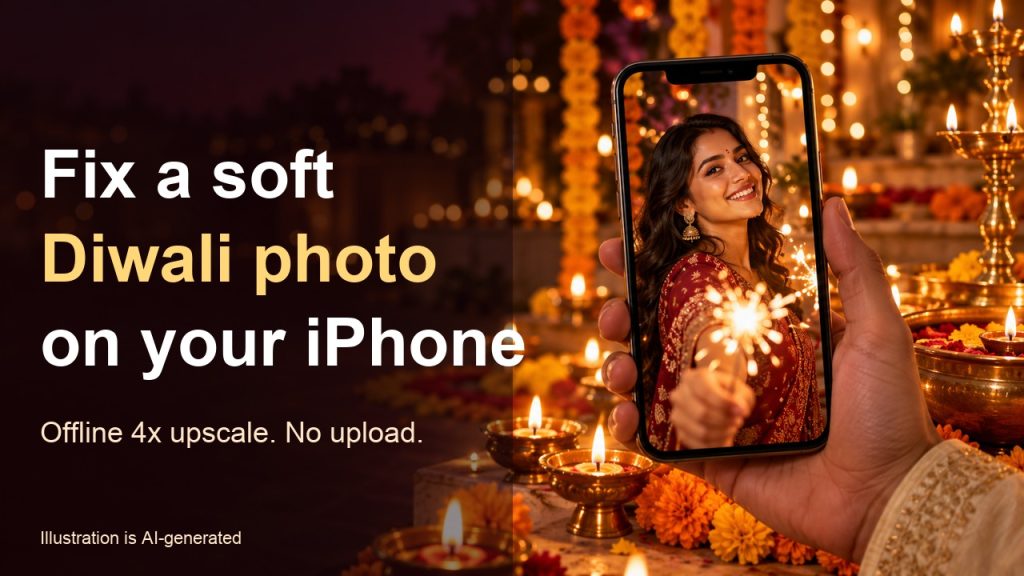
You saved a Diwali photo from a WhatsApp group, zoomed in, and it looks like it was painted with a wet brush. Faces are mushy, the diyas are blobs, and printing it is out of the question. This is one of the most common photo complaints in the week before Diwali, and most of it is fixable in a few minutes, on your phone, without uploading anything.
Honest note first: the portrait in this guide is AI-generated, not a real person. The “soft” version was made by shrinking it to 270×360 and compressing it, then the sharp version is a real 4x upscale with the Real-ESRGAN model that AI Photo Upscaler ships on iPhone. We ran it on a Mac with the app’s own code. Results vary by photo, so always check yours.
Why Diwali photos look soft in the first place
- Night and low light. Phones push ISO up and smooth the noise away, which also smooths detail.
- Messaging apps recompress. A photo sent as a normal image through WhatsApp is shrunk and recompressed. Each forward makes it a little worse.
- Screenshots of screenshots. Status screenshots and reposts throw away resolution every time.
Step 1: find the best original you can
Ask the sender to share the photo as a Document in WhatsApp (or via AirDrop or a drive link). That keeps the full-size file. Upscaling cannot create detail that was never captured, so a bigger, cleaner starting file always wins.
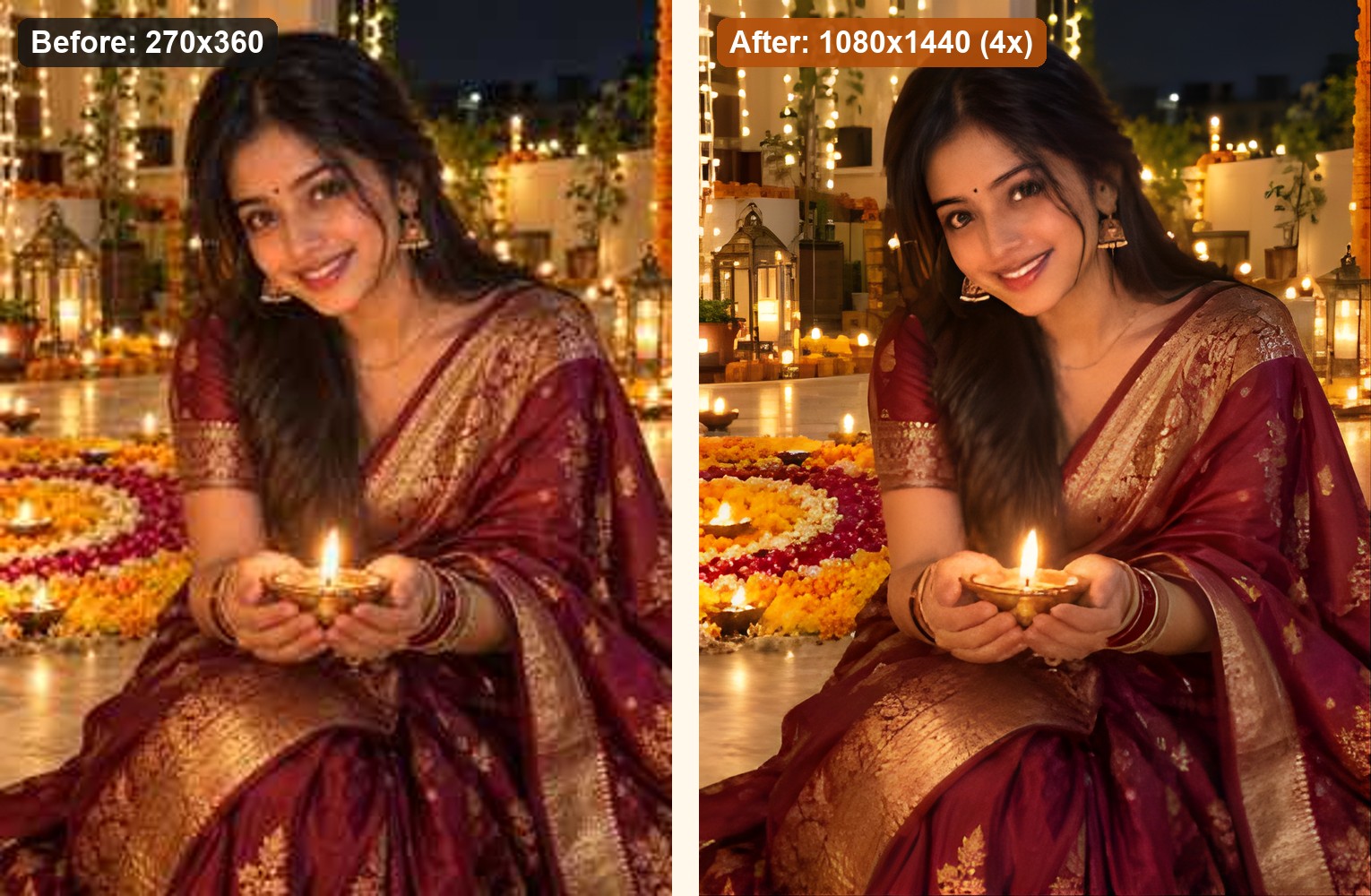
Step 2: upscale it 4x, on your device
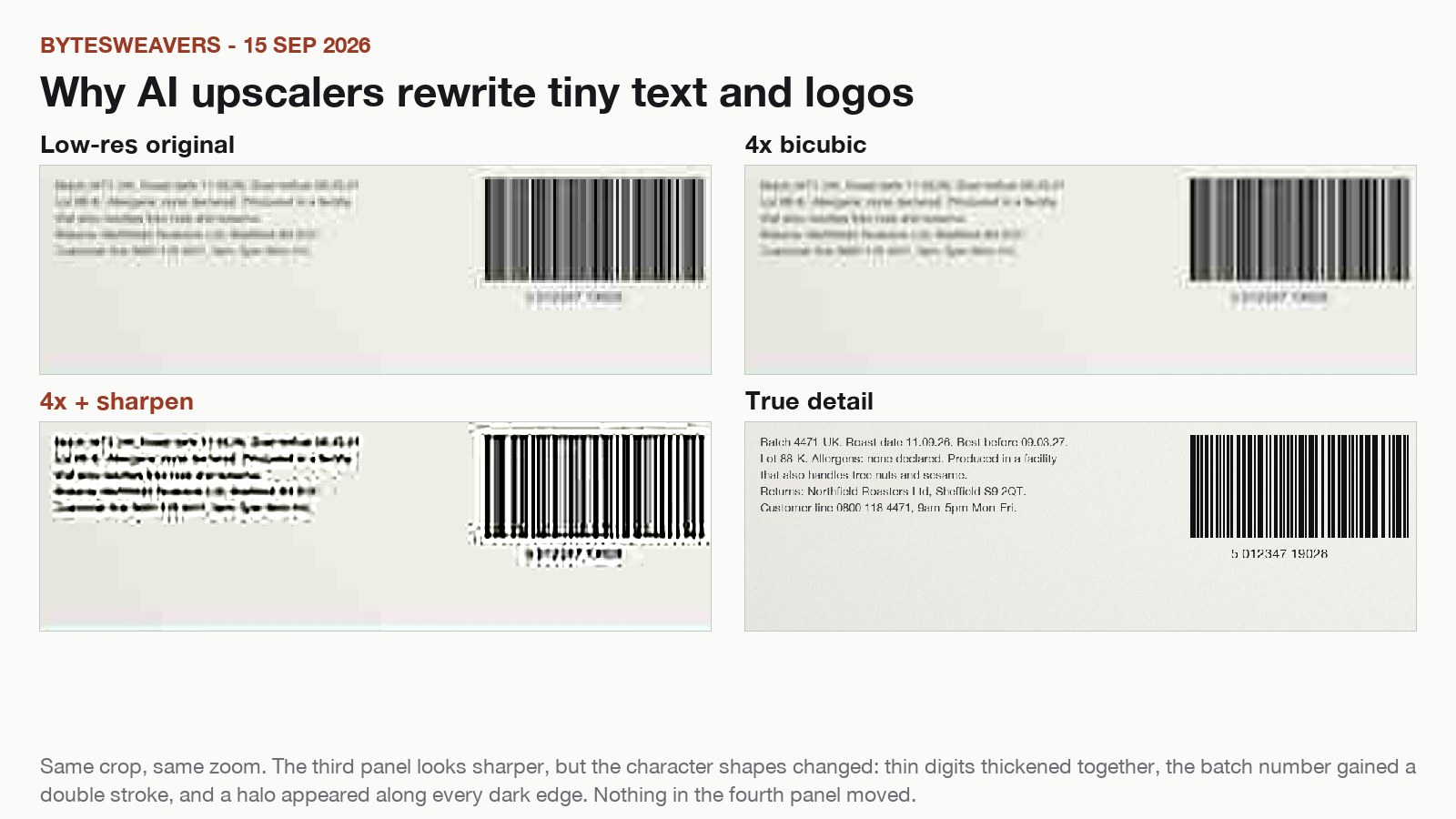
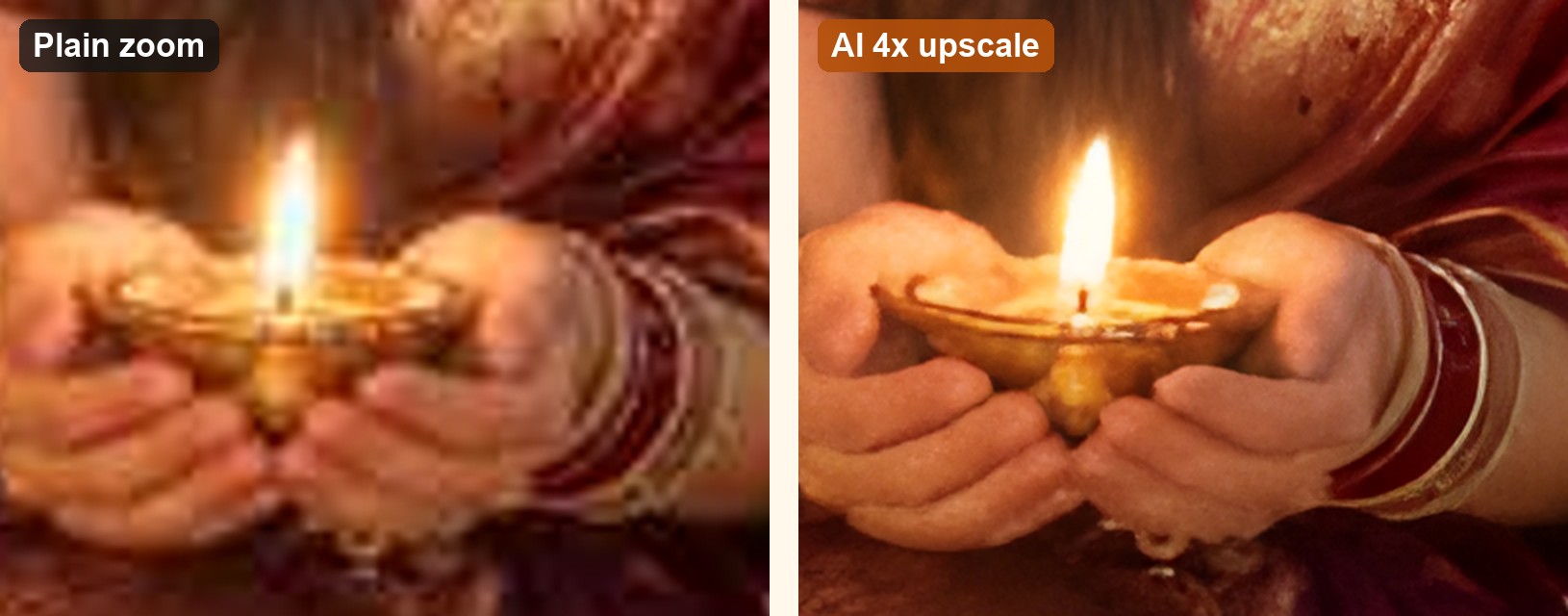
An AI upscaler does more than stretch pixels. A plain zoom just makes the blur bigger, while a model like Real-ESRGAN redraws plausible edges, eyelashes and jewellery. Because the model runs offline in the app, your family photos never leave your phone.
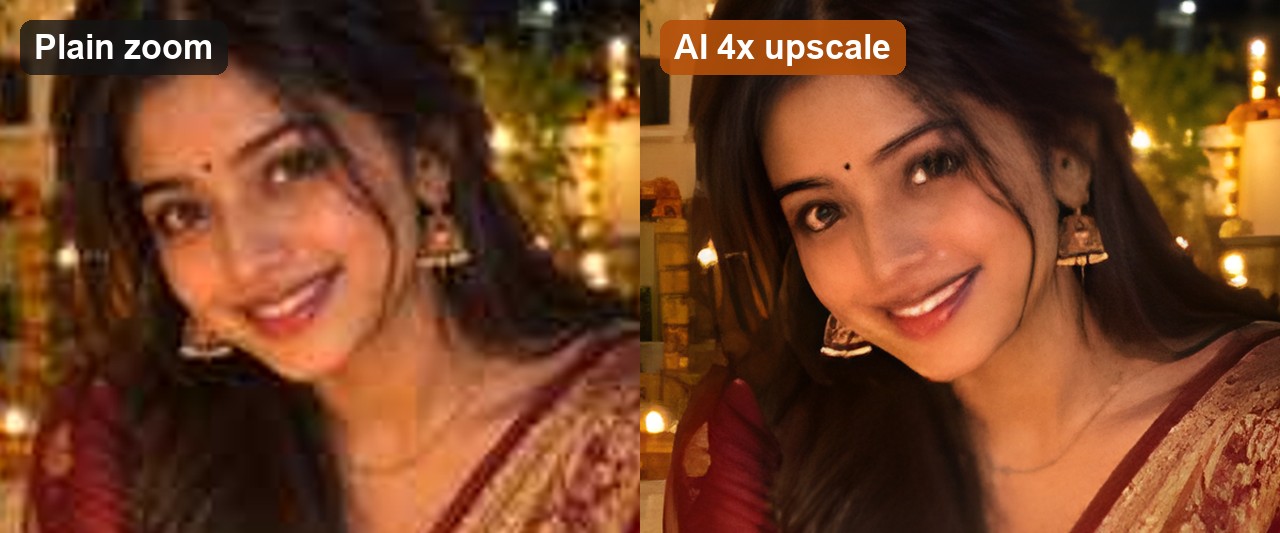
Step 3: zoom to 100% and audit the result
This is the step most people skip. An upscaler redraws detail, so it can subtly change a face or invent texture. Check the eyes, teeth, jewellery and any text. In our test, close-up facial details shifted slightly, which is exactly why we say so on screen in the video.
Quick checklist before you post
- Use the original file, not a forwarded copy.
- Upscale once. Repeating it stacks artefacts.
- Compare faces side by side with the source.
- Save the untouched original next to the upscaled edition.
Try it
We build AI Photo Upscaler for iPhone and iPad. It is free to use for single photos, works offline, and a Pro subscription adds bulk processing. Prefer to watch first? Here is the 19-second version on YouTube Shorts.
Limits, plainly
- Heavy motion blur and tiny faces cannot be truly recovered. The model will guess.
- Upscaled output is 4x the pixel size of the input, not magic 4K from a thumbnail.
- The Simulator cannot run the neural model, so the “after” image was produced by the same model on a Mac, not on a phone screen.

Writes guides and product notes for Bytesweavers.