How to free up space on a Mac by clearing cache files
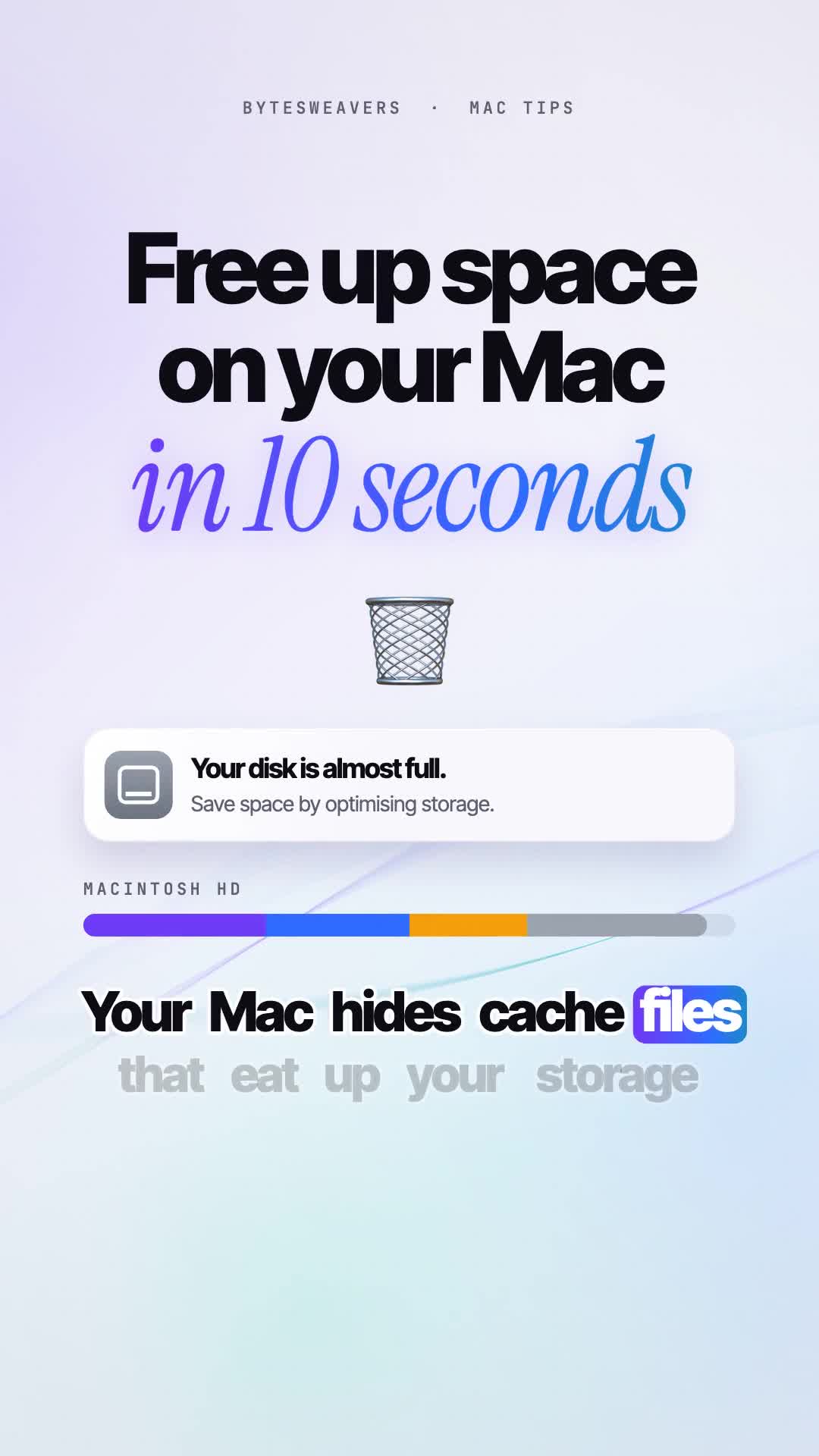
A Mac that says the disk is almost full is often holding cache files apps can rebuild. This is the same path in today’s Bytesweavers Mac tip: quit the apps, open ~/Library/Caches, move those files to the Trash, empty it, and restart.
When this is worth doing
Use it when Storage says the disk is nearly full and you have already emptied Downloads and the Trash. Cache files are temporary data. They are not your documents, photos, or mail.
Clear the cache folder
- Quit the apps you can. An open app may lock its cache while you delete it.
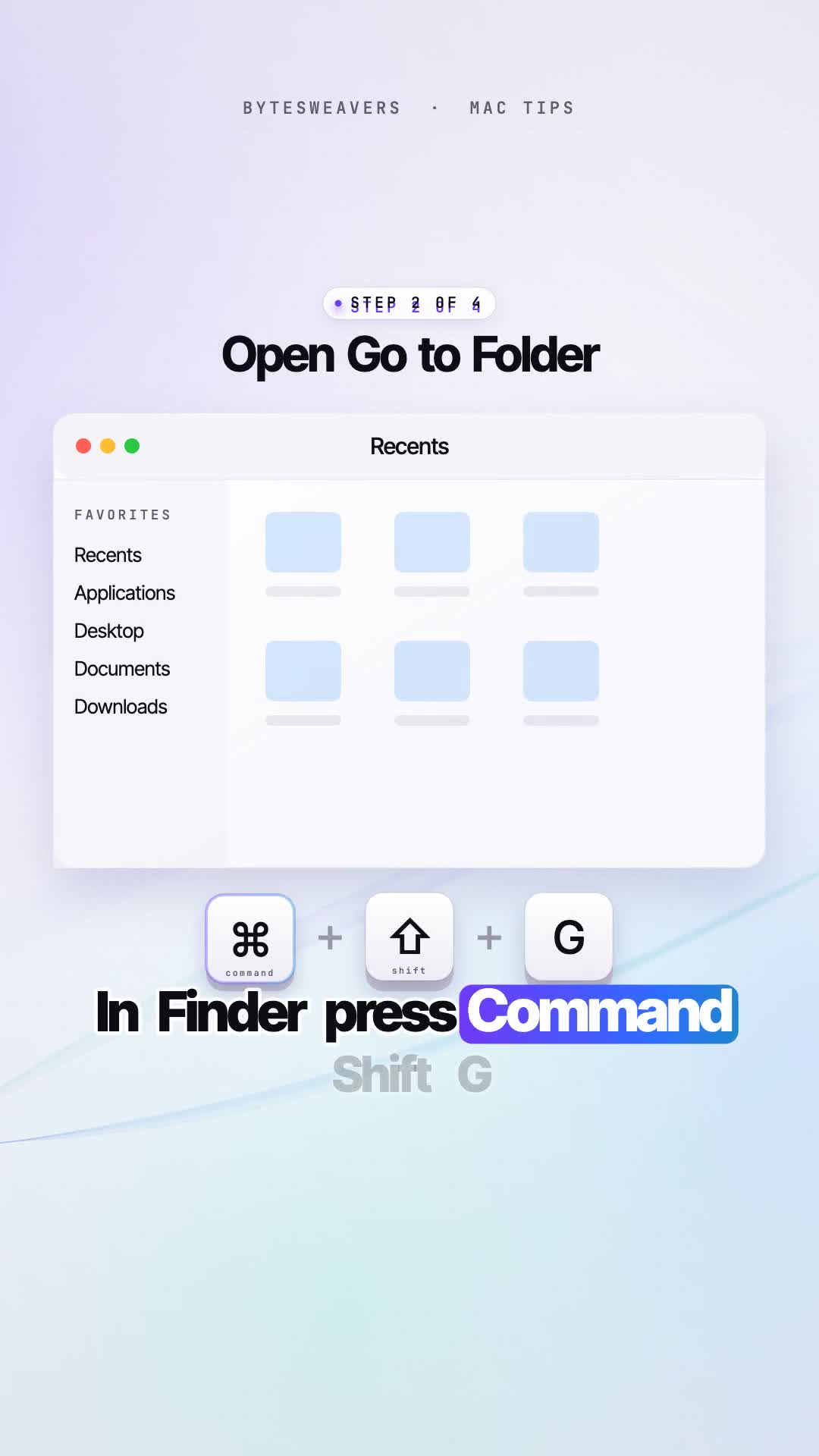
- Open Finder, then press Command + Shift + G.
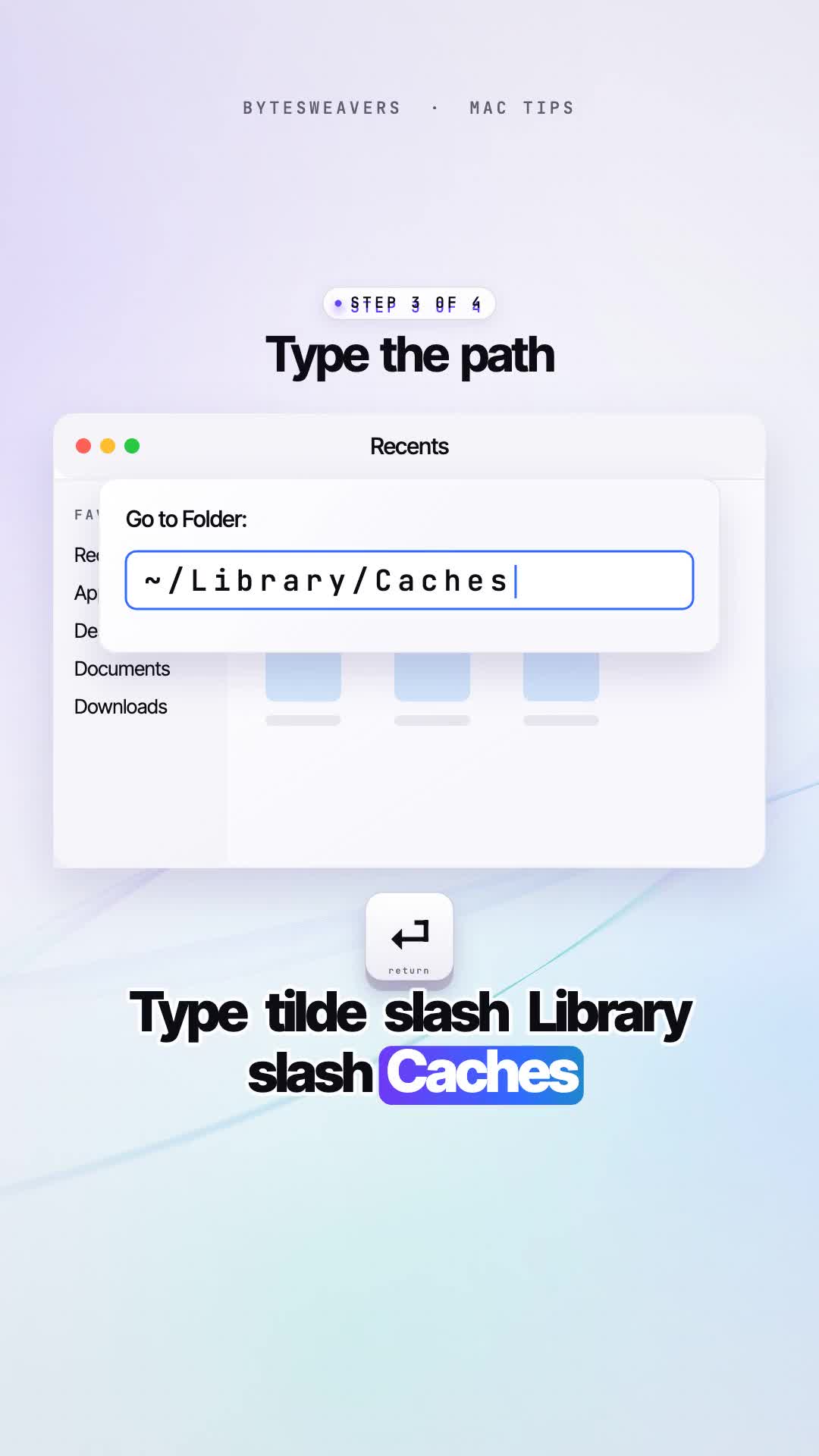
- Type
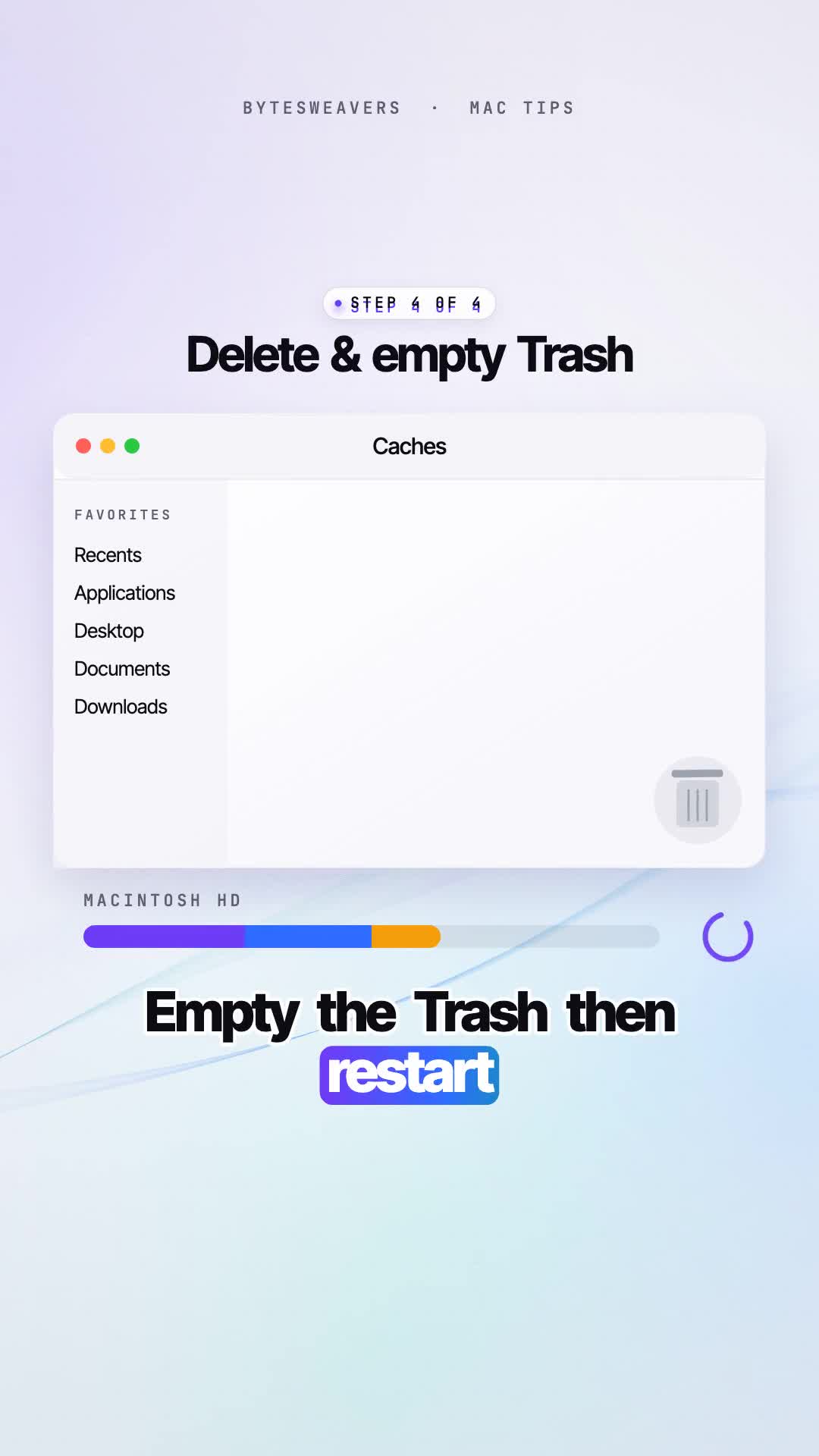
~/Library/Cachesand press Return. - Press Command + A, then Command + Delete, to move the selection to the Trash.
- Empty the Trash, then restart the Mac.
What not to delete
Stay inside ~/Library/Caches. Do not delete your home Library folder, Documents, Desktop, or Mail. If Finder says a file is in use, skip that one and empty the rest.
What to expect
Apps rebuild the caches they need the next time you open them, so the first launch can be a little slower. How much space comes back depends on the Mac. This does not remove large videos, photos, or installed apps. If the disk is still full after a restart, check Storage for those bigger items.
Short version: Free up space on your Mac in 10 seconds.

Writes guides and product notes for Bytesweavers.