How to remove noise from podcast audio offline on Windows
A fan or electrical hum under a podcast voice is usually steady. You can lower that kind of noise on a Windows PC without uploading the recording. This is the walkthrough we tested, including what it does not fix.
Hear the difference first
The clip below is the same short test: a voice recorded over steady fan noise and a 50 Hz hum, then cleaned in the app on Medium strength. The left side is the noisy file. The right side is the exported result. Quiet gaps stay quiet after cleanup, which is the part that matters.
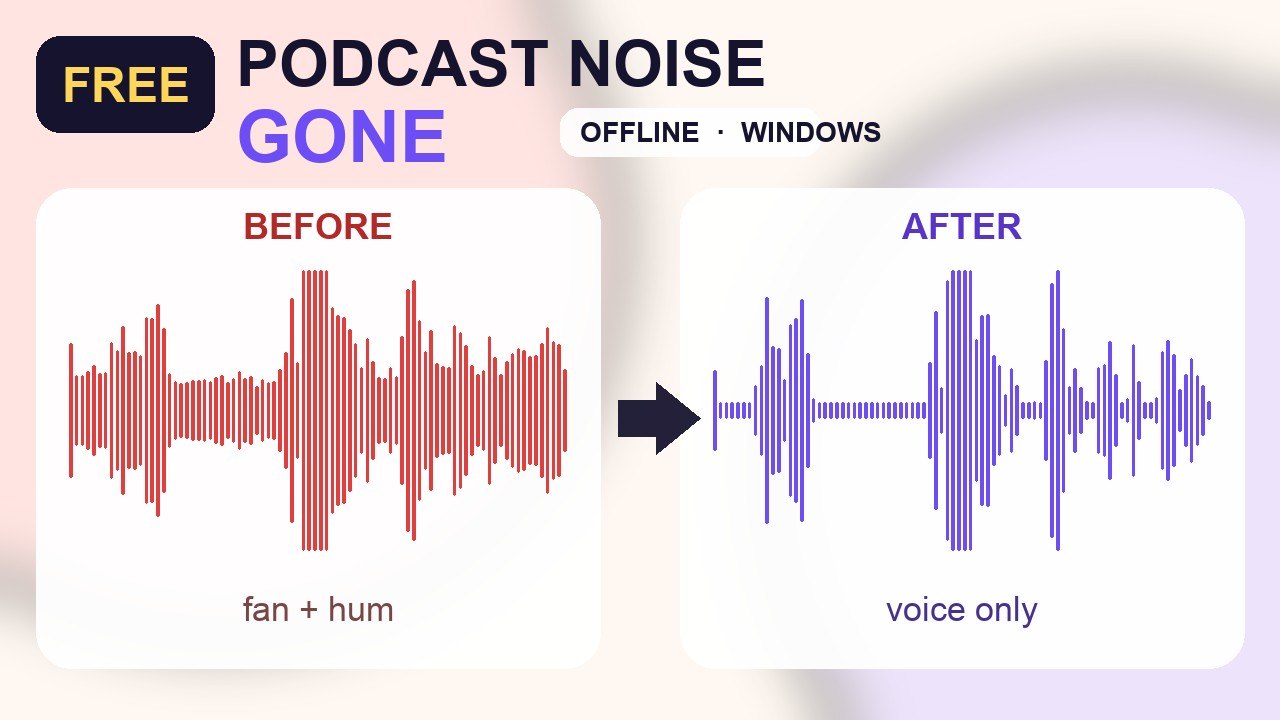
Results vary with the recording. A sample test is not a promise for every microphone.
Three free fixes before you open an app
- Move the mic farther from the PC fan, air conditioner, and fridge. Distance drops steady noise before any software does.
- Unplug chargers and USB hubs you are not using. A lot of hum is electrical, not “bad audio.”
- Record a five-second room tone with nobody talking. You will hear the noise floor before a guest is on the line.
Do these first. Cleanup cannot invent a clean voice that was never recorded.
Clean the file offline
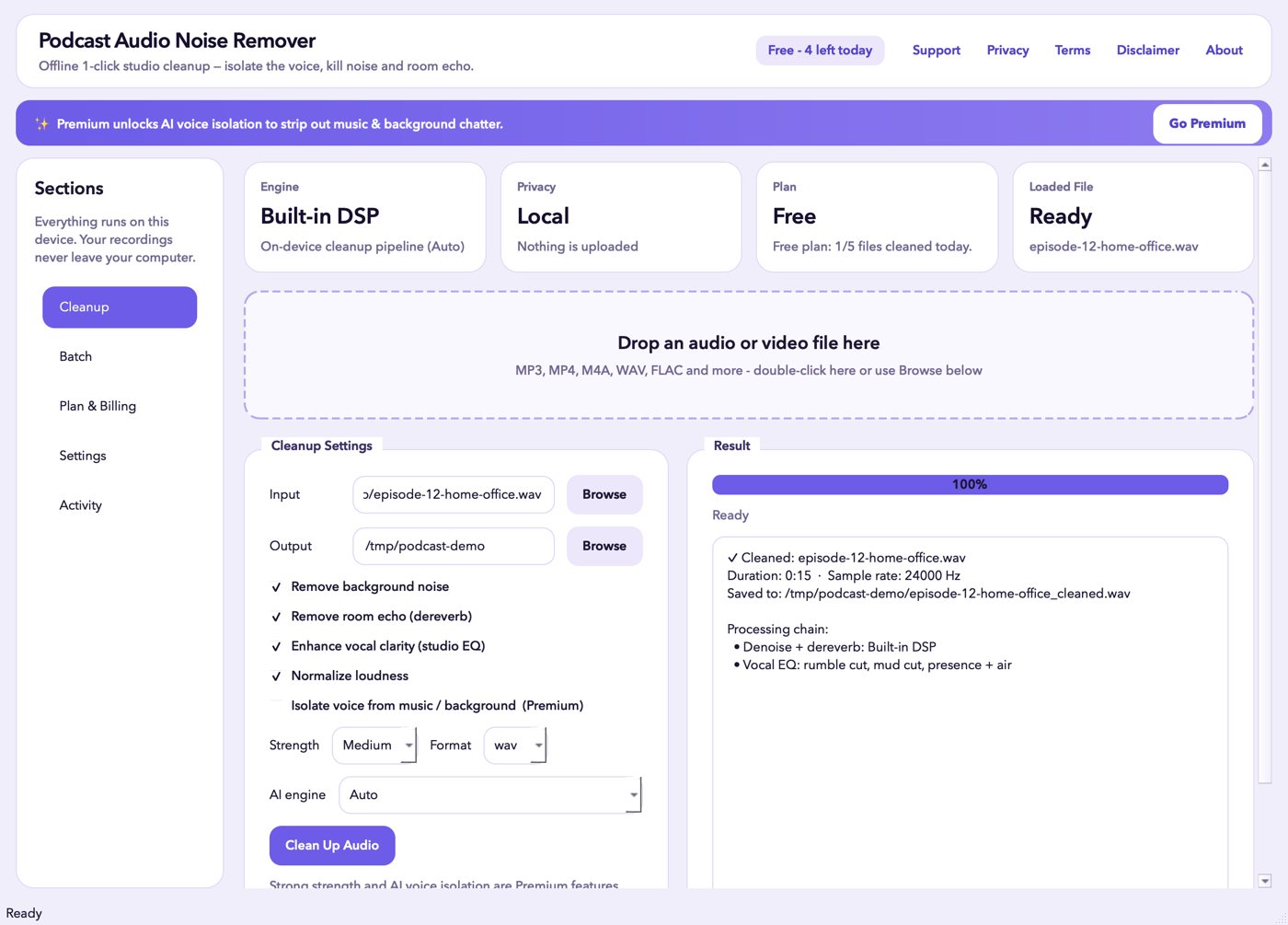
Podcast Audio Noise Remover runs on the PC. The test file never left the machine. In the app, the privacy line reads Local, and the plan used for this test was Free.
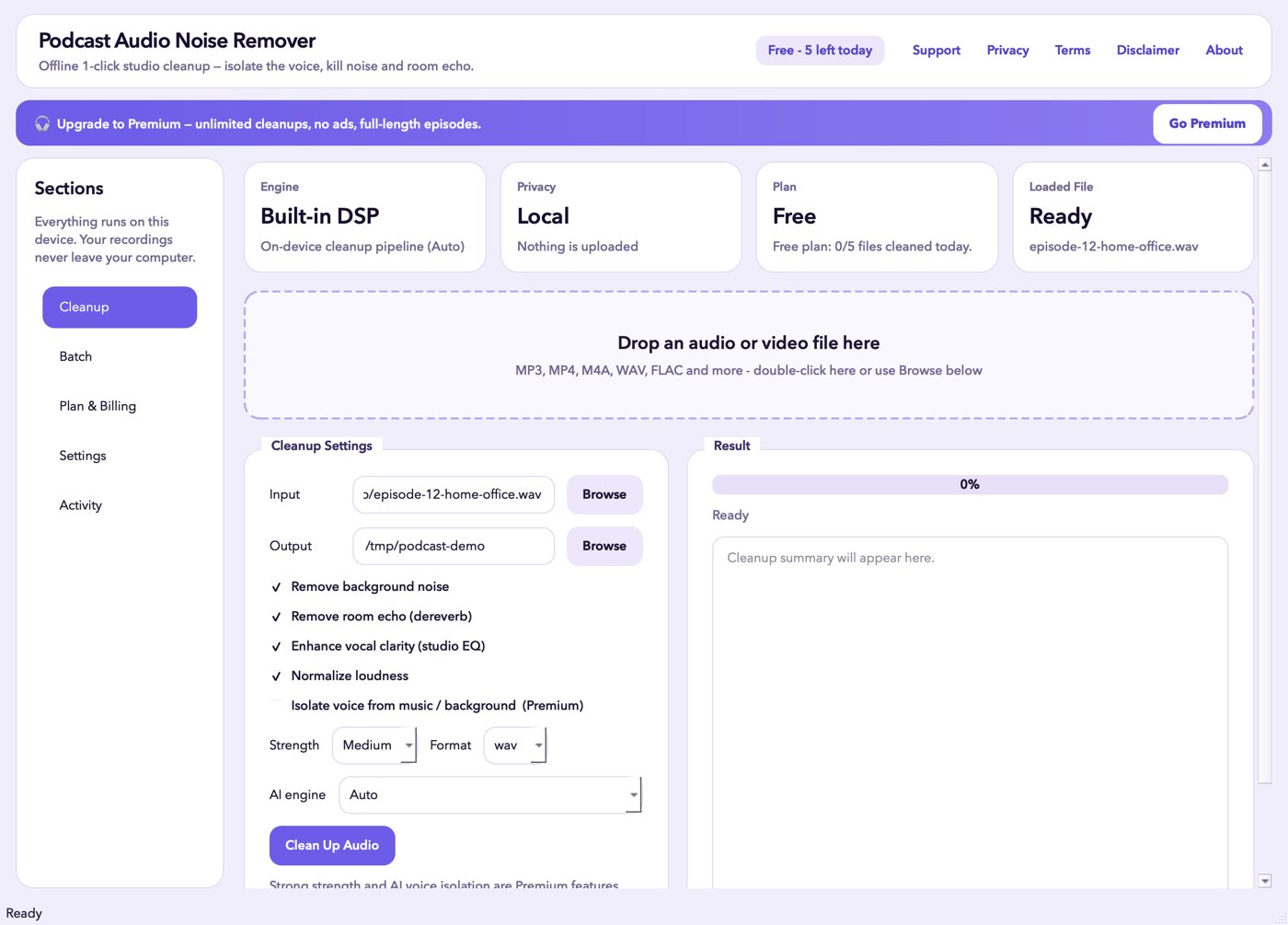
The tested settings were:
- Remove background noise: on
- Remove room echo: on
- Enhance vocal clarity: on
- Normalize loudness: on
- Strength: Medium
- Format: WAV
Press Clean Up Audio and wait for the bar to finish. The test export reported the built-in DSP chain: denoise plus dereverb, then a vocal EQ. Isolate-voice-from-music is a Premium switch and was not part of this test.
Which strength to pick
Light is the place to start when the room was already quiet and you only want a little hiss gone. Medium is what we used on the fan-plus-hum test. Strong, AI voice isolation, and batch are Premium options inside the app. Use a stronger setting only if Medium still leaves the fan obvious, and listen for the voice turning thin.
What this does not fix
- It does not remove a person talking in the background, music under the voice, or a guest on a bad phone line. Those need a different recording, not a stronger slider.
- It does not upload the file, and it also does not magically add detail that was never captured.
- Free to download means the Microsoft Store listing is free, with free daily cleanups. Premium is an optional upgrade. This is not a claim that every feature is free.
Download Podcast Audio Noise Remover on the Microsoft Store: apps.microsoft.com/detail/9nm9r9t99pbs

Writes guides and product notes for Bytesweavers.