How to convert an HEVC video to H.264 on a Mac with QuickTime
Your video plays on your Mac, but the editor or person receiving it asks for H.264. You may not need another app: QuickTime Player can export an H.264 copy. The important detail is the container. QuickTime’s export is a .mov file, not an .mp4, so this is a codec fix—not an MP4 conversion guide.
First check what you actually have
Open the original in QuickTime Player, then choose Window → Show Movie Inspector (or press Command-I). Read the Format, Dimensions, and frame-rate fields. In our controlled test, the source inspector showed HEVC. Don’t infer the codec from the filename: .mov describes a container, not the video stream inside it.

Export a compatible copy
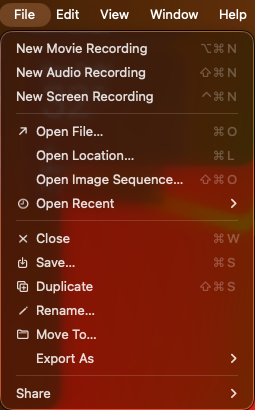
- With the original open in QuickTime Player, choose File → Export As.
- Choose 720p if that resolution is enough for your delivery. Apple’s QuickTime guide says this preset uses H.264. For a 1080p or 4K export, use Greater Compatibility (H.264) in the Format menu when that choice is offered; Smaller File Size uses HEVC.
- Give the export a new name and save it alongside—not over—the original.

Verify the output rather than trusting the preset
Open the exported file and show Movie Inspector again. The output in our test reported H.264 at 1280 × 720. We also opened the file to check playback. The source was 8.3 MB and the output 8.6 MB in this one test; a compatible export is not necessarily smaller. The output remained .mov.

If someone specifically requires an MP4 container, ask whether an H.264 .mov is acceptable before uploading. QuickTime Player’s own export does not create an MP4 video file. You would need a separate MP4 remux/export step; merely renaming .mov to .mp4 does not change the container.
What this does—and does not—fix
This can solve a codec-compatibility problem when the receiving workflow accepts H.264 in MOV. It won’t recover lost detail, make a low-resolution source sharp, or guarantee a smaller file. If the delivery needs the original resolution, choose the appropriate export setting and verify the result in Movie Inspector. Keep the original until the receiving editor or platform accepts the copy.
Test notes: This was one privacy-sanitized Mac test with an HEVC input, QuickTime Player’s 720p export, and inspector/playback checks on the H.264 output. It is not a benchmark of conversion speed or compression efficiency, and no private desktop content is shown. The screen-recorded walkthrough shows the process.
References: Apple’s export guide; Apple’s Movie Inspector guide.

Writes guides and product notes for Bytesweavers.