How to restore a faded old family photo offline (and what AI can and cannot bring back)
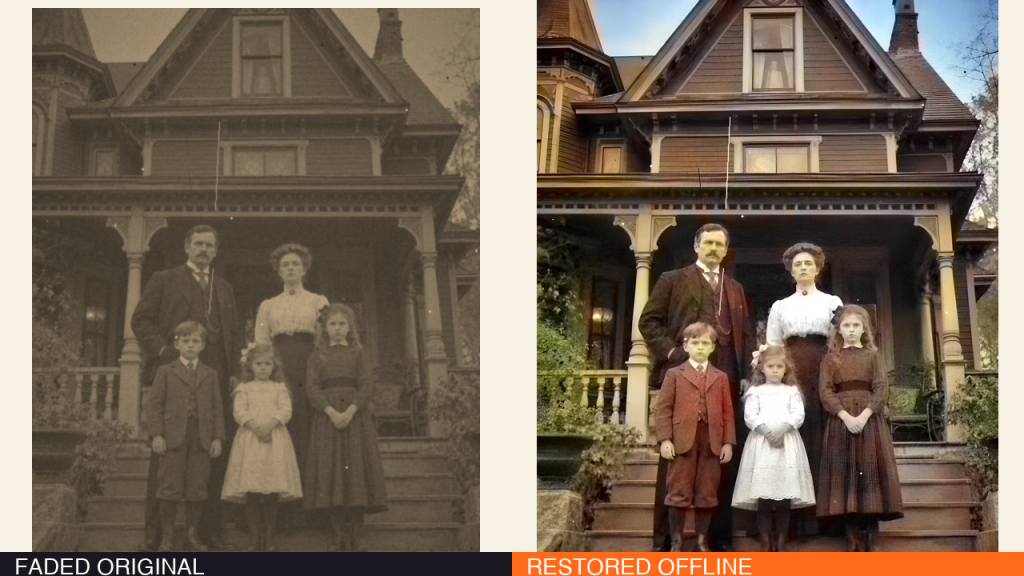
Every family has one: a print from decades ago that gets lighter, softer and harder to read every year. The good news is you do not need to upload it to a random website to work on it. You can restore a faded old family photo offline, on your own device, in two careful passes.
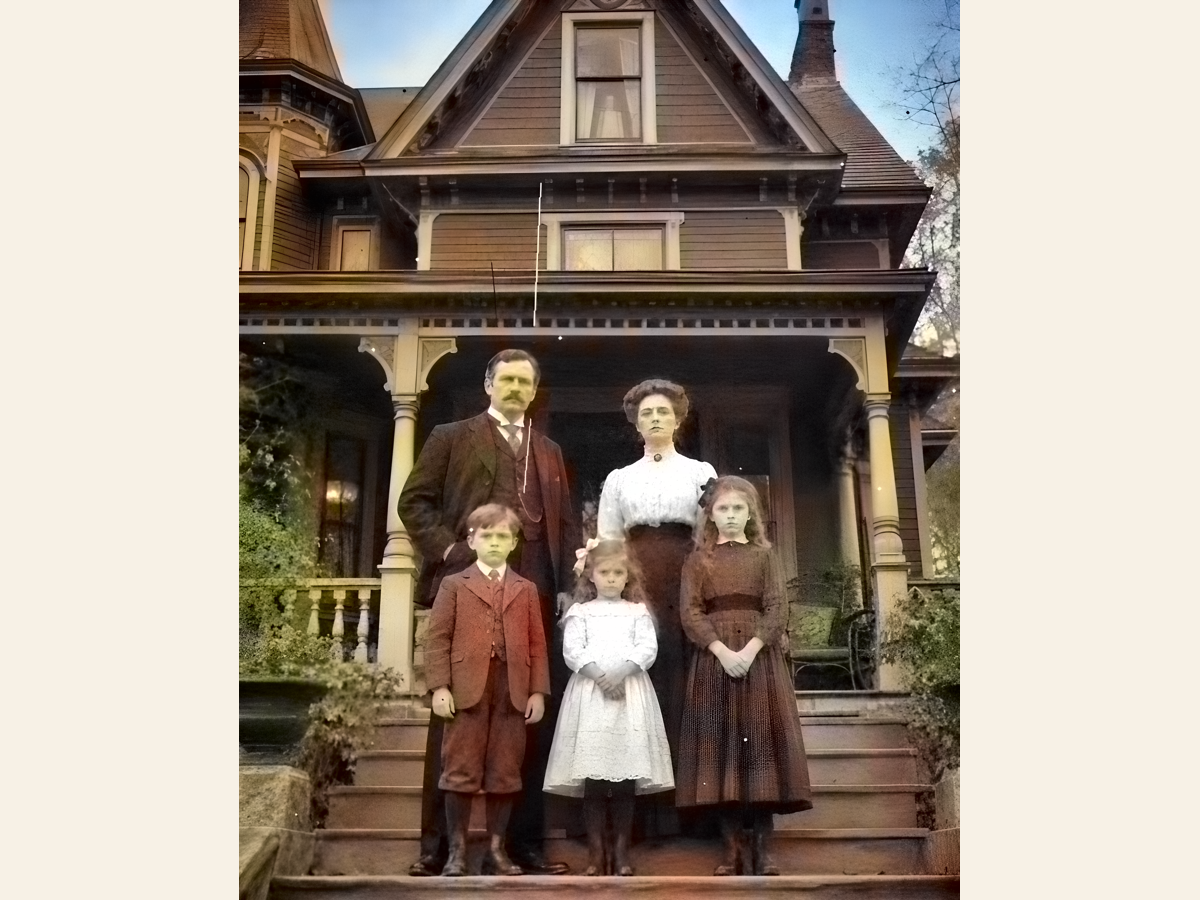
Full honesty first: the worked example below uses a staged, AI-generated “attic” photo, because we will not publish a real family’s private picture. The upscale and colour steps are real runs with open research models (Real-ESRGAN and a neural colouriser), not screenshots from our app, and results vary a lot by photo. The workflow is the part worth copying.
Step 0: start with the best scan you can get
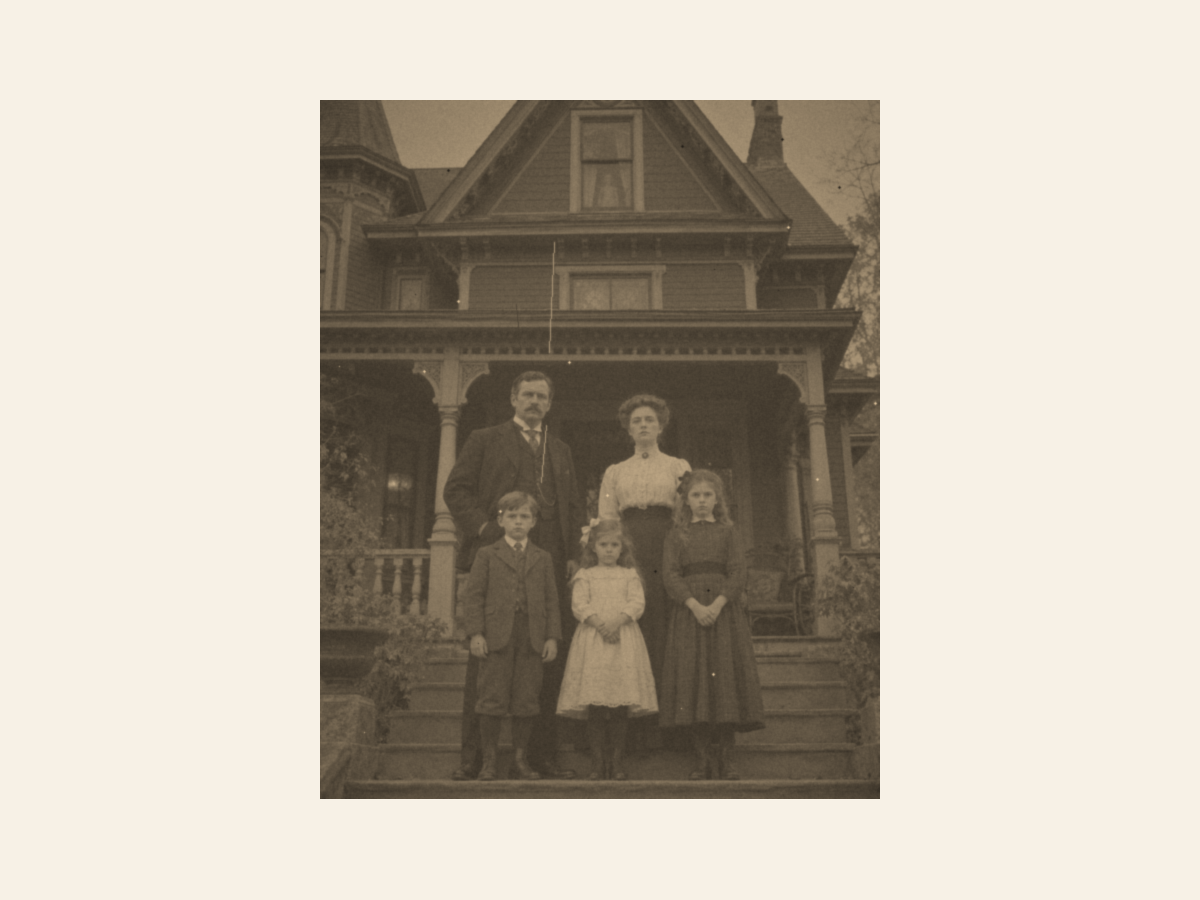
Restoration cannot invent real detail out of nothing, so give it a fair start. Scan or photograph the print straight-on, in even light, at the highest resolution you have. Then keep an untouched copy. Every step after this works on a duplicate.
Step 1: upscale first, colour second
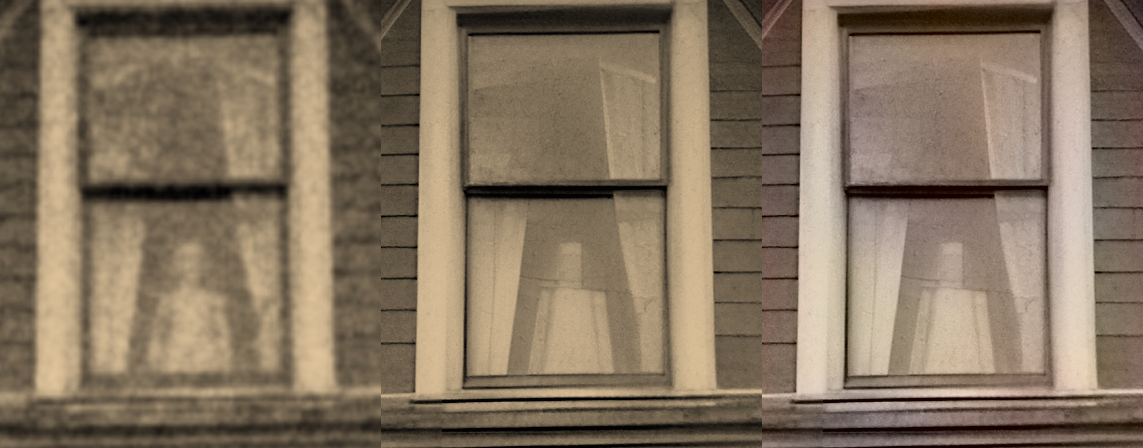
Order matters. Upscaling a faded photo first gives the colour step cleaner edges and faces to work with. In our test we upscaled 4x. Compare that with a plain zoom of the same area: the plain zoom is just bigger blur, while the upscaled version rebuilds edges well enough to actually inspect small details, like the attic window in this photo.
Step 2: bring the colour back, gently
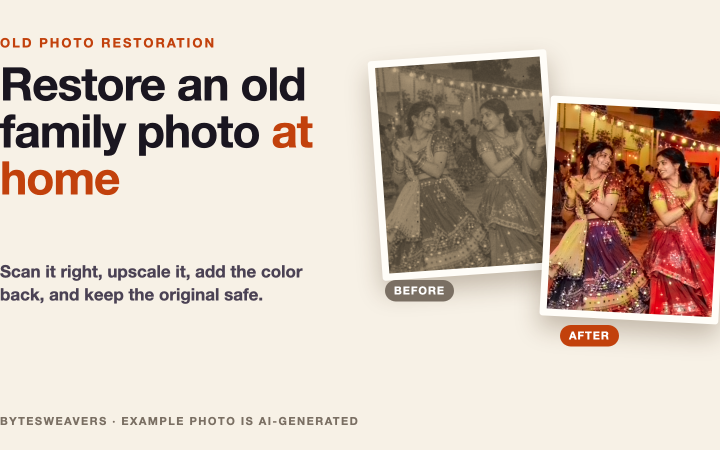
Colourising an old photo is an interpretation, not a recovery. The model guesses dress colours, skin tones and sky from patterns it has seen before. That is fine for a shareable family picture, as long as you treat the colours as “plausible”, not “true”. If a colour looks wrong, dial it back rather than pushing saturation until it looks modern.
The check most people skip: zoom in and audit the AI
- Faces first. Eyes, teeth and hands are where upscalers invent detail. If a face looks “different”, compare it side by side with the scan.
- Text and patterns. Signs, lace, bricks and window frames can turn into confident nonsense at 4x.
- Edges. Look where people meet the background. Halos and melted edges mean you pushed too far.
- Keep the original. Your restored version is an edition, not a replacement. Archive the untouched scan with it.
Why do this offline?
Family photos are private. An offline tool means the picture never leaves your phone or computer, there is no upload queue, and it works on a plane, in a village, or anywhere with no signal. It also means you can re-run a step ten times without paying per try.
Try it on your own photos
We make Offline Photo Restorer for iPhone and iPad, and a companion Offline Photo Colorizer, exactly for this two-pass job. Watch today’s 16-second version on YouTube Shorts, where the same staged photo goes from faded scan to colour, window detail included.
Limits, plainly
- Heavy motion blur and faces only a few pixels wide cannot be truly recovered. AI will guess, and the guess can be wrong.
- Colour is a plausible interpretation, never proof of the original colours.
- Our example used open research models on a Mac. Your app and photo will give different results, so check yours at full size.

Writes guides and product notes for Bytesweavers.