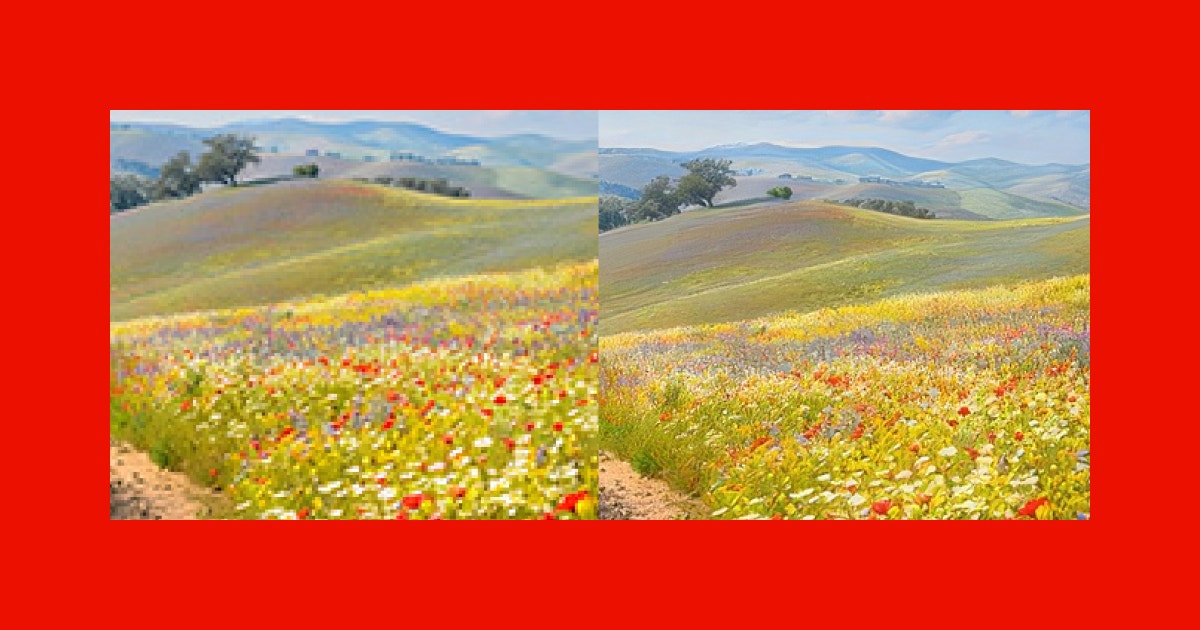
How to Upscale Images in Bulk for Free on Windows: AI Tools Compared
Imagine you’ve just returned from a weekend photo shoot with hundreds of RAW files, each begging for a little extra resolution before they hit print or your portfolio.
Manually upscaling every image is tedious, and uploading them to an online service raises privacy concerns and can eat up your bandwidth.
What if you could enhance dozens of photos at once, right on your Windows PC, without spending a dime and without ever leaving your machine?
In this guide you’ll learn what bulk AI image upscaling is, why it matters for creators and businesses, how free browser‑based and downloadable Windows tools compare, and a practical workflow you can start using today.
Why Bulk AI Upscaling Matters More Than Ever
Bulk AI upscaling isn’t just a novelty; it’s a productivity multiplier for anyone who works with visual content.
Research shows that 73% of photographers need to enlarge images for large‑format prints, while 68% of digital artists report that higher resolution lets them keep fine texture details when zooming in on their work.
By processing a whole folder in one click, you save hours that would otherwise be spent opening, adjusting, and saving each file individually.
Beyond time savings, on‑device AI upscaling keeps your data private—no images ever leave your computer, which is crucial for client work, medical imaging, or any proprietary material.
Browser‑Based Tools vs. Downloadable Windows Apps: Privacy and Performance
Free browser‑based upscalers let you drag and drop images straight from your desktop, but they rely on an internet connection and often impose strict daily limits on the number of files you can process.
In contrast, a downloadable Windows application runs entirely on your hardware, meaning you can work offline, keep full control over your data, and leverage your GPU for faster batch jobs.
For example, the free AI Image Upscaler from BytesWeavers offers a simple interface and runs locally, yet caps you at ten images per day—a fine option for occasional use.
If you regularly need to upscale dozens or hundreds of photos, upgrading to the Pro version removes that limit, adds custom model import, and unlocks GPU acceleration for real‑time 2x‑4x upscaling without sacrificing privacy.
Quick Comparison: Free Upscalers You Can Use Today
| Feature | Free Version | Pro Version |
|---|---|---|
| Daily Image Limit | 10 images | Unlimited |
| Upscale Scale Range | 2x‑4x (bundled models) | 2x‑4x (Real‑ESRGAN, custom .onnx) |
| Bulk Folder Processing | No (single‑image focus) | Yes (drag‑and‑drop folder) |
| Custom Model Import | No | Yes (Hugging Face, .onnx) |
| GPU Acceleration | Limited (CPU fallback) | Full GPU support |
| Offline Processing | Yes | Yes |
| Price | $0 | $9.99 (one‑time) |
This table highlights the core trade‑offs: the free tier gets you started with basic upscaling, while the Pro version removes daily caps, adds batch capabilities, and lets you bring in state‑of‑the‑art models for better detail preservation.
Choosing the right tier depends on your volume—if you only need to touch up a handful of shots each week, the free tool is sufficient; for regular bulk work, the Pro upgrade pays for itself in saved time and flexibility.
From Folder to Finished: A Step‑by‑Step Workflow and Automation Tips
Start by installing the AI Image Upscaler (free or Pro) from the Microsoft Store.
Once launched, click the “Add Folder” button, select the directory containing your raw images, and choose your desired scale factor—2x for modest prints, 4x for large‑format posters, or experiment with 8x if you have a powerful GPU and are willing to inspect results for over‑smoothing.
Enable the “Preserve EXIF” toggle if your workflow relies on camera metadata; the Pro version retains this information automatically, while the free version keeps it by default but strips it only when you opt‑out.
Press “Start” and watch the progress bar; on a mid‑range RTX 3060, a folder of 50 12‑MP JPEGs typically finishes in under five minutes at 4x.
For those who love automation, the Pro version exposes a simple REST endpoint that can be called from Zapier or a PowerShell script, allowing you to trigger an upscale whenever new files land in a monitored folder—perfect for pipelines that feed directly into a WordPress gallery or an e‑commerce product upload.
Conclusion
Free bulk AI upscaling on Windows puts professional‑grade resolution enhancement within reach of every creator, without sacrificing privacy or breaking the bank.
By understanding the limits of browser‑based tools, leveraging a solid downloadable app, and following a streamlined folder‑based workflow, you can turn low‑resolution assets into print‑ready, portfolio‑worthy images in minutes.
Whether you’re a photographer preparing a gallery show, a marketer resizing product shots, or a hobbyist reviving old family photos, the combination of on‑device AI and smart automation lets you focus on creativity rather than repetitive chores.
Take the first try today with the free AI Image Upscaler, and if your volume grows, consider the Pro upgrade as a worthwhile investment in both time and image quality.

Writes guides and product notes for Bytesweavers.