AI Voiceover Sounds Rushed? How to Improve Phrasing on Mac
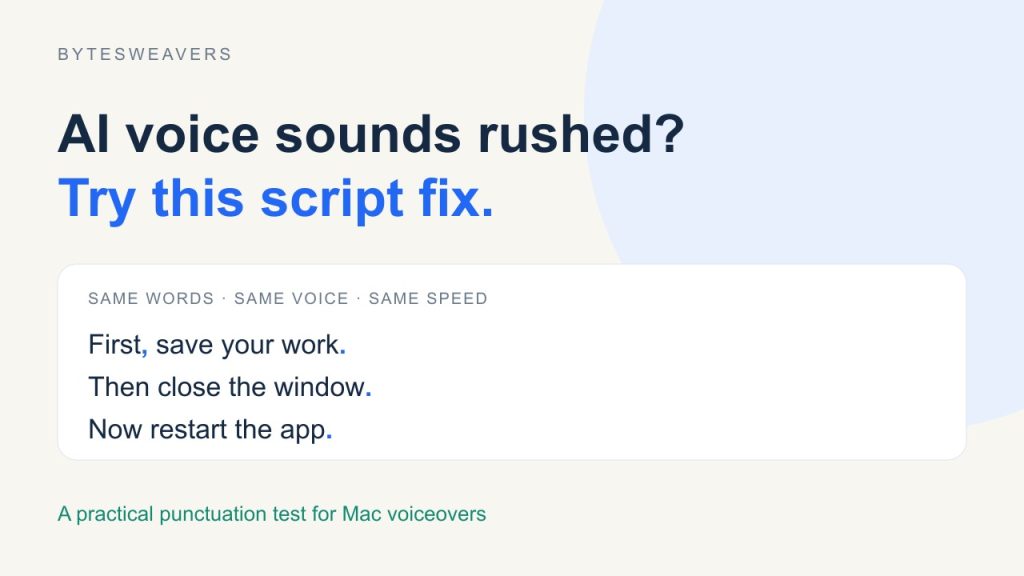
An AI voice can sound rushed even when the selected speaking rate looks reasonable. Before switching engines or buying another voice, try editing the script: add punctuation where an instruction needs a pause and break a long sentence into smaller steps.
We tested this in AI Text To Speech Generator for Mac using Kokoro’s Emma voice. The voice and speed setting stayed the same. The difference is a modest phrasing change, not a promise that punctuation makes synthetic speech indistinguishable from a person.
Disclosure: Bytesweavers makes this app. The screenshots and audio come from our Mac source build. Narration is AI-generated.
Listen to the 20-second comparison
Watch the real before-and-after voiceover test.
1. Start with the same words
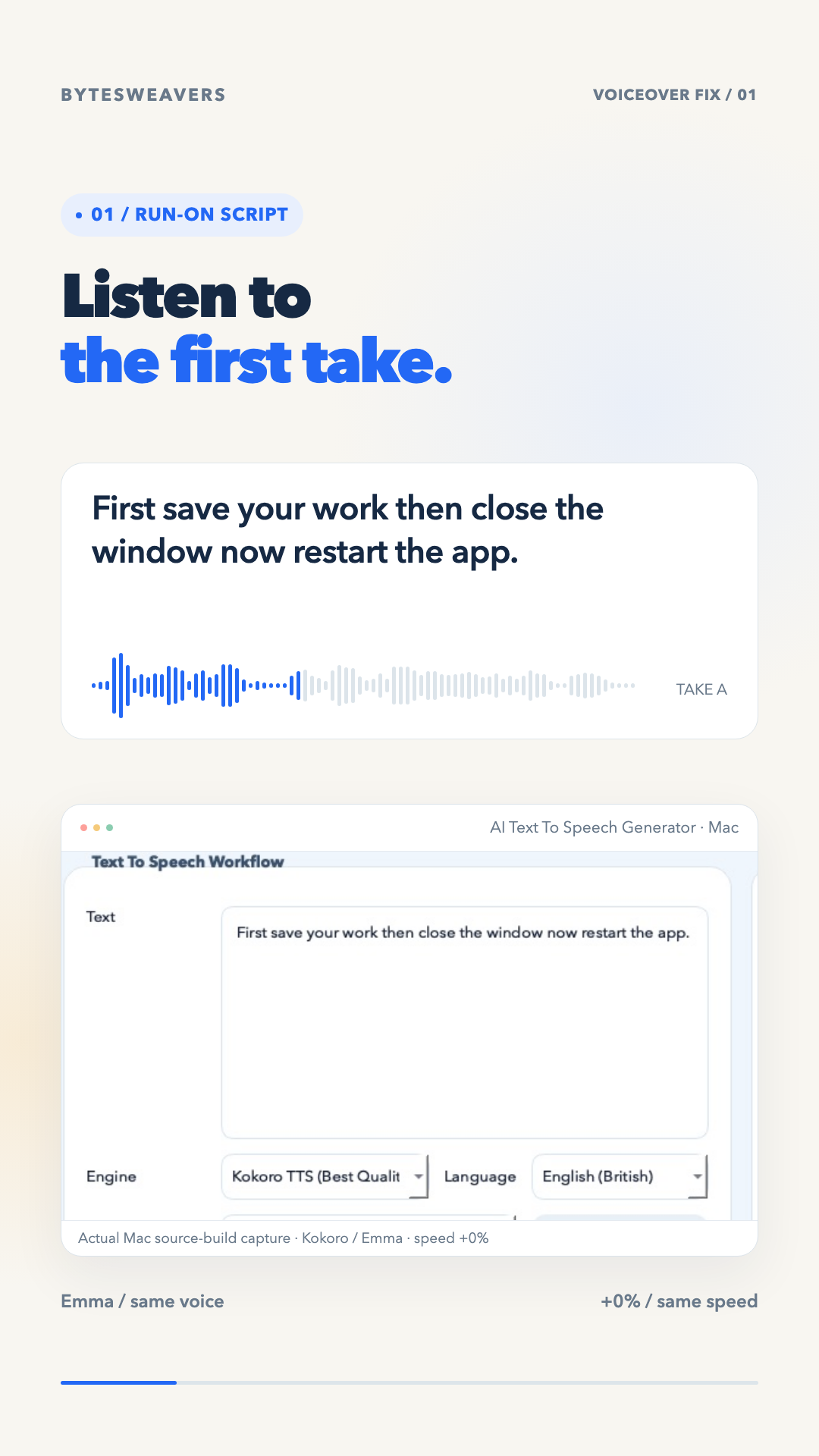
Our first script was a single instruction without internal punctuation:
First save your work then close the window now restart the app.
We generated it with Kokoro / Emma, English (British), speed +0%. That gives us a useful baseline. Changing the voice, engine and speaking rate at the same time would make it hard to tell what helped.
2. Add a comma and split the instructions
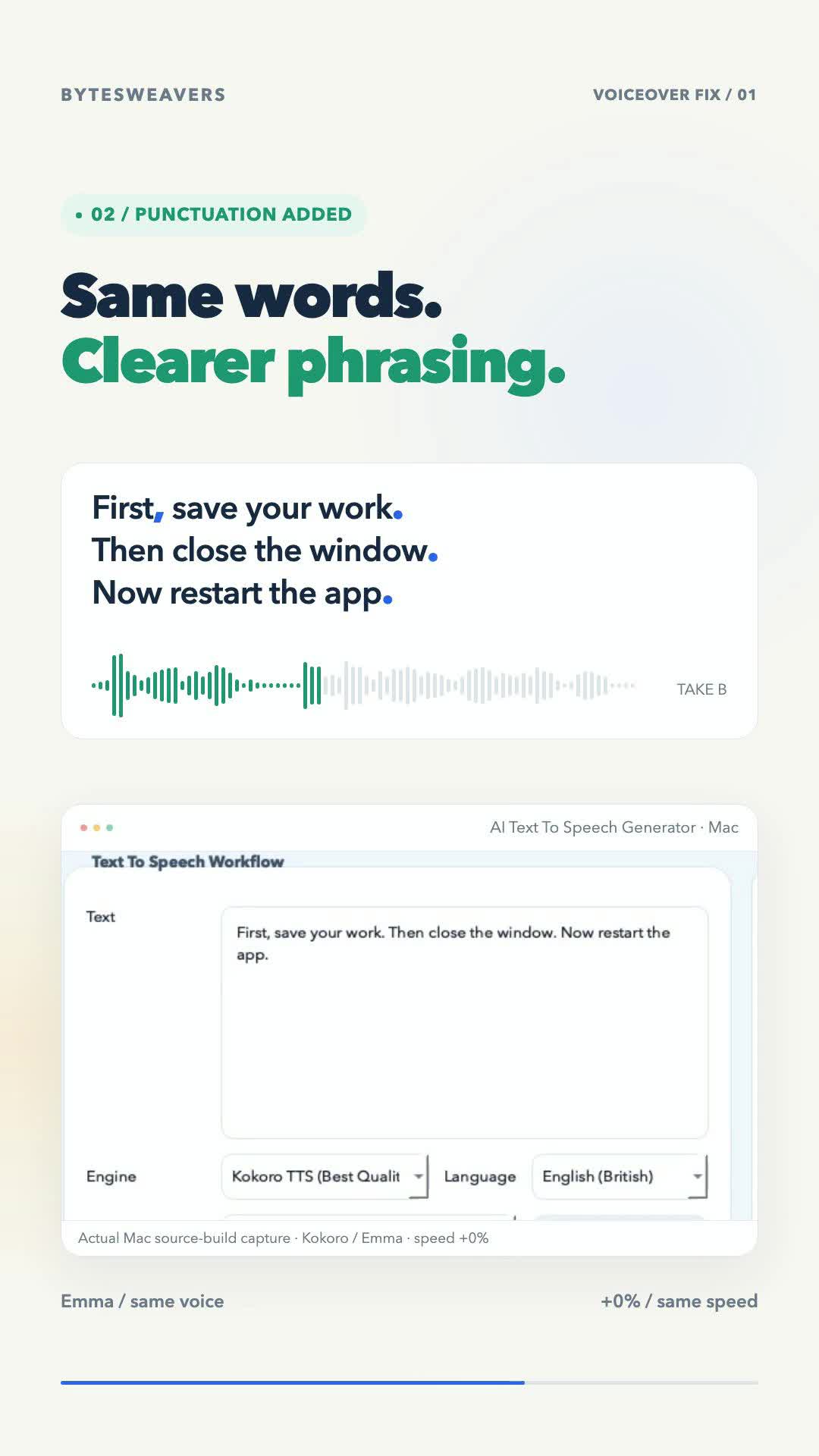
Keep the vocabulary unchanged, but give each action its own sentence:
First, save your work. Then close the window. Now restart the app.
This makes the intended grouping visible to both the reader and the speech engine. A comma can suggest a lighter break. A full stop separates complete instructions. The response depends on the engine and voice, so generate and preview the result rather than assuming every punctuation mark produces a fixed pause.
3. Compare the actual exports
The raw first export lasted 4.175 seconds; the punctuated version lasted 4.55 seconds. Both used the same voice and speed. We trimmed only leading and trailing silence for the reel and preserved the internal timing. No artificial pause was inserted into either comparison sample.
A longer result is not automatically better. Listen for whether each instruction is easy to follow. Too many stops can make a script sound choppy. The goal is understandable phrasing.
A quick checklist before exporting a presentation voiceover
- Write one clear action per sentence.
- Use commas where a short break helps the meaning.
- Spell out unusual abbreviations if the chosen voice misreads them.
- Keep the same voice and speed while testing script changes.
- Preview the full exported file, including names, numbers and sentence endings.
Try the workflow on Mac
AI Text To Speech Generator for Mac provides a place to choose a voice, generate the script and preview an export. Check the current App Store listing for availability and plan details. The demonstration here is from our source build; it is not a fresh compatibility test of every Store release.
The useful takeaway applies beyond this app: test the words and punctuation before changing all your voice settings.

Writes guides and product notes for Bytesweavers.